
Some jobs need a real browser but no person in front of it. A server renders a nightly report to PDF, takes screenshots of a dashboard, or reads data from a portal that has no API. On Windows, such a job usually runs as a Windows service: it starts with the machine and runs when nobody is signed in.
Microsoft doesn’t support WebView2 in this setup. Its documentation rules out the account that services get by default, and its engineers describe the other setups as a limitation or as by design. We quote both below.
In this article, we’ll build a .NET Worker Service, a project type for long-running background apps. It runs DotNetBrowser, a Chromium-based web view for .NET, headless: with no window and no desktop. Once a minute, it saves HTML pages as PDF and PNG files and their text as JSON.
We used DotNetBrowser 4.3.4. We ran the service on .NET 10 on Windows 11 and Windows Server 2025, and on .NET 8 on Windows 11.
What you’ll need
To follow along, you’ll need:
- Windows 10 or later, or Windows Server 2016 or later.
- The .NET 10 SDK. For .NET 8, change
TargetFrameworkinDnbReportService.csprojtonet8.0-windows - A DotNetBrowser license key. The evaluation key is free for 30 days.
- Administrator rights, to install the service.
What changes when code runs as a service
Compared to a desktop app or a console run, three things change.
The service runs in session 0. Each signed-in user gets a session: a desktop with its own windows. Services run in a separate session, session 0, which has no interactive desktop. Nobody sees the windows created there, and nobody can click a dialog. Chromium can still use the graphics card there. In our runs, it did on Windows 11; on a Windows Server virtual machine without a GPU, it switched to software rendering.
The service runs under its own account, such as LocalSystem, LocalService,
NetworkService, or a regular user account. It can also be a virtual
account: a low-privileged account that Windows creates for one service,
with no password. The account has its own user folder, temporary folder,
and environment variables, separate from yours. For LocalService,
the temporary folder is
C:\Windows\ServiceProfiles\LocalService\AppData\Local\Temp.
The service starts in C:\Windows\System32, not in its own folder, so
relative file paths resolve against System32.
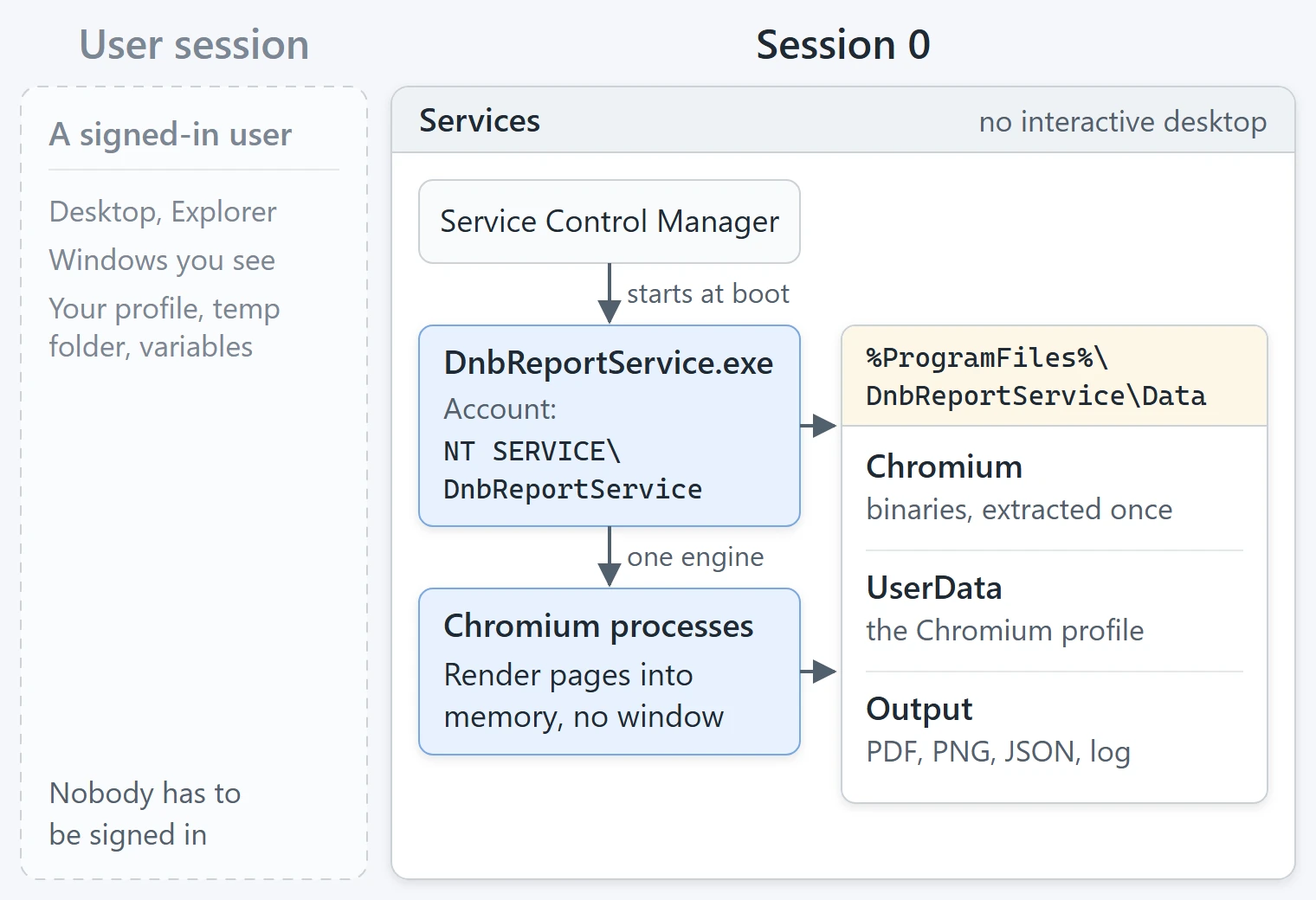
The service and Chromium run in session 0.
Why WebView2 isn’t supported in a Windows service
WebView2 is Microsoft’s web view for Windows applications, built on Microsoft Edge. Developers have tried to use it in services to print pages to PDF or to take screenshots. In many reports in WebView2’s issue tracker on GitHub, WebView2 hangs when it creates the browser, with no error. In others, it fails with an error code. As of October 23, 2026, this is what Microsoft says:
- LocalSystem is blocked by design, for security reasons. The WebView2
security documentation says: “WebView2 cannot be run as a system
user.” LocalSystem is the default account in
sc.exeandNew-Service - Administrator accounts don’t work. A service under an administrator account runs with full administrator rights, or elevated. WebView2 doesn’t run its own processes elevated. From an elevated app, it asks Windows Explorer to start them with lower rights, and session 0 has no Explorer. In issue #3458, open since May 2023, a member of Microsoft’s WebView2 team calls this “a WebView2 limitation with no workaround.” The same engineer points to a different account instead: “Running the service with non admin account is the only workaround.”
- With nobody signed in, the hang is likely by design. Issue #4259 is about a scheduled task. There, in January 2024, a member of the WebView2 team replied: “I believe this is currently By Design and has to do with trying to run as a non-logged-in user.” The engineer asked whether the task ran as LocalSystem; the reporter said it ran as an elevated user instead. Microsoft hasn’t replied since, and the issue stays open.
A non-admin account worked for some developers, such as the reporters of #3458 and #3786, but not for all. A community library, Westwind.WebView, runs WebView2 without a visible window. One developer reports this approach working in production (#4198), and others report hangs in non-interactive sessions (#4259, #4961). These are community workarounds, not a supported setup.
Issue #4198 is also a feature request for headless WebView2: a WebView2 that needs no window and no desktop. In January 2024, a Microsoft engineer “created an internal item to track this.” In April 2025, a reply there said it “has not been prioritized for now.”
Similar reports, such as #3177 and #2756, stay open. Others, such as #3026 and #2434, were closed without a fix from Microsoft.
DotNetBrowser doesn’t need Explorer or a signed-in user. In our tests, it ran in session 0 under LocalSystem and under an administrator account, and after a reboot with nobody signed in. Rendering is off-screen: pages are drawn into memory, and the service needs no window. For other differences, see DotNetBrowser or WebView2.
Creating the Worker Service
The complete example is in the GitHub repository. Clone it to follow along:
git clone https://github.com/TeamDev-IP/DotNetBrowser-Examples.git
The example is in csharp/windows-service
dotnet new worker -o DnbReportService
cd DnbReportService
dotnet add package DotNetBrowser.Win-x64
dotnet add package DotNetBrowser.Chromium.Win-x64
dotnet add package Microsoft.Extensions.Hosting.WindowsServices
dotnet add package System.Drawing.Common
The two DotNetBrowser packages are the library and the Chromium
binaries for 64-bit Windows. The project references no WPF or WinForms
package, because a service shows no UI. System.Drawing.Common saves
the screenshots. It works only on Windows, so the project targets
net10.0-windowsnet10.0.
Program.cs sets up the .NET host, which starts and stops the parts of
the app:
// A service starts in C:\Windows\System32, so resolve
// appsettings.json and relative paths against the app folder.
HostApplicationBuilderSettings settings =
    new HostApplicationBuilderSettings
    {
        Args = args,
        ContentRootPath = AppContext.BaseDirectory
    };
HostApplicationBuilder builder =
    Host.CreateApplicationBuilder(settings);

// Talks to the Service Control Manager when started by it.
// In a console it does nothing, so the same exe runs there too.
builder.Services.AddWindowsService(
    o => o.ServiceName = ServiceName);
// ...
// Hosted services start in order and stop in reverse order:
// the engine starts first and is disposed last.
builder.Services.AddSingleton<BrowserEngineHost>();
builder.Services.AddHostedService(
    sp => sp.GetRequiredService<BrowserEngineHost>());
builder.Services.AddHostedService<ReportWorker>();

builder.Build().Run();
A hosted service is one of the parts the host manages: a class that the host starts and stops. It isn’t a separate Windows service.
AddWindowsService() does for Host.CreateApplicationBuilder() what
UseWindowsService() does for the older Host.CreateDefaultBuilder().
When the exe runs as a service, AddWindowsService() also sends
the logs to the Windows Event Log. The example adds a text
log file too.
The settings live in appsettings.json: the pages to render,
the interval, and three folders in Data next to the exe: Chromium,
UserData, and Output. The example renders two pages: report.html,
a local report that ships with the project, and
https://example.com/.
Starting the engine in off-screen mode
An engine is a running Chromium instance with its own processes. One
engine can host many browsers, much like tabs. BrowserEngineHost creates one
engine when the service starts:
EngineOptions engineOptions = new EngineOptions.Builder
{
    // No window and no desktop: render into memory.
    RenderingMode = RenderingMode.OffScreen,
    // The default is a new temporary folder for every engine.
    UserDataDirectory = options.UserDataDirectory,
    // The default is the temp folder of the service account.
    ChromiumDirectory = options.ChromiumDirectory
}.Build();
// ...
engine = await EngineFactory.CreateAsync(engineOptions);
Two of the options matter most in a service:
UserDataDirectoryis the user data folder, which Chromium calls a profile: cookies, cache, and local storage. Without it, every engine gets a new temporary folder, so nothing persists between restarts.ChromiumDirectoryis where DotNetBrowser extracts the Chromium binaries, about 500 MB. By default, it uses the temporary folder of the current account, so each service account gets its own copy. With one fixed folder, Chromium is extracted once instead of once per account.
The service account must be able to write to these folders.
The example keeps them in the Data folder next to the exe.
The install steps below put the service in
Program FilesData.
When the service stops, StopAsync() sets the stopping flag and
disposes the engine, which ends its Chromium processes.
A long-running service must also survive a Chromium crash. Before each
page, ReportWorker, the class described in the next section, asks
BrowserEngineHost for the engine. BrowserEngineHost creates a new
one if Chromium has exited:
public async Task<IEngine> GetEngineAsync()
{
    if (!stopping && (engine == null || engine.IsDisposed))
    {
        logger.LogWarning("The engine is gone; creating a new one.");
        await CreateEngineAsync();
    }
    return engine;
}
Loading a page and printing it to PDF
ReportWorker is a BackgroundService, the .NET base class for
a hosted service that runs a loop. At start and then once
a minute, it renders each page from the settings; the code calls
each page a job. For each page, it creates a browser, loads
the URL, and waits until the page is ready:
IEngine engine = await engineHost.GetEngineAsync();
using (IBrowser browser = engine.CreateBrowser())
// On stop, closing the browser ends a load that is still running.
using (stoppingToken.Register(browser.Dispose))
{
    // Off-screen browsers have no window, so set the viewport.
    browser.Size = ViewportSize;

    NavigationResult result =
        await browser.Navigation.LoadUrl(url, LoadTimeout);
    // ...
    bool ready = await WaitUntilReadyAsync(browser, job.ReadyScript);
    // ...
}
A finished load doesn’t mean finished content: the example report
draws its table and chart with JavaScript. So each page in the settings has
a ready check, a short script that returns true when the page
is done. WaitUntilReadyAsync() runs it before the worker saves
the page.
The example’s PdfExport class then prints the page with
the built-in PDF printer:
// Skip the print preview and print right away.
browser.RequestPrintHandler =
    new Handler<RequestPrintParameters, RequestPrintResponse>(
        p => RequestPrintResponse.Print());

// Send HTML pages to the PDF printer instead of a real one.
browser.PrintHtmlContentHandler =
    new Handler<PrintHtmlContentParameters,
                PrintHtmlContentResponse>(p =>
    {
        PdfPrinter<PdfPrinter.IHtmlSettings> pdf =
            p.Printers.Pdf;
        pdf.PrintJob.Settings.PdfFilePath = pdfPath;
        pdf.PrintJob.Settings.PrintingHeaderFooterEnabled = false;
        pdf.PrintJob.PrintCompleted += (s, e) =>
        {
            // ...
        };
        return PrintHtmlContentResponse.Print(pdf);
    });

browser.MainFrame.Print();
The service has no BrowserView, the control that shows
a browser in WPF or WinForms. Without one, a browser cancels print
requests, so the first handler tells it to print right away, with no print
preview. The second handler sends the page to the PDF printer, so
no system printer is involved.
Printing is asynchronous: the worker waits for PrintCompleted before it
closes the browser. The printing guide lists
the other print settings, such as paper size and margins.
Taking a screenshot and reading the DOM
Besides the PDF, the worker saves a screenshot and the text of one element, which goes to a JSON file:
Bitmap image = browser.TakeImage();
using (System.Drawing.Bitmap png =
           BitmapConverter.ToBitmap(image))
{
    png.Save(baseName + ".png", ImageFormat.Png);
}
// ...
IElement element = browser.MainFrame.Document
                          .GetElementByCssSelector(job.Selector);
text = element?.InnerText;
TakeImage() returns the pixels of the off-screen page as
a DotNetBrowser Bitmap, not a System.Drawing.Bitmap.
The example’s BitmapConverter.ToBitmap() copies the pixels into
a System.Drawing.Bitmap, and that bitmap’s Save() writes the PNG
file. To take screenshots reliably, see Taking screenshots of web
pages. For other ways to read the page, see
the DOM guide.
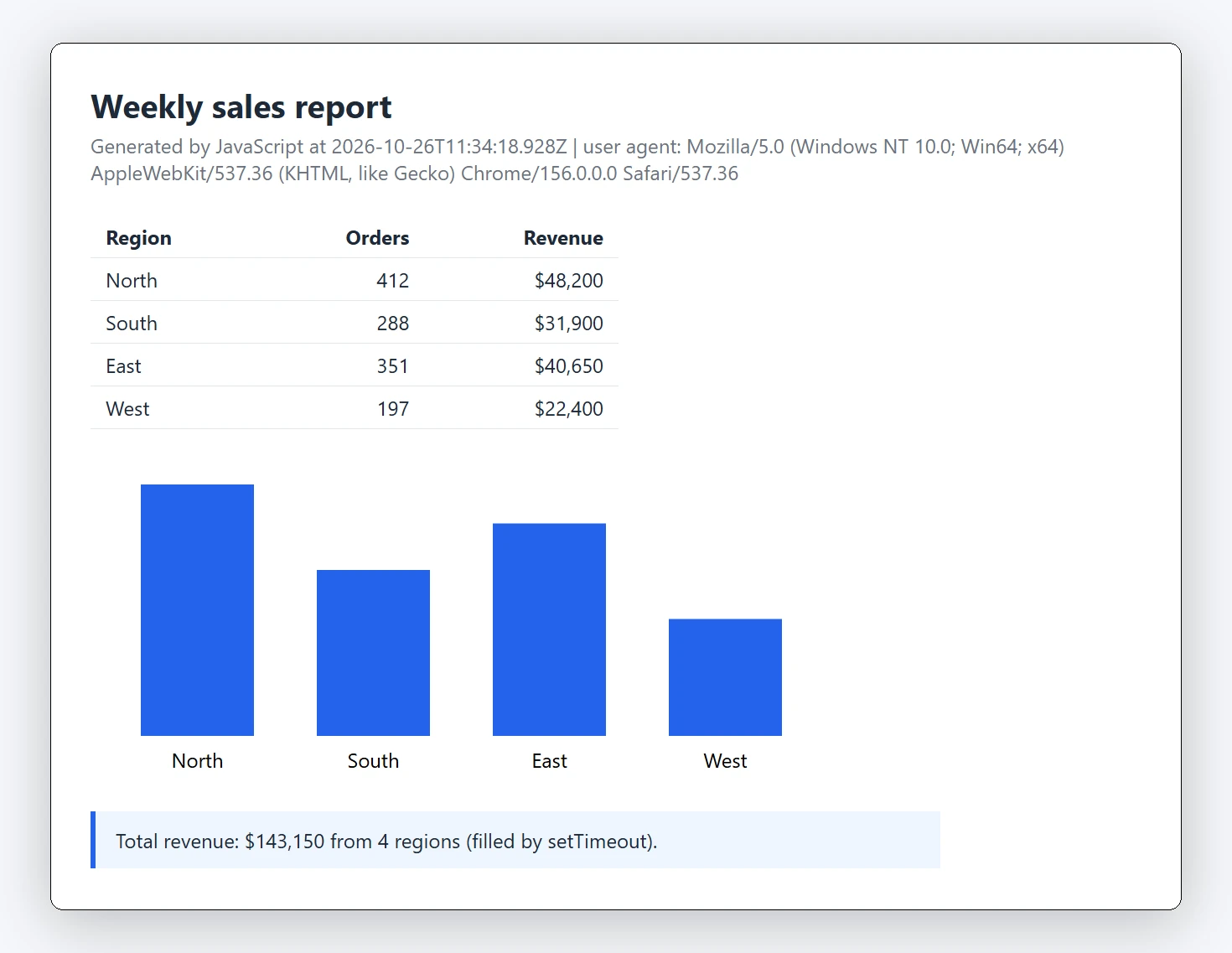
The screenshot the service took in session 0.
Running the example in the console
Before you install the service, run it in the console. Put your
license key into the dotnetbrowser.license file in the root folder
of the DotNetBrowser-Examples repository. The build copies it next to
the exe.
Then open PowerShell in csharp/windows-service
dotnet run --project DnbReportService
After the first cycle, the console shows
Cycle finished: 2 ok, 0 failed.DnbReportService\bin\Debug\net10.0-windows\win-x64\Data\Output. Press
Ctrl+C to stop it.
Why a normal window: since Chromium 138, a Chromium process that starts with administrator rights exits and restarts itself without them. The engine doesn’t survive that restart, so it doesn’t start in a window opened as administrator or in Visual Studio run as administrator. If you need administrator rights there, see the troubleshooting guide. A service isn’t affected.
Installing and starting the service
From csharp/windows-service
dotnet publish DnbReportService -c Release -r win-x64 --self-contained `
    -o publish
Then open Windows PowerShell as administrator. Use Windows PowerShell 5.1, not
PowerShell 7: *-EventLogcsharp/windows-service
Copy the published files to the install folder:
$installDir = "$env:ProgramFiles\DnbReportService"
New-Item -ItemType Directory -Force $installDir | Out-Null
Copy-Item -Recurse -Force publish\* $installDir
Register the Event Log source. Only an administrator can create it:
New-EventLog -LogName Application -Source DnbReportServiceCreate the service and switch it to a virtual account:
New-Service -Name DnbReportService -DisplayName DnbReportService ` -BinaryPathName "`"$installDir\DnbReportService.exe`"" ` -StartupType Automatic sc.exe config DnbReportService obj= "NT SERVICE\DnbReportService"sc.exeneeds the space afterobj=. Typesc.exe, notsc: in Windows PowerShell,scmeansSet-ContentGive the account access to its folders with
icacls, the command-line tool for file permissions. The account needs Modify on theDatafolder and Read & execute on the rest of the install folder:$account = "NT SERVICE\DnbReportService" $dataDir = "$installDir\Data" New-Item -ItemType Directory -Force $dataDir | Out-Null icacls $dataDir /inheritance:r /grant:r "*S-1-5-32-544:(OI)(CI)F" ` "*S-1-5-18:(OI)(CI)F" "${account}:(OI)(CI)M" icacls $installDir /grant "${account}:(OI)(CI)RX"(OI)(CI)makes the files and subfolders inherit the right;F,M, andRXare Full control, Modify, and Read & execute.Other users can’t create or change anything in
Program Files/inheritance:rremoves the rightsDatawould inherit, so they can’t read the profile or the reports either.Start the service:
Start-Service DnbReportService
Get-Service DnbReportService
The status should be
Running.
The license file was published with the exe, so the service finds it. Keep it there: a license key in your user environment variables doesn’t reach the service account.
Choosing the service account
LocalSystem, the default account, has full rights on the machine.
A service that loads web pages needs much less, so step 3 switches it to
a virtual account. We ran the example under each of these accounts on
Windows 11 and Windows Server 2025. It worked under all of them with no changes
to the code or appsettings.json:
| Account | Value of obj= in sc.exe | Name for icacls | Rights on the machine |
|---|---|---|---|
| Virtual account | NT SERVICE\DnbReportService | The same | Low |
| LocalService | NT AUTHORITY\LocalService | NT AUTHORITY\LOCAL SERVICE | Low |
| NetworkService | NT AUTHORITY\NetworkService | NT AUTHORITY\NETWORK SERVICE | Low |
| A user account, admin or not | .\<user>, with password= | <computer>\<user> | What you grant; needs the “Log on as a service” right |
| LocalSystem | LocalSystem | Not needed | Full |
We recommend a virtual account or LocalService.
Checking the logs
The service writes its start, its stop, warnings, and errors to
the Application event log under the DnbReportService source, and
every line to DnbReportService.log in the output folder. Only
administrators can read Data, so use the administrator window:
Get-EventLog -LogName Application -Source DnbReportService -Newest 20
$output = "$env:ProgramFiles\DnbReportService\Data\Output"
Get-Content "$output\DnbReportService.log" -Tail 20
These are lines from a log of our run:
Account NT SERVICE\DnbReportService, session 0, running as a service: True,
  ChromiumDirectory C:\Program Files\DnbReportService\Data\Chromium,
  UserDataDirectory C:\Program Files\DnbReportService\Data\UserData.
...
Cycle finished: 2 ok, 0 failed.
The first line shows the account, the session, and the folders Chromium uses. When the service behaves differently from the console, check this line first.
Stopping and removing the service
In Windows PowerShell as administrator:
Stop-Service DnbReportService
sc.exe delete DnbReportService
Remove-EventLog -Source DnbReportService
To remove the files as well, delete %ProgramFiles%\DnbReportService.
Limitations
DotNetBrowser can’t run where the Windows windowing and drawing APIs, User32 and GDI32, are blocked, such as Azure App Service and Azure Functions.
Conclusion
The result is a Windows service that runs Chromium and saves web pages as PDF, PNG, and JSON files, with no window and no signed-in user. It runs under a low-privileged account, keeps Chromium, its user data, and the output in one folder, and recovers when Chromium exits. For the same job in a console app, see the console quick start. On Linux, see the headless Linux guide and our article on deploying DotNetBrowser with Docker.
The complete source is available in the example repository. To try it with your own pages, get a free evaluation license:

Sending…
Sorry, the sending was interrupted
Please try again. If the issue persists, contact us at info@teamdev.com.
Your personal DotNetBrowser trial key and quick start guide will arrive in your Email Inbox in a few minutes.