

Excel supports COM add-ins that extend its interface and interact with the workbook programmatically. An add-in can add ribbon buttons, handle spreadsheet events, and show custom UI in task panes — side panels that sit alongside the data.
With DotNetBrowser, a task pane can host a full Chromium browser, and the web page inside it can read and write spreadsheet data directly.
This article walks through building a COM add-in that does exactly that. The complete source is available in the GitHub repository.
If you’re exploring related Office integration scenarios, two tutorials may also be useful. The VSTO tutorial shows how to embed DotNetBrowser into a Microsoft Outlook add-in, and the COM/ActiveX tutorial explains the broader wrapping approach for COM clients and ActiveX containers.
Architecture overview
The add-in we’re going to build is a COM class library that Excel discovers through the Windows registry and loads at startup. It extends the ribbon with a button; clicking it opens a task pane and starts a DotNetBrowser browser view inside it.
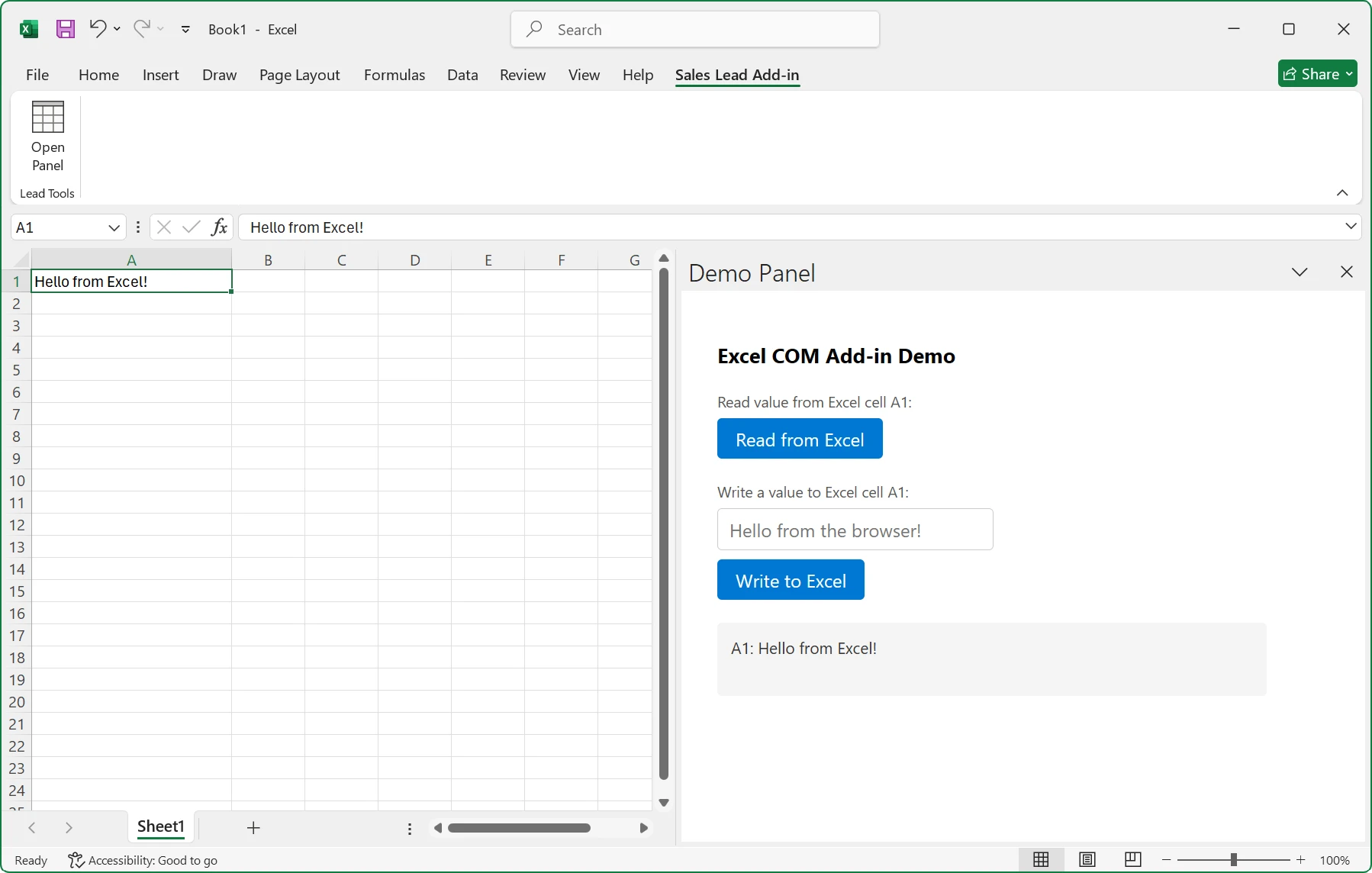
A custom pane in Excel with DotNetBrowser.
DotNetBrowser provides a visual BrowserView control that can
be embedded in a WinForms application. We wrap it in a
COM-visible WinForms container and show that container in the
task pane. The browser loads a local web page bundled with the
add-in, and injects a special C# object into the page’s JavaScript
environment. We will use this object to let the page and the spreadsheet
directly exchange information.
Excel
 ├── COM Add-in
 │    ├── Custom ribbon tab and button
 │    └── Custom pane
 │         └── WinForms COM-visible control
 │              ├── DotNetBrowser
 │                   └── Local web page
1. Project setup
Create the class library
In Visual Studio, create a new Windows Forms Class Library
targeting .NET Framework 4.7.2 or later. .NET Framework is the
conventional target for Office COM add-ins. Name the project
ExcelComAddin. The output type must be Library.
Install DotNetBrowser
Install the DotNetBrowser.WinForms NuGet package. It pulls
in the core DotNetBrowser package and the Chromium binaries
for all supported Windows architectures:
dotnet add package DotNetBrowser.WinForms
Sign the assembly
Signing the assembly with a strong name ensures that regasm.exe can reliably register it and that Excel can load it consistently. In Visual Studio, go to Project Properties → Signing, check
Sign the assembly, and create a new key file. The .csproj will reflect
this:
<PropertyGroup>
  <SignAssembly>true</SignAssembly>
  <AssemblyOriginatorKeyFile>test.snk</AssemblyOriginatorKeyFile>
</PropertyGroup>
Enable COM registration on build
In Project Properties → Build, enable Register for COM
Interop for the Debug configuration. MSBuild will run
regasm.exe after each build and unregister on clean.
In the .csproj:
<PropertyGroup
    Condition="'$(Configuration)|$(Platform)'
               == 'Debug|AnyCPU'">
  <RegisterForComInterop>true</RegisterForComInterop>
</PropertyGroup>
Assembly registration writes to the Windows registry and requires administrator privileges. Run Visual Studio as administrator, or the registration step will fail with an access-denied error that can be easy to miss in the build output.
2. The add-in entry point
The Connect class is the COM entry point Excel loads at
startup. We mark it with the attributes that identify it to the
runtime:
[ComVisible(true)]
[Guid("...")]
[ProgId("ExcelComAddin.Connect")]
[ClassInterface(ClassInterfaceType.AutoDispatch)]
public class Connect : IDTExtensibility2,
                       IRibbonExtensibility,
                       ICustomTaskPaneConsumer
The ClassInterfaceType.AutoDispatch attribute tells COM to expose all
public members through IDispatch; no separate interface
declaration required.
The Connect class implements three interfaces: IDTExtensibility2 (add-in
lifecycle), IRibbonExtensibility (ribbon button, covered in
Section 4, and ICustomTaskPaneConsumer (the interface
through which Excel delivers the factory object used to create task panes).
The IDTExtensibility2 interface manages the add-in lifecycle. When the add-in
connects, we capture Excel’s Application object: we need it later to access
the active worksheet:
public class Connect : IDTExtensibility2, ...
{
    private Application _excelApplication;

    public void OnConnection(
        object application,
        ext_ConnectMode connectMode,
        object addInInstance,
        ref Array custom)
    {
        _excelApplication = application as Application;
    }

    ...
}
The ICustomTaskPaneConsumer interface delivers the factory Excel uses to
create our task panes. It has one method, CTPFactoryAvailable, that Excel
calls during add-in startup to hand us the factory instance. We store it and
use it later to create the pane:
public void CTPFactoryAvailable(ICTPFactory CTPFactoryInst)
{
    _ctpFactory = CTPFactoryInst;
}
When the user opens the panel, we use this factory to create the task pane:
public class Connect : IDTExtensibility2, ...
{
    public Connect()
    {
        _taskPaneManager = new TaskPaneManager(..., CreateTaskPane, ...);
    }

    private CustomTaskPane CreateTaskPane()
    {
        var ctp = _ctpFactory.CreateCTP(
            "ExcelComAddin.BrowserHostControl",
            "Demo Panel",
            Type.Missing);
        // ...
    }
}
3. Add-in registration
A COM-visible class alone is not enough for Excel to discover the add-in. You also need a registry key under:
HKCU\Software\Microsoft\Office\Excel\Addins\<ProgId>
The key must contain these values:
| Value | Content |
|---|---|
FriendlyName | Display name in the add-in manager |
Description | Short description |
LoadBehavior | 3 to load at startup and connect immediately |
ProgId | ExcelComAddin.Connect |
CommandLineSafe | 0, not safe to load in non-interactive mode |
To write and remove this key automatically as part of
regasm.exe registration, we need to decorate these two methods with
[ComRegisterFunction] and [ComUnregisterFunction]:
public class Connect : IDTExtensibility2, ...
{
    [ComRegisterFunction]
    public static void Register(Type t) =>
        ComRegistration.RegisterExcelAddInKeys();

    [ComUnregisterFunction]
    public static void Unregister(Type t) =>
        ComRegistration.UnregisterExcelAddInKeys();
}
4. The ribbon extension
In the Connect class, we implement IRibbonExtensibility.GetCustomUI that
returns the XML for the ribbon extension. The XML adds a tab with a
button that will open the task pane:
<customUI xmlns='http://schemas.microsoft.com/office/2009/07/customui'>
  <ribbon><tabs>
    <tab id='excelComAddinTab' label='Sales Lead Add-in'
         getVisible='GetTabVisible'>
      <group id='excelComAddinGroup' label='Lead Tools'>
        <button id='excelComAddinOpenPanelButton'
                size='large' label='Open Panel'
                imageMso='TableInsert'
                onAction='OnOpenPanel'/>
      </group>
    </tab>
  </tabs></ribbon>
</customUI>
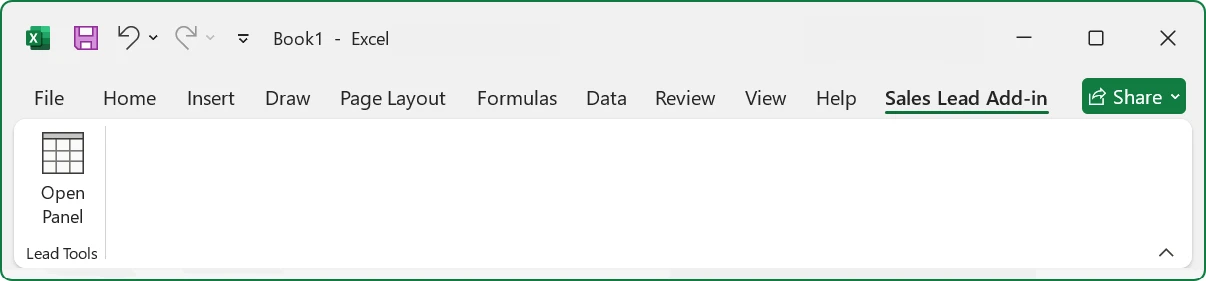
A custom tab in a ribbon in Excel.
5. Initializing DotNetBrowser
The DotNetBrowser’s Engine is the main entity of the library. It manages
the Chromium main process lifecycle. We create the engine when the task pane
first opens, and configure it with a custom app:// URL scheme:
public class Connect : IDTExtensibility2, ...
{
    public Connect()
    {
        _taskPaneManager = new TaskPaneManager(
            ..., new EngineManager());
    }
}

public class EngineManager
{
    public IEngine Start()
    {
        var builder = new EngineOptions.Builder
        {
            RenderingMode = RenderingMode.HardwareAccelerated
        };
        builder.Schemes[Scheme.Create("app")] =
            new Handler<
                InterceptRequestParameters,
                InterceptRequestResponse>(HandleAppSchemeRequest);
        return EngineFactory.Create(builder.Build());
    }
}
Loading a local page
Our web page is bundled as an embedded resource in the assembly.
In the .csproj:
<ItemGroup>
  <EmbeddedResource Include="..\Web\index.html">
    <Link>Web\index.html</Link>
  </EmbeddedResource>
</ItemGroup>
The scheme handler reads it from the manifest and returns it as a response:
private const string IndexHtmlResource = "ExcelComAddin.Web.index.html";

private static InterceptRequestResponse HandleAppSchemeRequest(
    InterceptRequestParameters parameters)
{
    using (var stream = Assembly.GetExecutingAssembly()
               .GetManifestResourceStream(IndexHtmlResource))
    using (var ms = new MemoryStream())
    {
        stream.CopyTo(ms);
        var options = new UrlRequestJobOptions
        {
            HttpStatusCode = HttpStatusCode.OK,
            Headers = { new HttpHeader("Content-Type", "text/html") }
        };
        var job = parameters.Network.CreateUrlRequestJob(
            parameters.UrlRequest, options);
        job.Write(ms.ToArray());
        job.Complete();
        return InterceptRequestResponse.Intercept(job);
    }
}
This handler serves a single HTML file. To serve a more advanced set of files, like JavaScript, CSS, images, with content types inferred from file extensions, you can extend this pattern. See this implementation for more details.
If your use case requires a remotely hosted page instead, skip this and load a regular URL.
6. Showing the browser in the task pane
We create BrowserHostControl as a UserControl with COM
visibility so Excel’s task pane API can instantiate it:
[ComVisible(true)]
[Guid("...")]
[ProgId("ExcelComAddin.BrowserHostControl")]
public class BrowserHostControl : UserControl
Then we initialize the browser, add it to BrowserHostControl,
and navigate to the page:
public class BrowserHostControl : UserControl
{
    private IBrowser _browser;

    public void InitializeBrowser(IEngine browserEngine)
    {
        _browser = browserEngine.CreateBrowser();

        var browserView = new BrowserView();
        browserView.InitializeFrom(_browser);
        browserView.Dock = DockStyle.Fill;
        Controls.Add(browserView);

        _browser.Navigation.LoadUrl(
            "app://excelcomaddin/index.html");
    }
}
Spreadsheet–browser intercom
We also configure the browser to inject a C# object into the JavaScript context on every page load. We will use this object to exchange information between the page and the spreadsheet:
public class BrowserHostControl : UserControl
{
    private Func<string> _read;
    private Action<string> _write;

    public string readFromExcel() => _read();
    public void writeToExcel(string value) => _write(value);

    public void SetJavaScriptCallbacks(Func<string> read, Action<string> write)
    {
        _read = read;
        _write = write;
    }

    public void InitializeBrowser(IEngine browserEngine)
    {
        // ...
        _browser.InjectJsHandler =
            new Handler<InjectJsParameters>(args =>
            {
                IJsObject window = args.Frame
                    .ExecuteJavaScript<IJsObject>("window")
                    .Result;
                window.Properties["excelBridge"] = this;
            });
        // ...
    }
}
7. The task pane
TaskPane is a thin wrapper we define around CustomTaskPane. It exposes the
HostControl property (a BrowserHostControl) and a Visible setter, keeping
the TaskPaneManager code clean of COM API details.
When the user clicks the ribbon button, we create the task pane, supply the callbacks for reading and writing spreadsheet data, and start the browser:
public class TaskPaneManager
{
    public TaskPaneManager(
        Func<Application> getApplication,
        Func<TaskPane> paneFactory,
        EngineManager engineManager)
    { ... }

    public void Show()
    {
        _pane = _paneFactory();
        _pane.HostControl.SetJavaScriptCallbacks(
            ReadCellA1, WriteCellA1);
        _pane.HostControl.InitializeBrowser(
            _engineManager.Start());
        _pane.Visible = true;
    }

    private string ReadCellA1()
    {
        var sheet = _getApplication()?.ActiveSheet as Worksheet;
        var cell = sheet?.Cells[1, 1] as Range;
        return cell?.Value?.ToString() ?? "(empty)";
    }

    private void WriteCellA1(string value)
    {
        var sheet = _getApplication()?.ActiveSheet as Worksheet;
        if (sheet != null)
            sheet.Cells[1, 1] = value;
    }
}
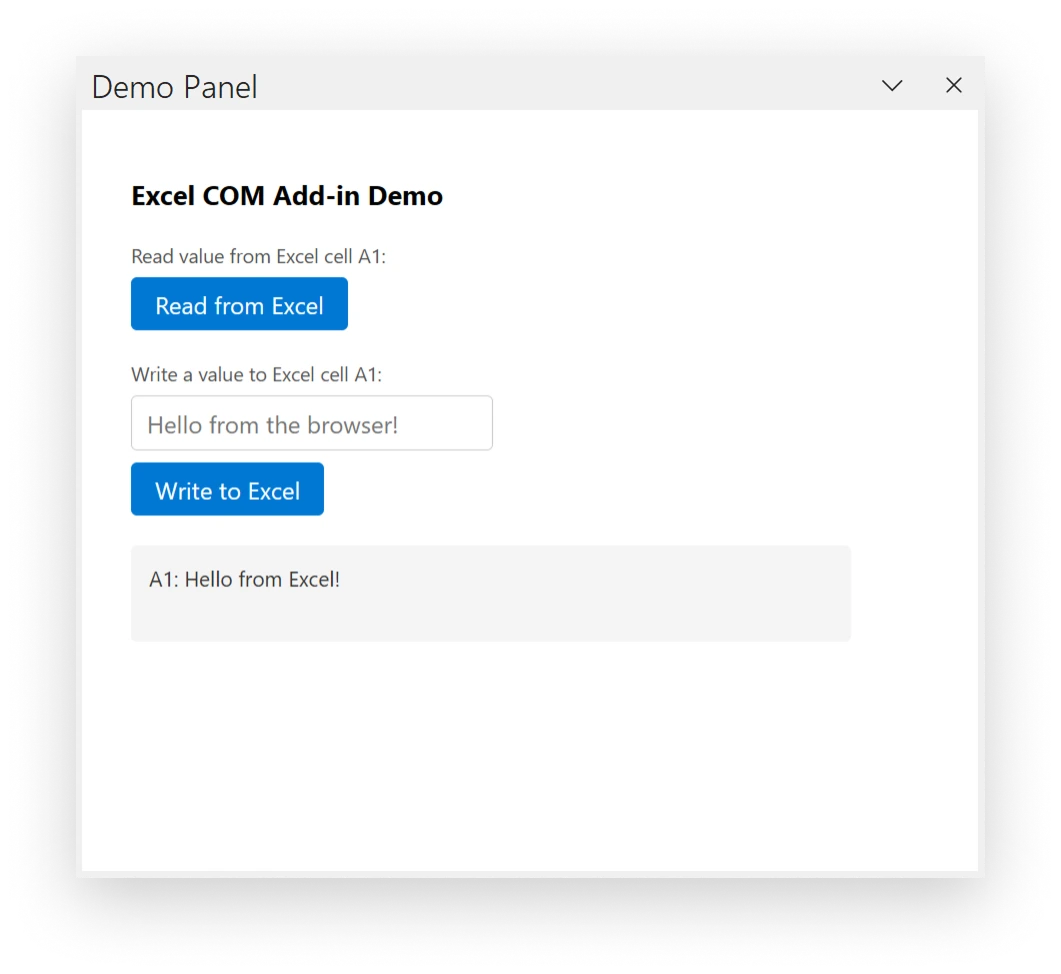
A custom task pane with DotNetBrowser inside.
8. The web UI
With the C# side in place, the final piece is the web page bundled with the add-in. The page’s body:
<div>
  <label>Read value from Excel cell A1:</label>
  <button id="btn-read">Read from Excel</button>
</div>

<div>
  <label>Write a value to Excel cell A1:</label>
  <input id="txt-write" type="text" />
  <button id="btn-write">Write to Excel</button>
</div>

<div id="output">Press a button to interact with Excel.</div>
An inline <script> at the bottom retrieves window.excelBridge and
wires the buttons:
(function () {
    var bridge = window.excelBridge;
    var output = document.getElementById('output');

    document.getElementById('btn-read')
        .addEventListener('click', function () {
            output.textContent = `A1: ${bridge.readFromExcel()}`;
        });

    document.getElementById('btn-write')
        .addEventListener('click', function () {
            var value = document.getElementById('txt-write').value;
            bridge.writeToExcel(value);
            output.textContent = `Written "${value}" to A1.`;
        });
})();
Results
After building the project in Visual Studio running as administrator and opening Excel, the add-in loads automatically. A “Sales Lead Add-in” tab appears in the ribbon. Clicking “Open Panel” opens the task pane with the browser UI loaded.
DotNetBrowser embedded in Excel in action.
Clicking “Read from Excel” displays the current value of cell A1 in the output area below the buttons. Typing a value and clicking “Write to Excel” writes it directly to the cell.
Conclusion
The result is a full Chromium browser running inside Excel, with a live connection to the active worksheet. The web page can be as simple or as rich as needed — a data visualization, a form with validation, a React app — while still having direct access to spreadsheet data through C#.
The complete source is available in the example repository.

Sending…
Sorry, the sending was interrupted
Please try again. If the issue persists, contact us at info@teamdev.com.
Your personal DotNetBrowser trial key and quick start guide will arrive in your Email Inbox in a few minutes.