
This is the second part of the guide for .NET developers moving from WebView2 to DotNetBrowser. Part 1 covered installation, initialization, navigation, JavaScript, traffic interception, DOM, dialogs, and pop-ups.
This part covers the advanced topics Part 1 promised: proxy and authentication, cookies and persistent storage, profiles, context menus, downloads, printing, DevTools, and Chrome extensions. As before, each section shows the WebView2 code, its DotNetBrowser replacement, the differences that matter, and a link to the guide.
Like Part 1, this part is about how to migrate. To learn why, check out the DotNetBrowser or WebView2 article.
The code targets WebView2 SDK 1.0.4258.31 and DotNetBrowser 4.3.3. We ran every snippet against both libraries, with WebView2 Runtime 155 and DotNetBrowser’s Chromium 155. Part 1 targeted DotNetBrowser 3.3.0; its snippets need no changes for 4.3.3.
In the WebView2 snippets, core is the control’s CoreWebView2, and
view is the WebView2 control. In the DotNetBrowser snippets,
engine and browser are an IEngine and an IBrowser, as in Part
1; profile is an IProfile, and view is the BrowserView.
Two recurring differences
In DotNetBrowser, most settings belong to a profile. The profile owns
proxy settings, cookies, extensions, and network handlers. Every engine has
a default profile, engine.Profiles.Default, and you can create more. In
WebView2, the same settings sit in three places: the environment
options, which apply to the whole browser process;
the CoreWebView2Profile; and the CoreWebView2 itself.
Threading differs too. WebView2 raises its events on the UI thread.
DotNetBrowser calls its handlers and raises its events on background threads, so
the code below uses Dispatcher wherever a handler touches WPF
controls.
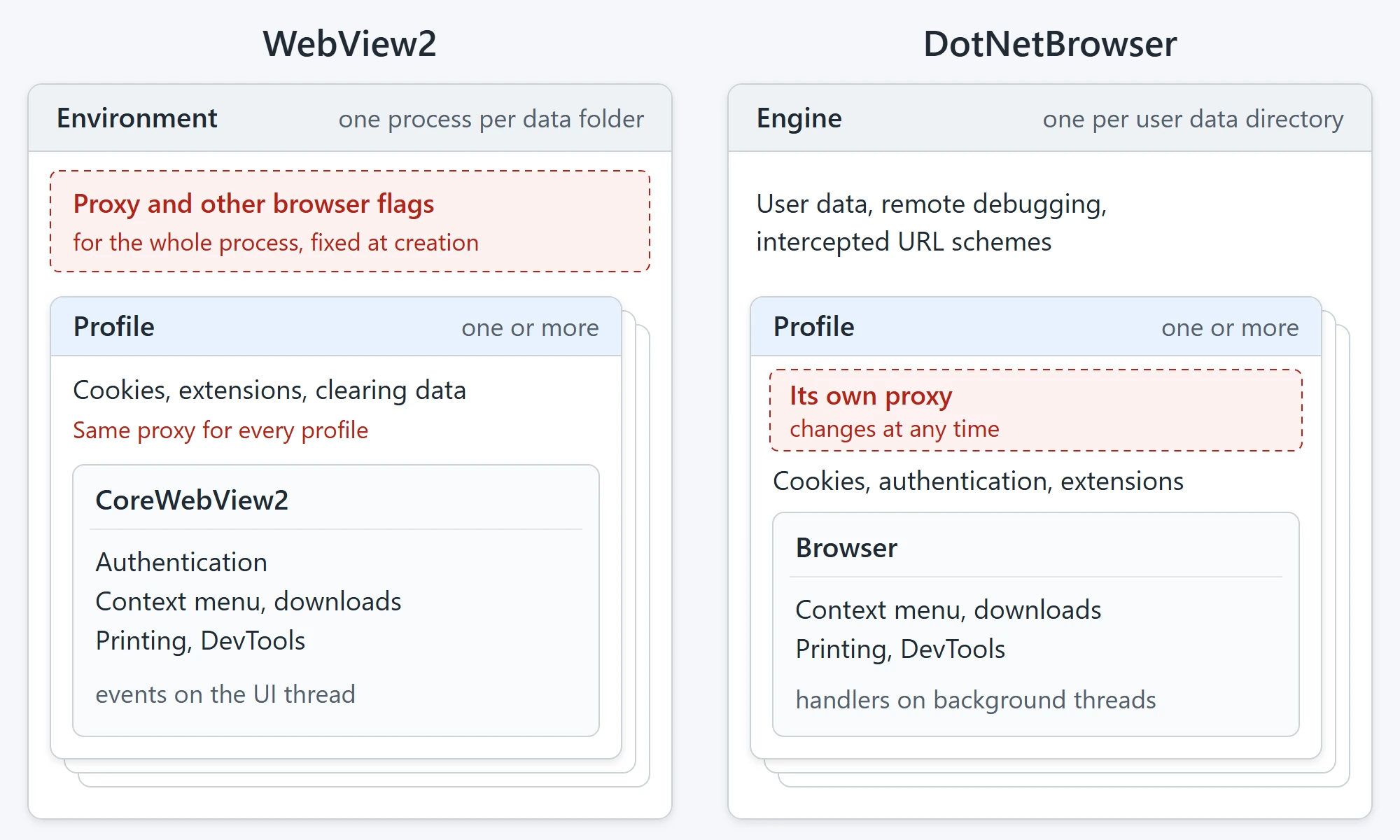
Where the settings and the handlers live.
API map
The table below maps each WebView2 API to its DotNetBrowser counterpart, and the sections after it explain the rows.
| Feature | WebView2 | DotNetBrowser |
|---|---|---|
| Proxy | --proxy-server in AdditionalBrowserArguments | profile.Proxy.Settings |
| Authentication | BasicAuthenticationRequested | profile.Network.AuthenticateHandler |
| Client certificates | ClientCertificateRequested | browser.SelectCertificateHandler |
| Cookies | CoreWebView2Profile.CookieManager | profile.CookieStore |
| User data | CreationProperties.UserDataFolder | EngineOptions.UserDataDirectory |
| Profiles | CreationProperties.ProfileName | engine.Profiles.Create() |
| Context menu | ContextMenuRequested | browser.ShowContextMenuHandler |
| Downloads | DownloadStarting | browser.StartDownloadHandler |
| Printing | PrintAsync(), PrintToPdfAsync() | RequestPrintHandler, PrintHtmlContentHandler, PrintPdfContentHandler |
| DevTools | OpenDevToolsWindow() | browser.DevTools.Show() |
| Remote debugging | --remote-debugging-port | EngineOptions.RemoteDebuggingPort |
| Extensions | Profile.AddBrowserExtensionAsync() | profile.Extensions.Install() |
| Virtual host names | SetVirtualHostNameToFolderMapping() | InterceptRequestHandler |
Proxy
WebView2 has no proxy API. You pass Chromium’s --proxy-server
CoreWebView2EnvironmentOptions options =
    new CoreWebView2EnvironmentOptions();
options.AdditionalBrowserArguments =
    "--proxy-server=127.0.0.1:5075 " +
    "--proxy-bypass-list=<-loopback>";
return await CoreWebView2Environment.CreateAsync(
    null, userDataFolder, options);
IProfile proxied = engine.Profiles.Default;
proxied.Proxy.Settings =
    new CustomProxySettings("127.0.0.1:5075", "<-loopback>");

IProfile direct = engine.Profiles.Create("direct");
direct.Proxy.Settings = new DirectProxySettings();
The switch applies to the whole browser process, so every WebView2
control that shares the user data folder goes through the same proxy,
whatever its profile. You also can’t change it after the environment
exists. Microsoft’s page on browser flags says that apps in
production shouldn’t use them.
In DotNetBrowser, proxy settings belong to a profile and can change at any
time; the next request uses the new settings. To use several proxies
in one application, create a profile for each. Besides a custom proxy,
you can pick DirectProxySettings, AutoDetectProxySettings,
SystemProxySettings (the default), or PacProxySettings with
the URL of a proxy auto-config (PAC) script.
The second argument of CustomProxySettings is the bypass list
(addresses that skip the proxy). By default, Chromium in both libraries
sends local addresses directly, not through the proxy.
<-loopback>
Authentication
In WebView2, the BasicAuthenticationRequested event handles
authentication challenges: the requests for a user name and password
that a server or a proxy sends. It covers Basic, Digest, and NTLM. In
DotNetBrowser, the AuthenticateHandler of the profile’s network does
the same job:
core.BasicAuthenticationRequested += (sender, args) =>
{
    args.Response.UserName = "demo";
    args.Response.Password = "secret";
};
profile.Network.AuthenticateHandler =
    new Handler<AuthenticateParameters, AuthenticateResponse>(p =>
    {
        if (!p.IsProxy && p.Realm == "demo")
        {
            return AuthenticateResponse.Continue("demo", "secret");
        }
        return AuthenticateResponse.Cancel();
    });
The parameters carry the realm, the scheme, the host, and
IsProxy, which is true for a proxy challenge. The realm is
the name the server gives the protected area; the scheme is
Basic, Digest, or NTLM.
Without a handler, DotNetBrowser shows the server’s 401 (Unauthorized)
page; WebView2, according to Microsoft’s docs, shows its own login dialog. If
you want a dialog, the WPF package has one:
DotNetBrowser.Wpf.Dialogs.DefaultAuthenticationHandler.
For client certificates, replace ClientCertificateRequested with
browser.SelectCertificateHandler. It receives the available certificates
and returns SelectCertificateResponse.Select() with one of them. You can also
pass one you load from a PFX file, even if it isn’t installed. A PFX
file holds a certificate with its private key. For server certificate
errors, ServerCertificateErrorDetected becomes
the VerifyCertificateHandler of the network. See the guide on
authentication and the guide on network.
Cookies and persistent storage
Both libraries expose a cookie store per profile. In WebView2, it’s
CoreWebView2Profile.CookieManager; in DotNetBrowser, profile.CookieStore:
CoreWebView2CookieManager cookies = core.Profile.CookieManager;
CoreWebView2Cookie extra =
    cookies.CreateCookie("extra", "1", "localhost", "/");
extra.Expires = DateTime.UtcNow.AddDays(30);
cookies.AddOrUpdateCookie(extra);
return await cookies.GetCookiesAsync("http://localhost:5065/");
Cookie extra = new Cookie.Builder("localhost")
{
    Name = "extra",
    Value = "1",
    Path = "/",
    ExpirationTime = DateTime.UtcNow.AddDays(30)
}.Build();
await profile.CookieStore.SetCookie(extra);
profile.CookieStore.Flush();
IEnumerable<Cookie> all = await profile.CookieStore
    .GetAllCookies("http://localhost:5065/");
DotNetBrowser differs in two ways. First, you build a cookie with
Cookie.Builder: it takes the domain, and you set the name, value,
path, expiration time, and the secure and HTTP-only flags. Second, after
you change cookies, call Flush() to write them to disk.
If your C# file also imports System.Net, add a using alias for
Cookie, because System.Net has a Cookie class too.
In both libraries, a cookie without an expiration time is a session cookie and doesn’t survive a restart. See the guide on cookies.
Persistent data lives in the user data folder in both libraries. In
WebView2, you pass it to CoreWebView2Environment.CreateAsync(), as in
the proxy snippet above, or set it in the control’s
CreationProperties. In DotNetBrowser, you set UserDataDirectory in
the engine options:
EngineOptions options = new EngineOptions.Builder
{
    RenderingMode = RenderingMode.HardwareAccelerated,
    UserDataDirectory = userDataDir,
    IncognitoEnabled = incognito
}.Build();
return EngineFactory.CreateAsync(options);
If you don’t set the directory, DotNetBrowser uses a temporary one. One directory can serve only one engine at a time, even if the second engine runs in another process.
To clear data, WebView2 has Profile.ClearBrowsingDataAsync() with a set
of data kinds. In DotNetBrowser, clear the stores one by one, through
CookieStore, HttpCache, and HttpAuthCache, or call
profile.ClearAllData(). See the guide on cache.
To keep cookies, history, and site data in memory only, set IncognitoEnabled
in the engine options, as the snippet above does. This option makes
the default profile incognito; the next section shows how to create
other incognito profiles.
Profiles
In WebView2, you choose the profile when you create the control: set
ProfileName and, optionally, IsInPrivateModeEnabled in the creation
properties. In DotNetBrowser, profiles are objects you create from
the engine, and each profile creates its own browsers:
WebView2 view = new WebView2();
view.CreationProperties = new CoreWebView2CreationProperties
{
    UserDataFolder = userDataFolder,
    ProfileName = profileName,
    IsInPrivateModeEnabled = inPrivate
};
IProfile alpha = engine.Profiles.Create("alpha");
IProfile beta = engine.Profiles.Create("beta");
IProfile secret =
    engine.Profiles.Create("secret", ProfileType.Incognito);
IBrowser browser = alpha.CreateBrowser();
bool removed = engine.Profiles.Remove(beta);
In DotNetBrowser, each profile keeps its data in its own folder inside the user data directory. Besides the settings listed at the start of this article, it has its own permissions, zoom levels, and spell checker.
Deleting a profile works differently in the two libraries.
CoreWebView2Profile.Delete() closes every WebView2 control that uses
the profile and removes the profile’s folder. Delete() works on
the default profile too.
Microsoft’s docs say the folder is removed when the browser process exits; in our test, it was gone within seconds. Even so, creating a profile with the same name failed: the error said the folder was still being deleted. So don’t plan to reuse a name within one run of your application.
In DotNetBrowser, engine.Profiles.Remove() disposes the profile’s
browsers immediately and deletes the folder a moment later.
The default profile can’t be removed: Remove() returns false. You can
create a profile with the same name right away; it starts with empty
data. See the guide on profiles.
Context menus
WebView2 raises ContextMenuRequested with the default items. You can add
your own items to the list, or set Handled and show your own menu built
from MenuItems. If you build that menu asynchronously, call GetDeferral() so
WebView2 waits for your result. DotNetBrowser shows its default menu only inside
a BrowserView. To replace it with your own, set ShowContextMenuHandler
and build the menu yourself:
core.ContextMenuRequested += (sender, args) =>
{
    CoreWebView2ContextMenuItem item =
        core.Environment.CreateContextMenuItem(
            "Say hi", null,
            CoreWebView2ContextMenuItemKind.Command);
    item.CustomItemSelected += (s, e) => onSelected();
    args.MenuItems.Insert(0, item);
};
browser.ShowContextMenuHandler =
    new AsyncHandler<ShowContextMenuParameters,
                     ShowContextMenuResponse>(p =>
    {
        TaskCompletionSource<ShowContextMenuResponse> tcs =
            new TaskCompletionSource<ShowContextMenuResponse>(
                TaskCreationOptions.RunContinuationsAsynchronously);
        view.Dispatcher.BeginInvoke(new Action(() =>
        {
            ContextMenu menu = new ContextMenu();
            menu.Items.Add(Item("Say hi", sayHi));
            menu.Closed += (s, e) =>
                tcs.TrySetResult(ShowContextMenuResponse.Close());
            menu.PlacementTarget = view;
            menu.Placement = PlacementMode.Relative;
            menu.HorizontalOffset = p.Location.X;
            menu.VerticalOffset = p.Location.Y;
            menu.IsOpen = true;
        }));
        return tcs.Task;
    });
Here Item() is a small helper that creates a MenuItem with
a click handler. The ShowContextMenuHandler is
an AsyncHandler: it builds the menu on the UI thread through
Dispatcher and returns a task that completes when the menu closes.
To turn the menu off, return ShowContextMenuResponse.Close() right away.
Unlike WebView2’s event args, ShowContextMenuParameters doesn’t carry
the default items. If your menu needs “Back” or “Reload”, you add them
yourself. What the parameters do carry is the context: the link,
the media, the selected text, and the spell-check suggestions.
The guide on context menus has the details.
Downloads
In WebView2, DownloadStarting lets you pick the file path, hide
the default download UI, or cancel, and CoreWebView2DownloadOperation
reports progress. In DotNetBrowser, StartDownloadHandler makes the same
decision, and the IDownload object raises the progress events:
core.DownloadStarting += (sender, args) =>
{
    args.ResultFilePath = path;
    args.Handled = true;
    CoreWebView2DownloadOperation download =
        args.DownloadOperation;
    download.StateChanged += (s, e) =>
    {
        if (download.State !=
            CoreWebView2DownloadState.InProgress)
        {
            onFinished(download);
        }
    };
};
browser.StartDownloadHandler =
    new Handler<StartDownloadParameters, StartDownloadResponse>(p =>
    {
        IDownload download = p.Download;
        download.Finished += (s, e) => finished(download);
        string name = download.Info.SuggestedFileName;
        return StartDownloadResponse.DownloadTo(
            Path.Combine(folder, Path.GetFileName(name)));
    });
DownloadTo() takes the absolute path of the file. IDownload also
reports progress through Updated, and you can pause, resume, or cancel it.
The default behavior differs. WebView2 downloads to the profile’s
download folder and shows its own UI. Without a handler, DotNetBrowser
cancels every download. A BrowserView installs its own handler, which
shows a “Save As” dialog. Read more in the guide on
downloads.
Printing
In WebView2, you call a method when you want to print. PrintAsync() takes
print settings, PrintToPdfAsync() or PrintToPdfStreamAsync() produces
a PDF, and ShowPrintUI() opens the browser’s or the system’s
print dialog.
In DotNetBrowser, you start printing with browser.MainFrame.Print(). Every
print request, this call included, goes through RequestPrintHandler, where you
cancel it, show the print preview, or continue with
RequestPrintResponse.Print(). If you continue, PrintHtmlContentHandler runs
next; there you pick the printer and its settings:
CoreWebView2PrintSettings settings =
    core.Environment.CreatePrintSettings();
settings.PageRanges = pages;
return await core.PrintToPdfAsync(path, settings);
browser.RequestPrintHandler =
    new Handler<RequestPrintParameters, RequestPrintResponse>(p =>
        RequestPrintResponse.Print());
browser.PrintHtmlContentHandler =
    new Handler<PrintHtmlContentParameters,
                PrintHtmlContentResponse>(p =>
    {
        PdfPrinter<PdfPrinter.IHtmlSettings> pdf = p.Printers.Pdf;
        pdf.PrintJob.Settings.Apply(s =>
        {
            s.PdfFilePath = pdfPath;
            s.PageRanges = new[] { pages };
        });
        pdf.PrintJob.PrintCompleted += (s, e) =>
            done(e.IsCompletedSuccessfully);
        return PrintHtmlContentResponse.Print(pdf);
    });
The printers collection has the system default, the built-in PDF
printer, and every installed printer by device name. Each printer reports its
capabilities, such as paper sizes, color modes, and duplex modes, so you can
check them before applying settings. PrintCompleted tells you when
the file is written.
If you don’t set a RequestPrintHandler, DotNetBrowser cancels every print
request. Inside a BrowserView, the default handler shows
the print preview instead.
In WebView2, pages is a string such as "2-3"PageRange, such as
new PageRange(2, 3)System.Windows.Controls.PageRange, so add a using alias. Apply() is
an extension method, so add
using DotNetBrowser.Print.Settings;
There is no stream variant: the PDF printer writes to PdfFilePath. When
the browser shows a PDF document rather than a web page,
PrintPdfContentHandler runs instead of PrintHtmlContentHandler.
DotNetBrowser has no equivalent of ShowPrintUI(System), the system print
dialog; RequestPrintResponse.ShowPrintPreview() shows Chromium’s print preview
instead. WebView2, in turn, has no event for window.print(): the page
gets the browser’s print dialog, and your code receives no notification. In
DotNetBrowser, window.print() goes through RequestPrintHandler like any
other print request, so a page can’t open a dialog you didn’t choose.
See the guide on printing.
DevTools
Opening DevTools takes one line in both: OpenDevToolsWindow() in WebView2,
browser.DevTools.Show() in DotNetBrowser. Remote debugging lets another
browser or an automation tool inspect your browser over a port. It
needs --remote-debugging-portRemoteDebuggingPort engine option in DotNetBrowser:
CoreWebView2EnvironmentOptions options =
    new CoreWebView2EnvironmentOptions();
options.AdditionalBrowserArguments =
    "--remote-debugging-port=9334";
return await CoreWebView2Environment.CreateAsync(
    null, userDataFolder, options);
// ...
core.OpenDevToolsWindow();
EngineOptions options = new EngineOptions.Builder
{
    RenderingMode = RenderingMode.HardwareAccelerated,
    RemoteDebuggingPort = 9334,
    ChromiumSwitches =
    {
        "--remote-allow-origins=http://localhost:9334"
    }
}.Build();
IEngine engine = await EngineFactory.CreateAsync(options);
IBrowser browser = engine.CreateBrowser();
browser.DevTools.Show();
Show() opens DevTools in a separate window, and Hide() closes it.
browser.DevTools.RemoteDebuggingUrl gives you the address of
the DevTools page for that browser. Load that page in another IBrowser,
not in Firefox or any other browser: the engine
guide warns that loading it elsewhere can crash
the DevTools server. --remote-allow-origins
WebView2’s CallDevToolsProtocolMethodAsync() has no direct equivalent.
The remote debugging port exposes the same DevTools Protocol.
The DevTools Protocol examples show how to control
the browser through it with Puppeteer, Playwright, and Selenium. See
the DevTools section of the browser guide.
Chrome extensions
Both libraries install extensions per profile, but from different sources. WebView2 loads an unpacked extension folder, and only if extensions were enabled in the environment options. DotNetBrowser installs CRX files, the packed format used by the Chrome Web Store. It can also let the user install extensions from the Web Store, if you allow it:
CoreWebView2EnvironmentOptions options =
    new CoreWebView2EnvironmentOptions();
options.AreBrowserExtensionsEnabled = true;
CoreWebView2Environment env =
    await CoreWebView2Environment.CreateAsync(
        null, userDataFolder, options);
await view.EnsureCoreWebView2Async(env);
CoreWebView2Profile profile = view.CoreWebView2.Profile;
return await profile.AddBrowserExtensionAsync(extensionFolder);
IExtension extension =
    await profile.Extensions.Install(Path.GetFullPath(crxPath));
IExtensionAction action = extension.GetAction(browser);
action?.Click();
await extension.Uninstall();
Install() accepts CRX files only; passing an unpacked folder throws
an exception. Web Store installs go through InstallExtensionHandler,
which is your chance to allow or refuse them.
WebView2 has no API for the extension’s toolbar button. In DotNetBrowser,
extension.GetAction(browser) gives you the icon, badge, and tooltip, and
Click() opens the extension’s pop-up. When the browser is in
a BrowserView, the pop-up appears as a separate window.
In the other direction, WebView2 can disable an extension with
EnableAsync(false), while DotNetBrowser can only uninstall it. DotNetBrowser
doesn’t support every extension API; the guide on
extensions lists the exceptions.
What has no one-to-one equivalent
Three WebView2 features map to a different mechanism rather than to a method with the same shape.
Synchronous host objects
Part 1 showed how to inject .NET objects into JavaScript. In WebView2,
synchronous calls go through chrome.webview.hostObjects.sync. Calls to
injected DotNetBrowser objects are synchronous from the page’s point of
view: bridge.Add(2, 3)5, not a promise. So
hostObjects.sync has no counterpart and needs none. One difference remains:
WebView2 runs host object methods on the UI thread; DotNetBrowser runs them
on a background thread, so use Dispatcher to touch UI controls.
Messages to the page
WebView2 sends data to the page with PostWebMessageAsJson().
DotNetBrowser has no equivalent: call a JavaScript function instead, with
ExecuteJavaScript() or through an IJsObject. Part 1 showed
the other direction, how to emulate WebMessageReceived.
Virtual host names
WebView2 maps a host name to a folder with
SetVirtualHostNameToFolderMapping(). DotNetBrowser serves local files through
the request interception from Part 1: register
an InterceptRequestHandler for the https URL scheme and answer
requests to your host name from a folder:
core.SetVirtualHostNameToFolderMapping(
    "app.example", folder,
    CoreWebView2HostResourceAccessKind.Allow);
IHandler<InterceptRequestParameters, InterceptRequestResponse>
    handler = new Handler<InterceptRequestParameters,
                          InterceptRequestResponse>(p =>
    {
        Uri uri = new Uri(p.UrlRequest.Url);
        if (uri.Host != "app.example")
        {
            return InterceptRequestResponse.Proceed();
        }
        string root = Path.GetFullPath(folder);
        string file = Path.GetFullPath(Path.Combine(root,
            Uri.UnescapeDataString(uri.AbsolutePath)
                .TrimStart('/')));
        bool found = file.StartsWith(
                         root + Path.DirectorySeparatorChar,
                         StringComparison.OrdinalIgnoreCase)
                     && File.Exists(file);
        UrlRequestJobOptions options = new UrlRequestJobOptions
        {
            HttpStatusCode = found
                ? HttpStatusCode.OK
                : HttpStatusCode.NotFound,
            Headers = new List<HttpHeader>
            {
                new HttpHeader("Content-Type", MimeOf(file))
            }
        };
        UrlRequestJob job =
            p.Network.CreateUrlRequestJob(p.UrlRequest, options);
        if (found)
        {
            job.Write(File.ReadAllBytes(file));
        }
        job.Complete();
        return InterceptRequestResponse.Intercept(job);
    });
EngineOptions engineOptions = new EngineOptions.Builder
{
    RenderingMode = RenderingMode.HardwareAccelerated,
    Schemes = { { Scheme.Https, handler } }
}.Build();
MimeOf() maps the file extension to a content type.
The StartsWith() check rejects every path outside the folder,
including tricks such as https://app.example/C:/Windows/win.ini. The set
of intercepted URL schemes is fixed when the engine is created. Every HTTPS
request of every profile passes through the handler, so return Proceed()
early for the hosts you don’t serve.
Conclusion
Together with Part 1, this guide maps the WebView2 APIs most applications use to their DotNetBrowser replacements. If your application uses something neither part covers, write to us at , and we’ll help.
The fastest way to check your own application is a free evaluation license:

Sending…
Sorry, the sending was interrupted
Please try again. If the issue persists, contact us at info@teamdev.com.
Your personal DotNetBrowser trial key and quick start guide will arrive in your Email Inbox in a few minutes.