
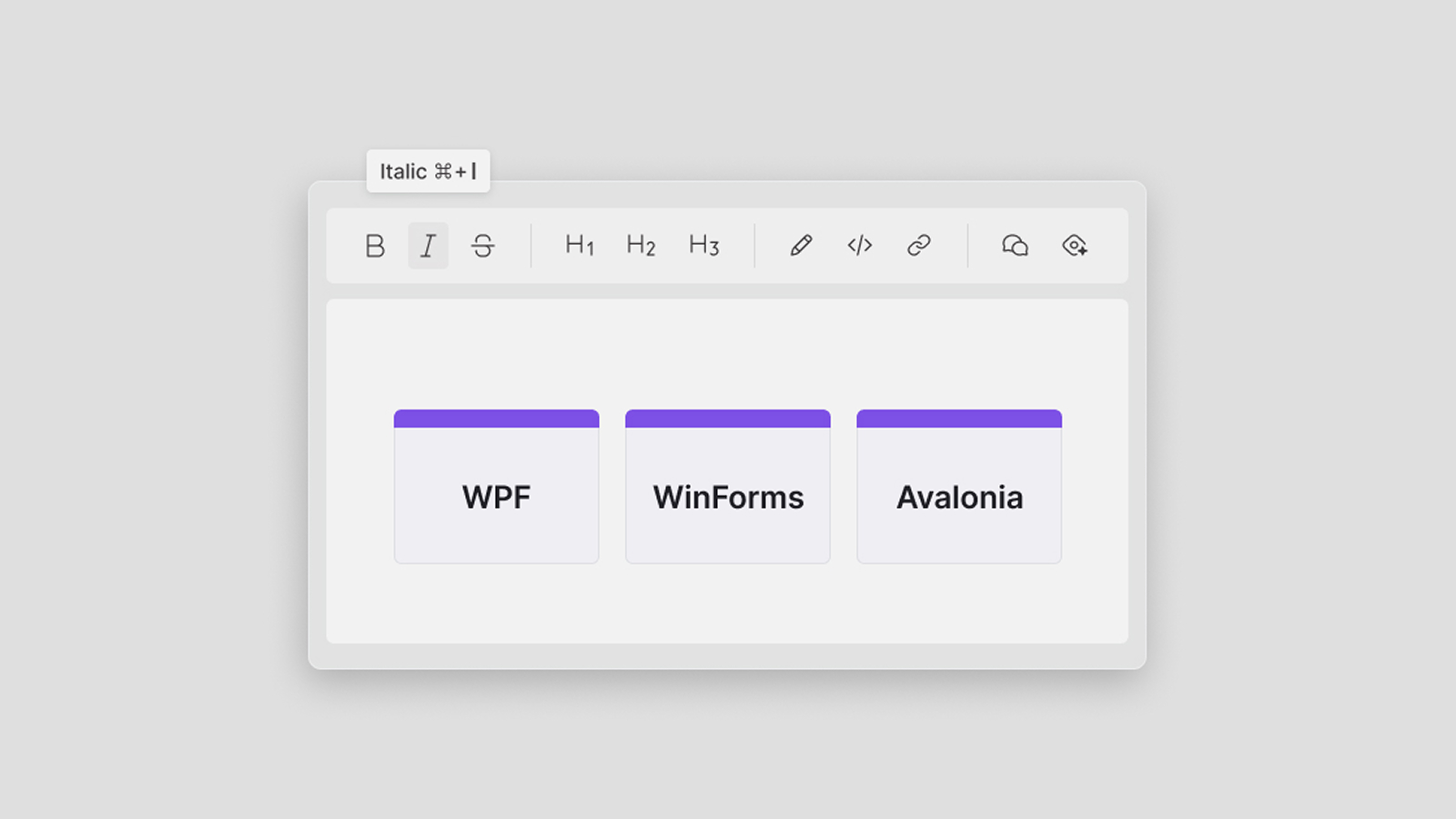
Your users write email templates, ticket replies, or report notes in your desktop app. The text must be saved as HTML, because the mail server, the help desk, or the website expects it.
The rich text controls in WPF and WinForms read and write RTF (Rich Text Format), not HTML. In Avalonia UI, the rich text control is part of Avalonia Pro.
In this article, we’ll build an Avalonia rich text editor that keeps the document as HTML. The app formats text from a native toolbar, opens and saves HTML, checks the spelling, and exports to PDF. The editor is Quill, a JavaScript editor, running in DotNetBrowser, a Chromium-based web view for .NET. DotNetBrowser ships its own Chromium with the app, so every user runs the editor in the same Chromium version.
The same DotNetBrowser code gives you a WPF HTML editor or a WinForms HTML editor, and you can use it in WinUI 3 too. You only rewrite the UI code: the window, the toolbar, and the context menu.
We built and ran the example with DotNetBrowser 4.4.0, Avalonia UI 12, and .NET 10 on Windows 11. DotNetBrowser for Avalonia UI also supports macOS and Linux, but we didn’t test the example there. The complete example is in the example repository.
Typing in the editor and formatting the text from the Avalonia toolbar.
What you’ll need
- The .NET 10 SDK.
- A DotNetBrowser license key. The evaluation key is free for 30 days.
Native rich text controls work with RTF
The rich text controls of the .NET desktop toolkits load and save the document mostly as RTF:
| Toolkit | Control | Formats it loads and saves |
|---|---|---|
| WPF | RichTextBox | RTF, XAML, plain text |
| WinForms | RichTextBox | RTF, plain text |
| WinUI 3 | RichEditBox | RTF, plain text |
| Avalonia UI | RichTextEditor, part of Avalonia Pro | RTF, DOCX, XAML, Markdown, plain text; imports HTML, exports PDF |
Choosing a JavaScript editor
Editors written for the web are built around HTML, and a web view can host any of them:
| Editor | License | Hosting |
|---|---|---|
| Quill 2 | BSD-3-Clause | self-hosted |
| Tiptap | MIT | self-hosted |
| CKEditor 5 | GPL 2 or later, or commercial | self-hosted or CKEditor’s CDN |
| TinyMCE | GPL 2 or later, or commercial | self-hosted or Tiny Cloud |
We use Quill 2.0.3: its license is permissive, and it comes as one script and one stylesheet, with no build step. The integration is the same for the others: serve the editor’s files, call its API from .NET, and listen to its events.
Shipping the editor with the app
The editor page, editor.html, and Quill’s files live in
the project’s Editor folder and are compiled into the app as
embedded resources. Loading them from a CDN would make the editor
depend on the network and on a third-party server.
To serve these files to Chromium, the app registers its own URL scheme,
app://, when it creates the engine, the object that starts Chromium:
engine = EngineFactory.Create(new EngineOptions.Builder
{
    RenderingMode = RenderingMode.HardwareAccelerated,
    UserDataDirectory = UserData,
    Schemes = { { EditorScheme.Scheme, new EditorScheme() } }
}.Build());
DotNetBrowser sends every app:// request to EditorScheme,
which finds the embedded resource by the file name and returns it as
the response. Here is the core of EditorScheme.Handle():
UrlRequestJob job =
    parameters.Network.CreateUrlRequestJob(parameters.UrlRequest, options);
// ... copy the resource into bytes
job.Write(bytes.ToArray());
job.Complete();
return InterceptRequestResponse.Intercept(job);
Here, options holds the status code and Content-Type
The engine options also set the rendering mode. The example uses
the hardware-accelerated one, which draws the page
into a native window. If your own controls must overlap the editor,
use RenderingMode.OffScreen.
The editor page
The page’s script, editor.js, creates Quill without its own toolbar,
because the app has a native one. It puts a few functions for
.NET into window.editor and reports every change to window.host, a .NET
object that we add in the next section:
const quill = new Quill('#editor', {
    theme: 'snow',
    modules: { toolbar: false },
    formats: ['bold', 'italic', 'underline', 'header', 'list', 'link',
              'color', 'image'],
});

window.editor = {
    getHtml() {
        return quill.getSemanticHTML().replaceAll(' ', ' ');
    },
    setHtml(html) {
        quill.setContents(quill.clipboard.convert({ html }), 'silent');
        quill.history.clear();
    },
    // Turns a format on for the selection, or off if it is already on.
    toggle(name, value = true) {
        const current = quill.getFormat()[name];
        quill.format(name, current === value ? false : value, 'user');
    }
};

quill.on('text-change', () => {
    const words = quill.getText().split(/\s+/).filter(w => w.length > 0);
    window.host.TextChanged(words.length);
});
getSemanticHTML() returns plain tags such as <h2>, <strong>, and <ul>.
In Quill 2.0.3, it also writes every space as , which is why getHtml()
turns them back into spaces.
setHtml() converts the HTML with Quill’s clipboard module, which also
handles pastes. The 'silent' argument tells Quill not
to raise text-change
Quill keeps only the formats in the formats list and drops
the rest, such as font faces and font sizes.
An opened HTML file can come from anywhere, so the page’s
Content Security Policy allows only the app’s own files, and
remote images don’t load. To allow them, add https: to the policy’s
img-src.
Connecting the editor and .NET
The app creates a browser from the engine and shows it in
the window’s BrowserView, the DotNetBrowser control for Avalonia UI.
If your app has several editors, create all their browsers from the same
engine: each engine starts its own Chromium main process.
host is an instance of EditorHost, a plain class whose public
TextChanged(int words)Changed event.
The app injects host as window.host with
an InjectJsHandler, which DotNetBrowser calls before
the page’s scripts run:
browser.InjectJsHandler = new Handler<InjectJsParameters>(p =>
{
    if (!p.Frame.IsMain)
    {
        return;
    }
    IJsObject window = p.Frame.ExecuteJavaScript<IJsObject>("window").Result;
    window.Properties["host"] = host;
});
host.Changed += words => Dispatcher.UIThread.Post(
    () => Status.Text = $"{words} words");
JavaScript calls TextChanged() on a background thread, so
the Changed subscriber posts the update to the UI thread.
In WPF, that’s Dispatcher.BeginInvoke(); in WinForms,
Control.BeginInvoke(); in WinUI 3, DispatcherQueue.TryEnqueue().
To call the page, the app gets window.editor as an IJsObject,
a .NET reference to a JavaScript object, and calls its functions with
Invoke(). Welcome is the sample document:
editor = await browser.MainFrame.ExecuteJavaScript<IJsObject>("window.editor");
editor.Invoke("setHtml", Welcome);
The HTML goes to JavaScript as an argument, so its quotes and
backslashes reach Quill unchanged. If you built
the script text from the HTML instead, as in
$"editor.setHtml('{html}')", the first apostrophe in the document
would break it.
The Save button reads the document the same way, with
editor.Invoke<string>("getHtml").
Formatting from a native toolbar
Each formatting button calls the app’s Format() method, which calls
toggle() with a Quill format, for example "bold", or "header"
with the heading level:
private void Format(string name, object? value = null)
{
    editor?.Invoke("toggle", name, value ?? true);
    BrowserView.Focus();
}
After a click on a toolbar button, the BrowserView needs
the keyboard focus back, or the keys the user types don’t reach
the editor.
Checking the spelling
Chromium checks the spelling in the editor and underlines misspelled words in red. It keeps the spell checking settings in a profile, which holds the data and settings of one user. On Windows, a new profile has no spell checking language, so the app adds one:
ISpellChecker spellChecker = engine.Profiles.Default.SpellChecker;
try
{
    await spellChecker.Languages.Add(Language.EnglishUs);
}
catch (LanguageNotAvailableException)
{
    Status.Text = "Spell checking is off: no dictionary for English (US).";
}
On Windows and Linux, Chromium downloads the dictionary when the app
adds the language for the first time; on macOS, it uses
the system’s dictionaries. Chromium keeps the downloaded dictionary
in the user data directory, together with the words the user
adds to the custom dictionary. That’s why the app sets
a fixed UserDataDirectory: otherwise, DotNetBrowser uses a new
temporary directory, and the download repeats on every start.
Without a network connection on the first start, the download
fails, and Add() throws LanguageNotAvailableException. To avoid that, ship
the dictionary file with the app and copy it to the user data
directory before you create the engine. The example’s
README shows how.
If your app has its own user accounts, create a profile for each one with
engine.Profiles.Create(name), and create the browser with
profile.CreateBrowser(). Each profile has its own spell checking languages
and custom dictionary, so add the language to each profile’s
SpellChecker too.
Spelling suggestions in the context menu
In the editor, the default context menu of BrowserView offers
Copy and Paste. To add the spelling suggestions, the app
builds its own menu in the ShowContextMenuHandler.
The handler’s parameters contain a SpellCheckMenu with
the misspelled word and the dictionary suggestions. The app adds
a menu item for each suggestion and one for the custom dictionary:
foreach (string suggestion in spelling!.DictionarySuggestions)
{
    menu.Items.Add(Item(suggestion,
                        () => browser.ReplaceMisspelledWord(suggestion)));
}
menu.Items.Add(Item("Add to dictionary",
                    () => profile.SpellChecker.CustomDictionary.Add(word)));
A custom menu replaces the default one completely, so it also needs
the usual editing commands. The app adds Cut, Copy, and
Paste, and each one runs an EditorCommand in the page, for
example browser.MainFrame.Execute(EditorCommand.Copy()).
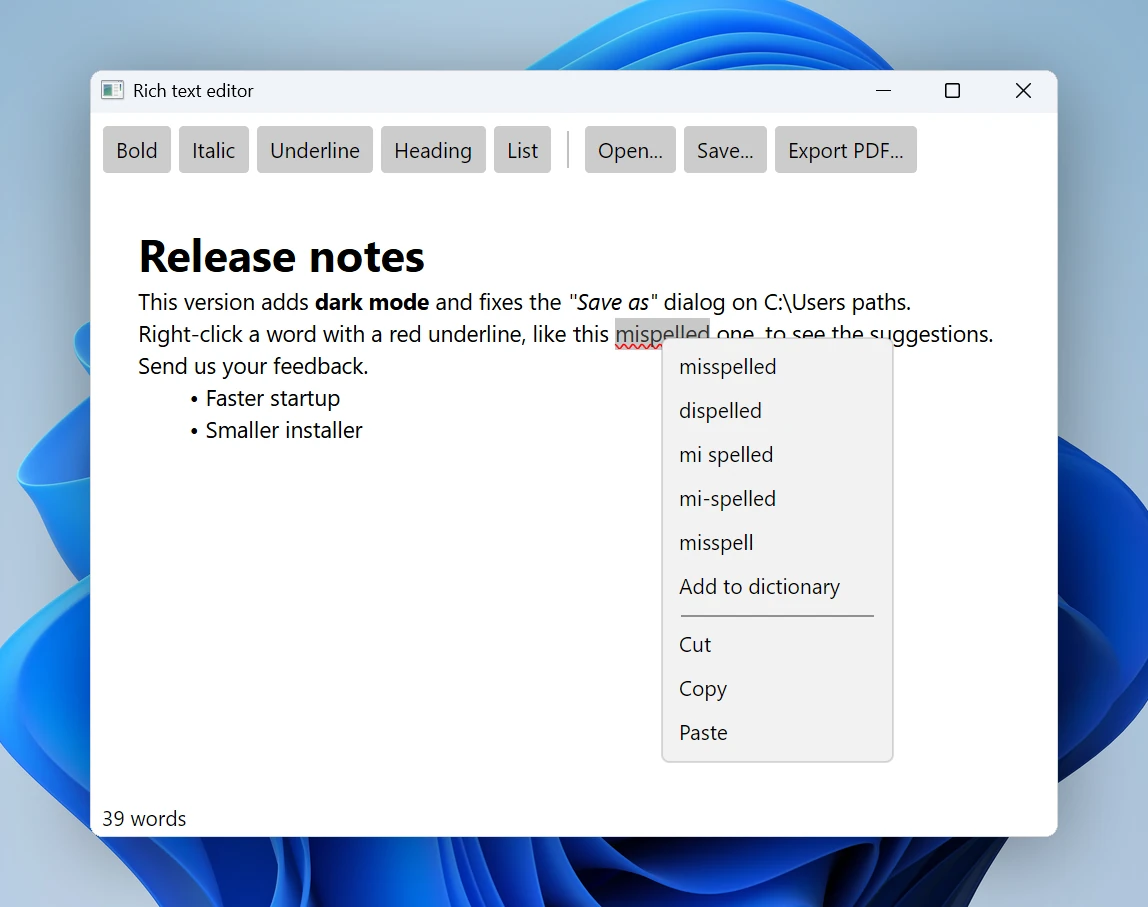
Suggestions for a misspelled word.
Exporting to PDF
The Export PDF button calls Print() on the page.
RequestPrintHandler skips the print dialog, and PrintHtmlContentHandler
sends the job to Chromium’s built-in PDF printer, which
writes it to the file the user chose:
PdfPrinter<PdfPrinter.IHtmlSettings> pdf = p.Printers.Pdf;
pdf.PrintJob.Settings.Apply(s =>
{
    s.PdfFilePath = path;
    s.PrintingHeaderFooterEnabled = false;
});
// ...
return PrintHtmlContentResponse.Print(pdf);
Without PrintingHeaderFooterEnabled = false, every page gets a header
and footer with the date and time, the page title, the app://
URL, and the page number.
Running the editor
Put your license key into the dotnetbrowser.license file in the root
folder of the DotNetBrowser-Examples repository.
On Windows, use a terminal that isn’t running as administrator. By default, Chromium doesn’t start when launched with administrator rights, and the example exits without showing a window. If you need administrator rights, see the troubleshooting guide.
Then run the example from csharp/rich-text-editor
dotnet run --project RichTextEditor
Conclusion
The result is an HTML editor in a native Avalonia UI window. Its files ship with the app, and the dictionary can too, so the editor works without a network connection.
The complete source is available in the example repository. To try it in your own app, get a free evaluation license:

Sending…
Sorry, the sending was interrupted
Please try again. If the issue persists, contact us at info@teamdev.com.
Your personal DotNetBrowser trial key and quick start guide will arrive in your Email Inbox in a few minutes.