
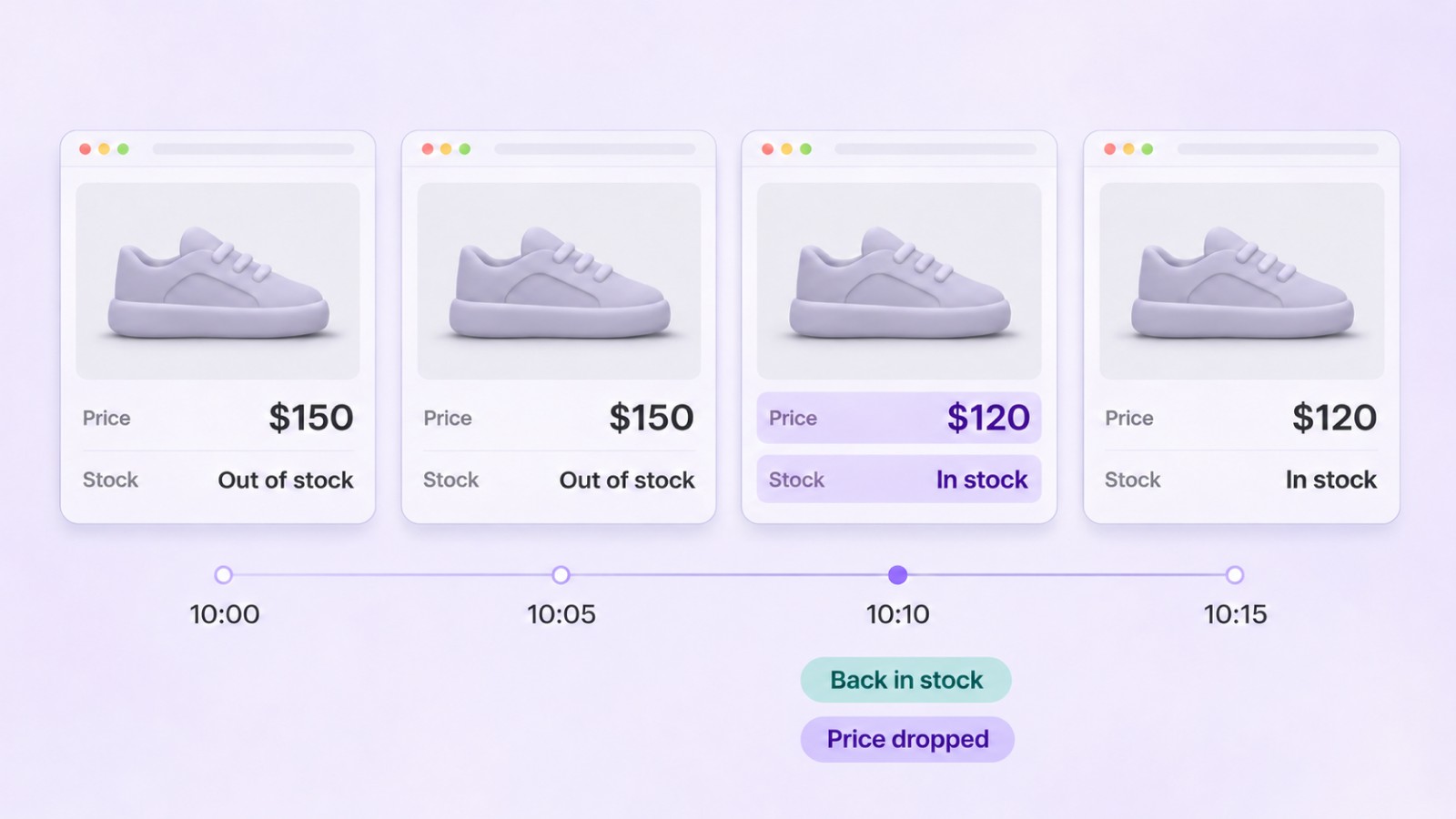
You’re waiting for a pair of sneakers to come back in stock, or for
a price to drop on something you’ve been watching for weeks. Checking
the page by hand gets tiring fast, and it’s easy to miss the day
the restock comes. So you write a small price tracker that checks
the page for you and tells you when something changes. A plain
HttpClient request often isn’t enough, because on many stores a script
fills in the price after the page loads.
In this article, we’ll build a price and stock monitor that reads such pages with DotNetBrowser, a Chromium-based web view for .NET. The monitor is a .NET Worker Service that loads each product page in a headless browser, that is, a browser with no window, and reads the price and the stock availability. It keeps a history and posts an alert to a Discord channel when something changes. It runs in a console, as a Windows service, and as a systemd service on Linux.
We used DotNetBrowser 4.3.5 and .NET 10, and ran the monitor on Windows 11 and Ubuntu 24.04.
What you’ll need
To follow along, you’ll need:
- The .NET 10 SDK.
- A DotNetBrowser license key. The evaluation key is free for 30 days.
- A Discord server where you can create webhooks, if you want the alerts in Discord. Without one, the monitor writes the alerts to its log.
Why a plain HTTP request isn’t enough
Many stores build their product pages in the browser. The server sends only an HTML page with empty placeholders and a script. The script then requests the product data from the store’s API, usually as JSON, and fills in the name, the price, and the state of the “Add to cart” button.
HttpClient gets only that HTML page. Here is the product block of
the demo shop that comes with our example, as the server sends it:
<h1 id="name"></h1>
<p id="price" class="price"></p>
<p id="stock" class="stock"></p>
<button id="add-to-cart" disabled>Add to cart</button>
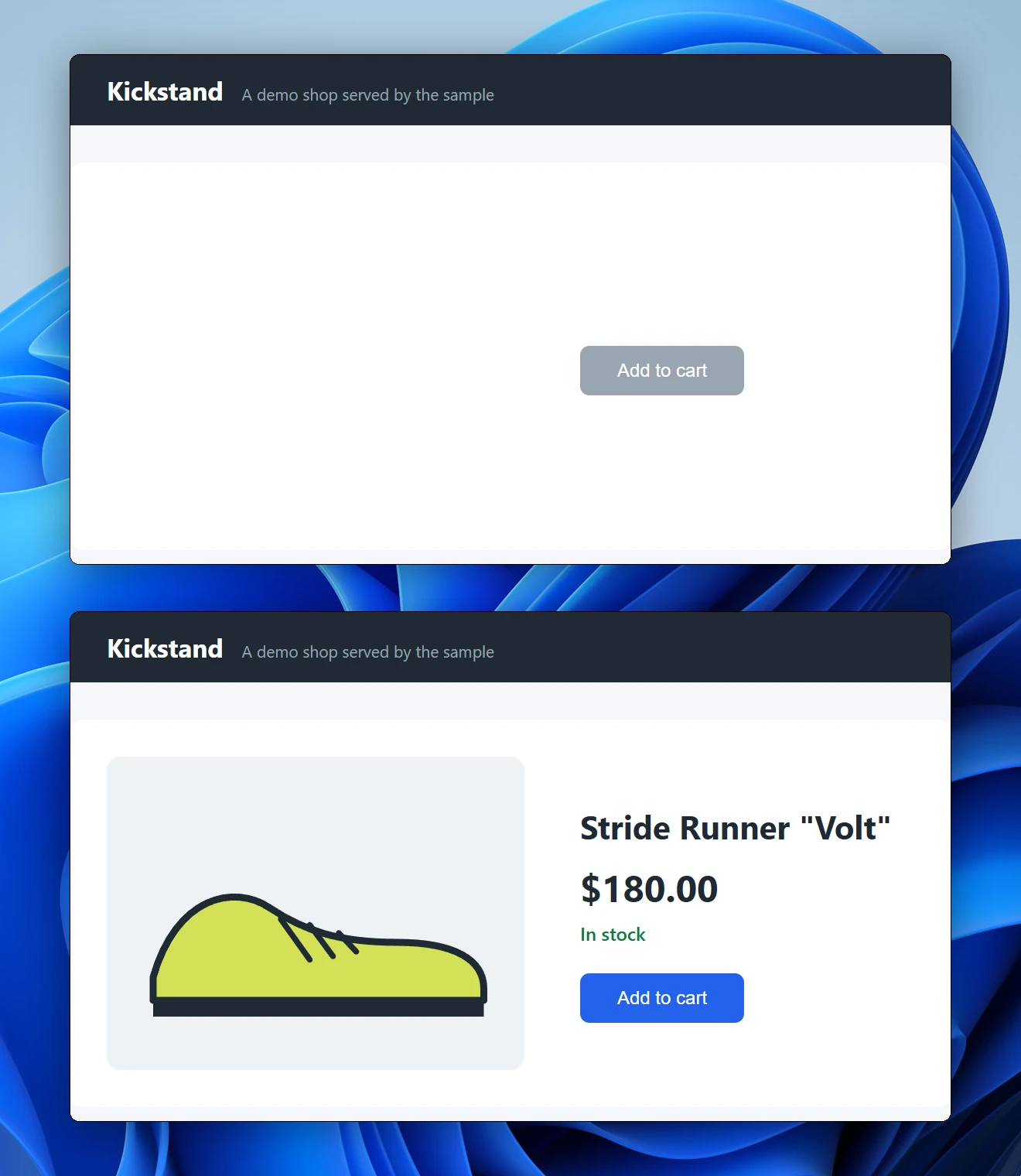
The page before and after its script runs.
To see the price, something has to run the script, and that’s what a browser engine does. DotNetBrowser runs Chromium, so the page loads the same way as in Chrome, scripts and background requests included.
Check the page source first, though. If the price is already in
the HTML that the server sends, for example in
<script type="application/ld+json">HttpClient is
the lighter tool and you don’t need a browser.
DOM or JSON: two ways to read the price
Once the page runs in a browser, you can read the price in two places: the rendered DOM or the JSON response that the page loads from the store’s API:
| DOM | JSON response | |
|---|---|---|
| What you read | The text on the page, such as $150.00 | The data, such as "price": 150.00 |
| How you find it | A CSS selector, from the page’s HTML | The request URL, from the Network tab of the developer tools |
| When it breaks | When the page layout changes | When the API changes |
| When the data is ready | Some time after the load: you have to wait for it | When the response arrives |
| Extra data | Only what the page shows | Often more than the page shows, such as stock per size |
Before you capture the JSON through the browser, try the store’s
API with a plain HttpClient request. If it answers, call it directly and
skip the browser. Some APIs answer only requests that the page builds,
with a session cookie or with parameters that its script computes. If you
capture the response that the page loads, you don’t have to recreate
those cookies and parameters yourself.
Our example reads the price both ways: one product from the DOM and one from the JSON, so you can compare.
The example: a Worker Service with a demo shop
The complete example is in csharp/price-monitor
git clone https://github.com/TeamDev-IP/DotNetBrowser-Examples.git
We created it with these commands:
dotnet new worker -o PriceMonitor
cd PriceMonitor
dotnet add package DotNetBrowser.CrossPlatform
dotnet add package Microsoft.Extensions.Hosting.Systemd
dotnet add package Microsoft.Extensions.Hosting.WindowsServices
DotNetBrowser.CrossPlatform includes the library and the Chromium
binaries for Windows, Linux, and macOS. There’s no separate browser download, no
driver process, and no Node.js runtime. The two hosting packages let
the same build run as a Windows service and as a systemd service.
We didn’t want the example to depend on a real store, so it serves
a demo sneaker shop at https://shop.example/ from files inside
the app. The prices and the stock change every 90 seconds, so you
get alerts within minutes.
The products to watch are in the Monitor:Products array in
appsettings.json. Each one says where its data comes from:
{
  "Name": "Stride Runner \"Volt\"",
  "Url": "https://shop.example/products/stride-runner-volt",
  "Source": "Dom",
  "PriceSelector": "#price",
  "CartButtonSelector": "#add-to-cart"
},
{
  "Name": "Court Classic Low",
  "Url": "https://shop.example/products/court-classic-low",
  "Source": "Json",
  "ApiUrl": "https://shop.example/api/products/court-classic-low"
}
Starting Chromium without a window
In DotNetBrowser, an engine is a running Chromium instance with its
own processes. One engine hosts many browsers, the way Chrome hosts tabs.
The example’s BrowserEngineHost creates one engine when the monitor
starts and disposes it when the monitor stops:
EngineOptions.Builder builder = new EngineOptions.Builder
{
    // No window: render into memory.
    RenderingMode = RenderingMode.OffScreen,
    // Keep everything Chromium writes in the data folder. The
    // crash dumps default to the home folder, which a service
    // account may not have.
    ChromiumDirectory = Path.Combine(options.DataDirectory, "Chromium"),
    UserDataDirectory = Path.Combine(options.DataDirectory, "UserData"),
    CrashDumpDirectory = Path.Combine(options.DataDirectory, "CrashDumps")
};

IEngine created = await EngineFactory.CreateAsync(builder.Build());
By default, the data folder is Data next to the executable. For
every check, the monitor creates a browser, reads one page, and
disposes the browser, so one page’s scripts aren’t still running during
the next check.
Reading the price from the DOM
The example’s ProductReader.ReadFromDomAsync() loads the page with
LoadAsync(), a small wrapper that calls browser.Navigation.LoadUrl()
and throws if the load fails. LoadUrl() returns when the HTML has
loaded, before the script renders the price, so ReadFromDomAsync()
polls the price element until it has text:
await LoadAsync(browser, product.Url, timeout);

// The load is finished when the HTML is, but the price comes
// later, from a script. Poll until the element has text.
DateTime deadline = DateTime.UtcNow + timeout;
while (true)
{
    IDocument document = browser.MainFrame.Document;
    IElement price =
        document.GetElementByCssSelector(product.PriceSelector);
    string text = price?.InnerText.Trim();
    if (!string.IsNullOrEmpty(text))
    {
        IElement button = document.GetElementByCssSelector(
            product.CartButtonSelector)
            ?? throw new InvalidOperationException(
                $"No element matches {product.CartButtonSelector}.");
        bool inStock = !button.Attributes.ContainsKey("disabled");
        return new ProductSnapshot
        {
            // ...
            Price = ParsePrice(text),
            InStock = inStock
        };
    }
    if (DateTime.UtcNow > deadline)
    {
        throw new TimeoutException(
            $"No text in {product.PriceSelector} after {timeout}.");
    }
    await Task.Delay(PollInterval, cancellationToken);
}
The availability comes from the “Add to cart” button: the shop disables it when the product sells out. That’s a common pattern, and it’s more reliable than looking for the words “Sold out”, which change with the language of the page.
For other ways to find and read elements, see the DOM guide.
Capturing the JSON the page loads
ProductReader.ReadFromJsonAsync() doesn’t read anything from the page
itself. Its helper, CaptureResponseAsync(), listens to two network events on
the browser’s profile:
ResponseBytesReceiveddelivers the body of a response in chunks, as they arrive.RequestCompletedsays that a request has finished, with its status and HTTP response code.
The events are raised for every request in the profile.
The example’s browsers all share the engine’s default profile, and
scripts from other sites make requests on the page too. So
CaptureResponseAsync() filters them with an IsApiRequest() check:
the request must go to the API address and come from the browser
that loads the page.
A site can also install a service worker, a script that makes
some of the site’s requests itself. Those requests may not belong to any
browser (their Browser is null), so IsApiRequest() also accepts API
requests without one. Once a request passes the check,
CaptureResponseAsync() collects the chunks of the body:
void OnBytes(object sender, ResponseBytesReceivedEventArgs e)
{
    if (!IsApiRequest(e.UrlRequest))
    {
        return;
    }
    lock (body)
    {
        // ...
        body.Write(e.Data, 0, e.Data.Length);
    }
}

void OnCompleted(object sender, RequestCompletedEventArgs e)
{
    if (!IsApiRequest(e.UrlRequest))
    {
        return;
    }
    if (e.Status == RequestStatus.Success && e.ResponseCode == 200)
    {
        lock (body)
        {
            result.TrySetResult(Encoding.UTF8.GetString(body.ToArray()));
        }
    }
    // ...
}

network.ResponseBytesReceived += OnBytes;
network.RequestCompleted += OnCompleted;
CaptureResponseAsync() subscribes before it loads the page, so it doesn’t
miss the request. The chunks arrive already decompressed, so
the joined body is plain JSON. For more network events, see
the network guide.
Detecting changes and keeping a history
MonitorWorker, the class that runs the checks, compares each reading
with the last one it saved. If the price or the stock has
changed, it sends an alert and only then saves the new reading, so if
the alert fails, the next check finds the change again and
retries the alert.
PriceHistory appends each saved reading to history.jsonl in the data
folder, one JSON object per line. The file holds the price history of
every product, and since the monitor reads it back on start, a restart
doesn’t report the same change again. For a few products, a file
is enough; with many products and long histories, change PriceHistory to write
to SQLite instead.
Sending the alert to Discord
A Discord webhook is a URL that accepts messages for one channel. You don’t need a bot or a library: an alert is one HTTPS POST with a JSON body. To create a webhook, open Server Settings > Integrations > Webhooks in Discord, click New Webhook, choose the channel, and copy the webhook URL.
DiscordNotifier posts each alert as a card, which Discord calls
an embed, with a link to the product. The card is green when
you can act on it: the product is back in stock, or it’s cheaper and in
stock. Otherwise, it’s red.
Slack, Telegram’s bot API, and Microsoft Teams (through a Workflows webhook) take a similar POST with a different JSON body.
Anyone who has the webhook URL can post to your channel, so keep it out of
the code and out of appsettings.json. The monitor reads it from
the Discord:WebhookUrl setting.
Scheduling the checks
MonitorWorker is a BackgroundService, the .NET base class for
a long-running loop. It checks the products one by one, with
a pause between pages (PageDelaySeconds in appsettings.json), then
waits for the next round (IntervalSeconds).
A page can fail to load, time out, or come back without the data.
The worker tries each page up to three times (Attempts), with
a longer pause each time. If all three fail, it skips the product
until the next round. If Chromium itself exits, BrowserEngineHost creates
a new engine before the next page.
When the monitor stops (Ctrl+C in the console,
Stop-Servicesystemctl stop
Running the monitor in the console
Put your license key into the dotnetbrowser.license file in the root
folder of the DotNetBrowser-Examples repository, and the build copies
it next to the executable. On Windows, use a terminal that isn’t
running as administrator: by default, Chromium doesn’t start when launched with
administrator rights. If you need administrator rights, see
the troubleshooting guide.
For a console run, keep the webhook URL in user secrets. In
csharp/price-monitor/PriceMonitor
dotnet user-secrets set "Discord:WebhookUrl" "<your webhook URL>"
dotnet run
The first round logs the current price of each product. After that, the monitor checks the shop every 60 seconds and posts an alert to Discord when something changes:
The monitor's log and the Discord alerts, sped up.
To watch a real product, set Monitor:MockShop:Enabled to false and
replace the products in appsettings.json with your pages. The README
explains how to fill in the selectors, find the API address, and match
the JSON field names.
Running the monitor as a Windows service
The monitor is a regular Worker Service, so it installs as
a Windows service the same way as the one in our article on
running Chromium in a Windows service. That article
explains the accounts, the folders, and the permissions in
detail. This example’s README has the same steps plus one more:
an administrator saves the webhook URL to secrets.json in
the data folder. Only administrators, SYSTEM, and the service account
can read that folder.
Running the monitor as a systemd service on Linux
DotNetBrowser on Linux needs an X server, the program that manages
the display, even when it renders with no window. Servers usually have no
display, so the headless Linux guide uses Xvfb,
a virtual X server, started with xvfb-run
For a systemd service, run Xvfb as a separate service, not through
xvfb-runxvfb-runsystemctl stop
Save the display’s unit as
/etc/systemd/system/price-monitor-xvfb.service:
[Unit]
Description=Virtual display for the price monitor

[Service]
User=price-monitor
PrivateTmp=yes
ExecStart=/usr/bin/Xvfb :99 -screen 0 1280x800x24 -nolisten tcp -nolisten local
Restart=always
Then save the monitor’s unit as
/etc/systemd/system/price-monitor.service. It starts after the display
and uses it:
[Unit]
Description=Price monitor
Requires=price-monitor-xvfb.service
After=price-monitor-xvfb.service network-online.target
Wants=network-online.target
JoinsNamespaceOf=price-monitor-xvfb.service

[Service]
Type=notify
User=price-monitor
PrivateTmp=yes
Environment=DISPLAY=:99
Environment=Monitor__DataDirectory=/var/lib/price-monitor
EnvironmentFile=/etc/price-monitor.env
ExecStart=/usr/bin/dotnet /opt/price-monitor/PriceMonitor.dll
StateDirectory=price-monitor
StateDirectoryMode=0700
Restart=on-failure
RestartSec=10

[Install]
WantedBy=multi-user.target
Three details matter most:
User=price-monitorPrivateTmp,JoinsNamespaceOf, and-nolisten localPrivateTmpandJoinsNamespaceOfkeep its socket file in a private/tmpthat only the two services share.-nolisten localPrivateTmpdoesn’t cover it. Other users on the server can’t connect.EnvironmentFile. The webhook URL is in/etc/price-monitor.envDiscord__WebhookUrl=<URL>. Only root can read the file, and systemd reads it before it starts the monitor. The monitor then removes the variable from its environment, so the Chromium processes that run the pages don’t inherit it.
The README lists the packages to install, every command from publishing to removing the service, and what to do if the engine won’t start on Ubuntu.
Limits and good manners
A price monitor is a form of web scraping. It visits the same pages again and again, so keep those visits polite:
- Check the terms first. Read the site’s terms of use and its
robots.txt. If the store has an official API, a product feed, or “notify me” emails, use them instead. - Poll slowly. One check every few minutes is enough for a price, and
the pause between pages stops the monitor from loading a whole
catalog at once. The 60-second interval in
appsettings.jsonis for the demo shop. - Expect bot protection. Many stores, sneaker stores especially, use bot management services that may block any automated browser, DotNetBrowser included. This example doesn’t try to bypass that protection.
The monitor only reads public prices and stock. It doesn’t sign in, add to cart, or check out.
Conclusion
The result is a background job for price monitoring: it reads the price and the stock from the DOM or from the JSON the page loads, alerts you in Discord when they change, and keeps a history. It retries failed pages, stops cleanly, and runs the same way in a console or as a service on Windows and Linux.
The complete source is available in the example repository. To try it with your own pages, get a free evaluation license:

Sending…
Sorry, the sending was interrupted
Please try again. If the issue persists, contact us at info@teamdev.com.
Your personal DotNetBrowser trial key and quick start guide will arrive in your Email Inbox in a few minutes.