
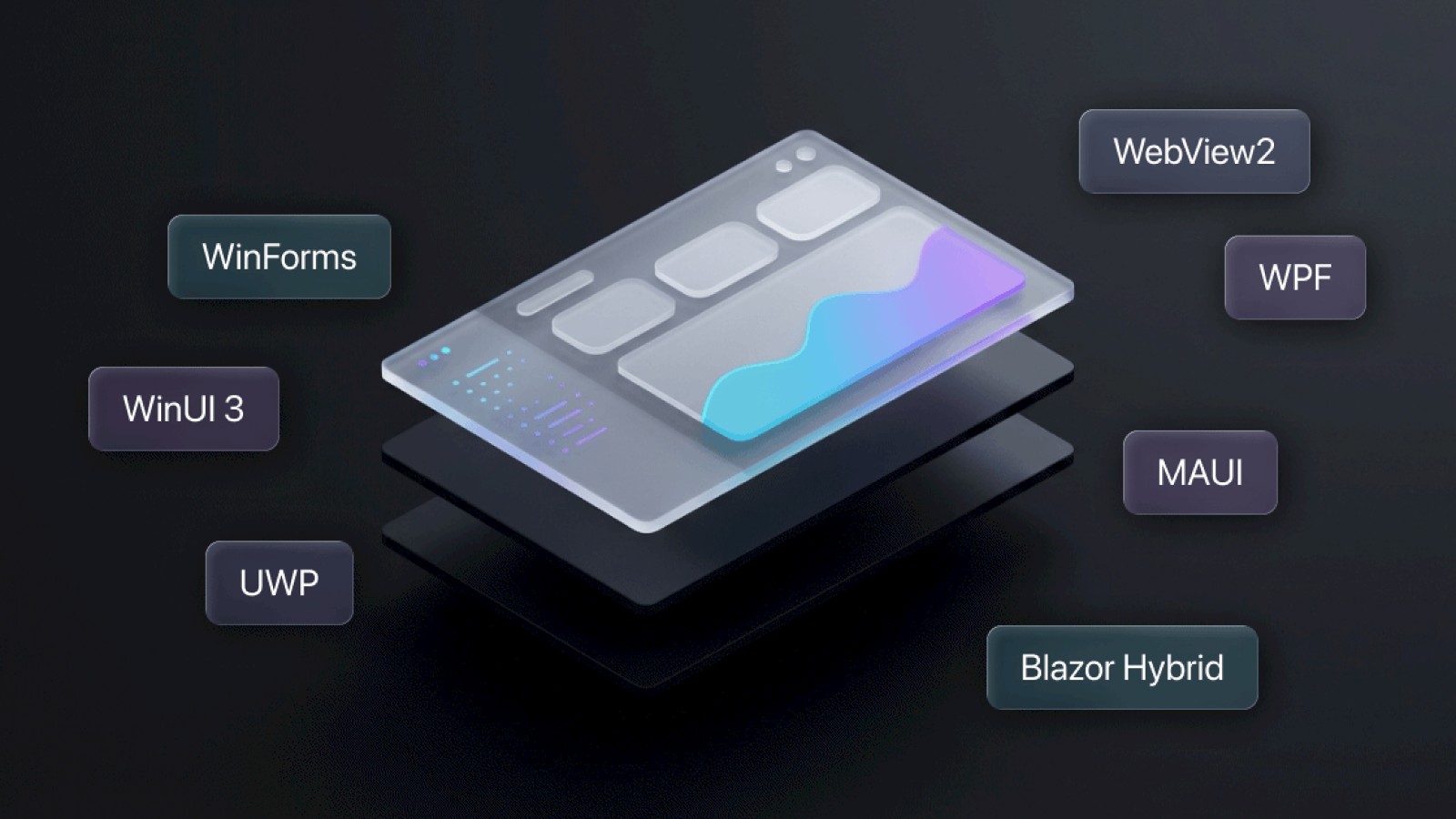
WinForms. WPF. UWP. WinUI 3. MAUI. Blazor Hybrid. WebView2. Dear Microsoft, what a mess.
Depending on how you count, there are at least seven frameworks for building desktop UI on Windows. They come from different eras, reflect different paradigms, and target different kinds of apps. And yet, they overlap enough to leave people confused about how they’re meant to be used.
In this article, we will try to make sense of that and place each option in a wider context.
No shortage of choice
Most operating systems provide an official set of UI toolkits to work with. Typically, that means one or two modern frameworks for new projects, plus an older legacy one that’s still supported but no longer in style. You can also choose a third-party framework, though it usually won’t integrate into the system as neatly as the official ones.
On iOS, you typically choose between UIKit and SwiftUI. On Android, it is the View system and Jetpack Compose. On macOS, it is AppKit and SwiftUI. Linux is messier in the details, but mainstream distros revolve around two big toolkits, GTK and Qt.
But Windows is different. If you want to build a desktop application with .NET, Microsoft alone gives you a whopping six options: WinForms, WPF, WinUI 3, MAUI, the web-based Blazor Hybrid, and WebView2 as a standalone option.
To understand why Microsoft accumulated such a range of options, let’s have a look at how it evolved.
The short history of toolkits
WinForms
In the late 1990s and early 2000s, Windows desktop applications were typically built on the Win32/USER32 stack. That was and still is a standard library baked into Windows. And thus, it was the default choice for most application developers. It offered a set of universally useful controls, and made your application look consistent with other apps and with the operating system itself.
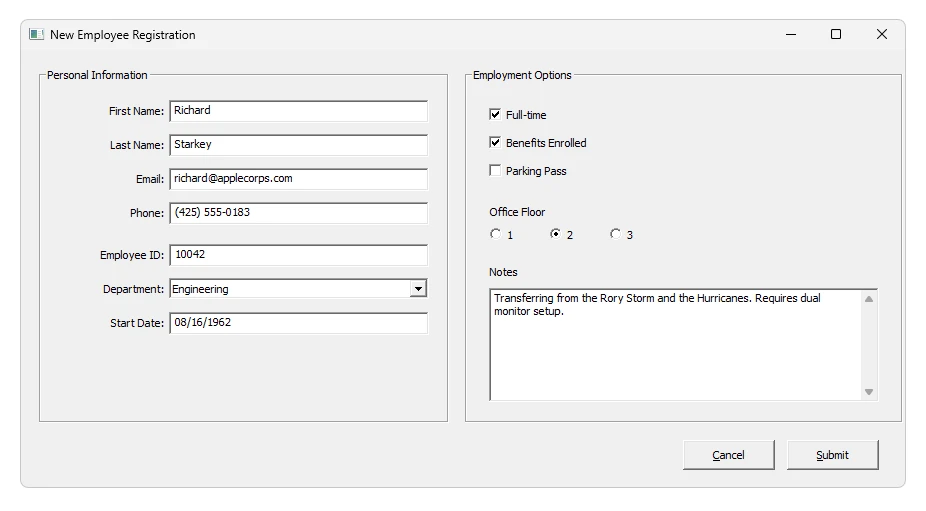
The original Windows controls from Win32 API.
In 2002, Microsoft released .NET. It also shipped WinForms, a UI library for building Windows desktop apps in .NET. WinForms wrapped the same standard USER32 controls behind a .NET-friendly, object-oriented API. Instead of writing code around handles and message loops, you worked with controls, properties, and events. WinForms also added higher-level, composite controls for common UI patterns.
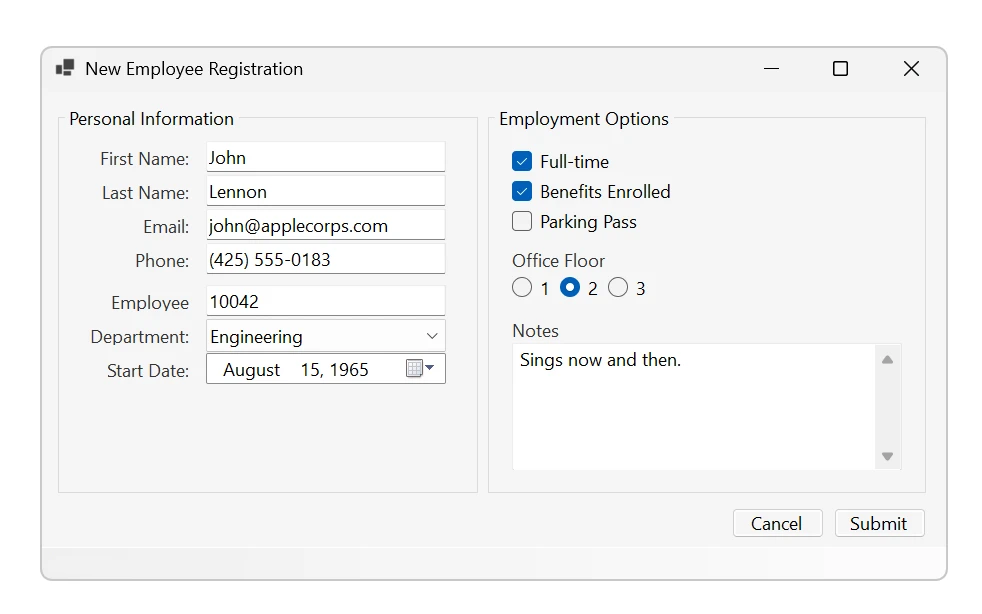
A WinForms application with effectively the same set of controls as Win32.
For some time, WinForms was the only way to build a Windows desktop UI in .NET.
WPF
In 2006, Microsoft introduced WPF as part of .NET Framework 3.0. Unlike WinForms, WPF did not wrap the standard USER32 controls. It was a separate UI framework with its own controls, layout system, and rendering pipeline. UIs were typically defined in XAML, with the application logic kept in code.
WPF introduced more modern layout and rendering ideas. Instead of placing controls at fixed coordinates, you build layouts that respond to the available space. WPF also included a graphics system with scalable visuals, transforms, and animation built in.
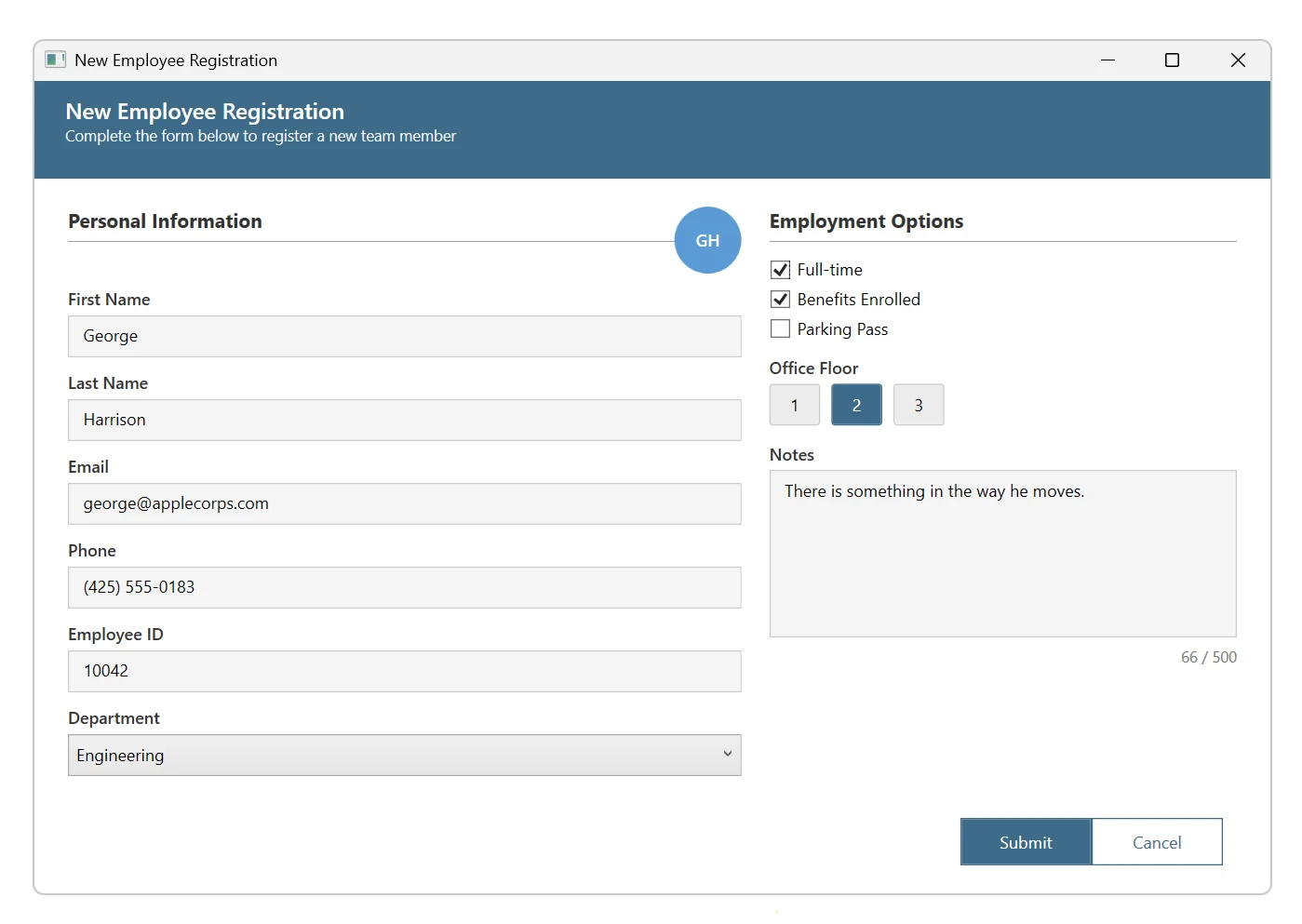
In WPF applications, it was easier to create a more customized UI.
For a while, it seemed WPF would eventually replace WinForms, but that never happened.
Windows 8, Metro, and UWP
Around 2010, Microsoft shipped Windows Phone, a new mobile operating system with a new design language called Metro. It looked nothing like iOS or Android at the time, and many people liked it. I know I did.
Two years later, Windows 8 brought Metro to the desktop. And to prove they meant it, Microsoft removed the place where it all begins — the Start menu. In its place came a full-screen grid of tiles, the new interface of the future.
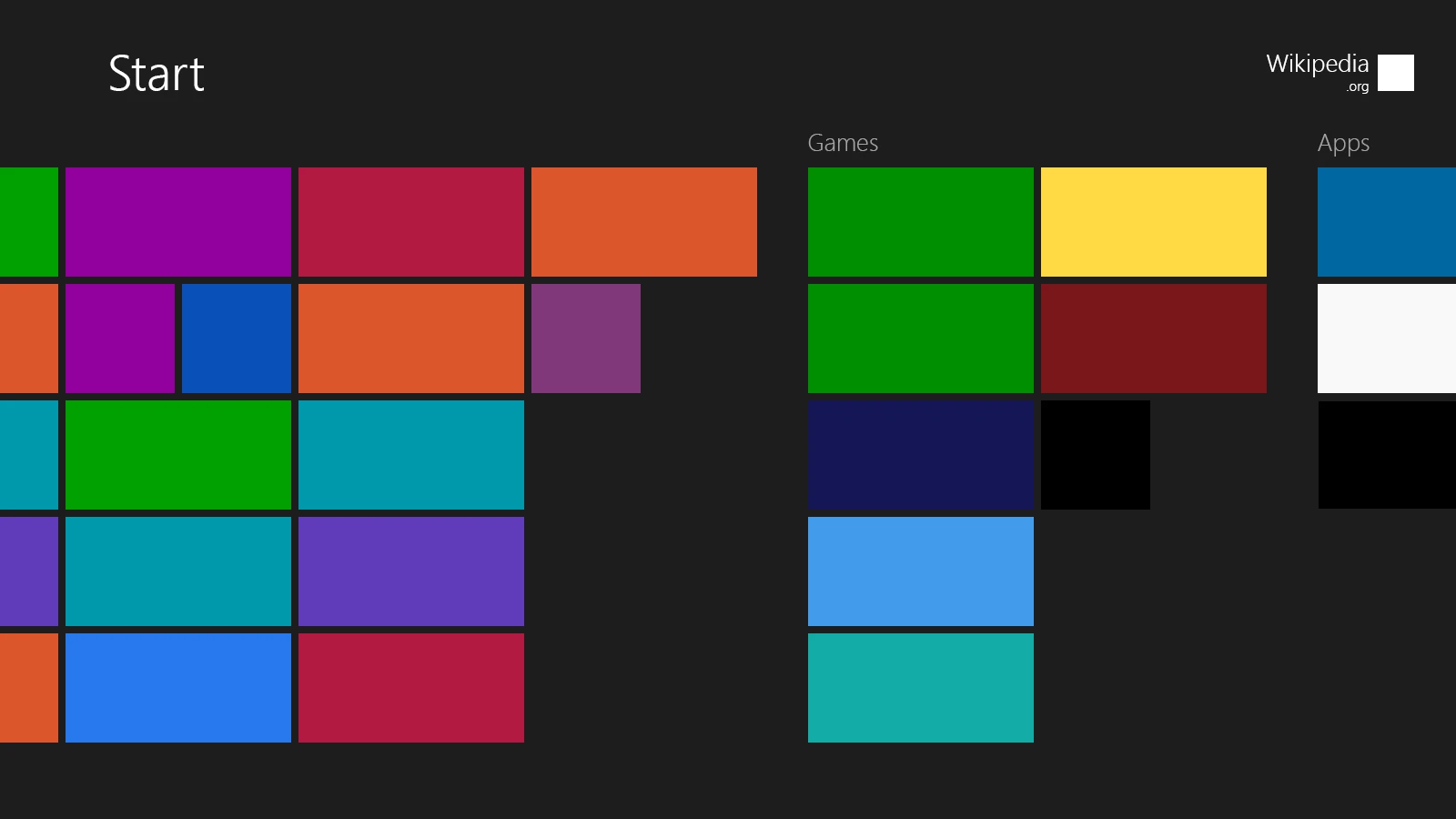
The Metro-style start screen that replaced Start menu in Windows 8. Source.
Windows 8 replaced the Start menu with the Start screen.
Metro was more than a new UI. It also prescribed how apps should behave and be distributed. The rules were natural for mobile, but new for desktop: install from an app store, design for touch input, and build around full-screen pages and mobile-style navigation.
To build these apps, Microsoft introduced a new stack, ambitiously called the Universal Windows Platform, or simply UWP. It became the official framework for that new category of apps, while WinForms and WPF remained in the classic desktop UI space.
Sadly, Metro did not last long: the Start menu reclaimed its place on the taskbar, Windows Phone faded, but UWP survived and was transformed into something new.
WinUI 3
In 2017, Microsoft introduced Fluent, a design system you now recognize from Windows 11. This time, it was not a new app model but a design language and the set of controls.
Instead of extending WPF with the new controls, Microsoft introduced yet another technology, specifically for building desktop apps with Fluent. It was called WinUI 3, and it was built on the foundation of UWP.
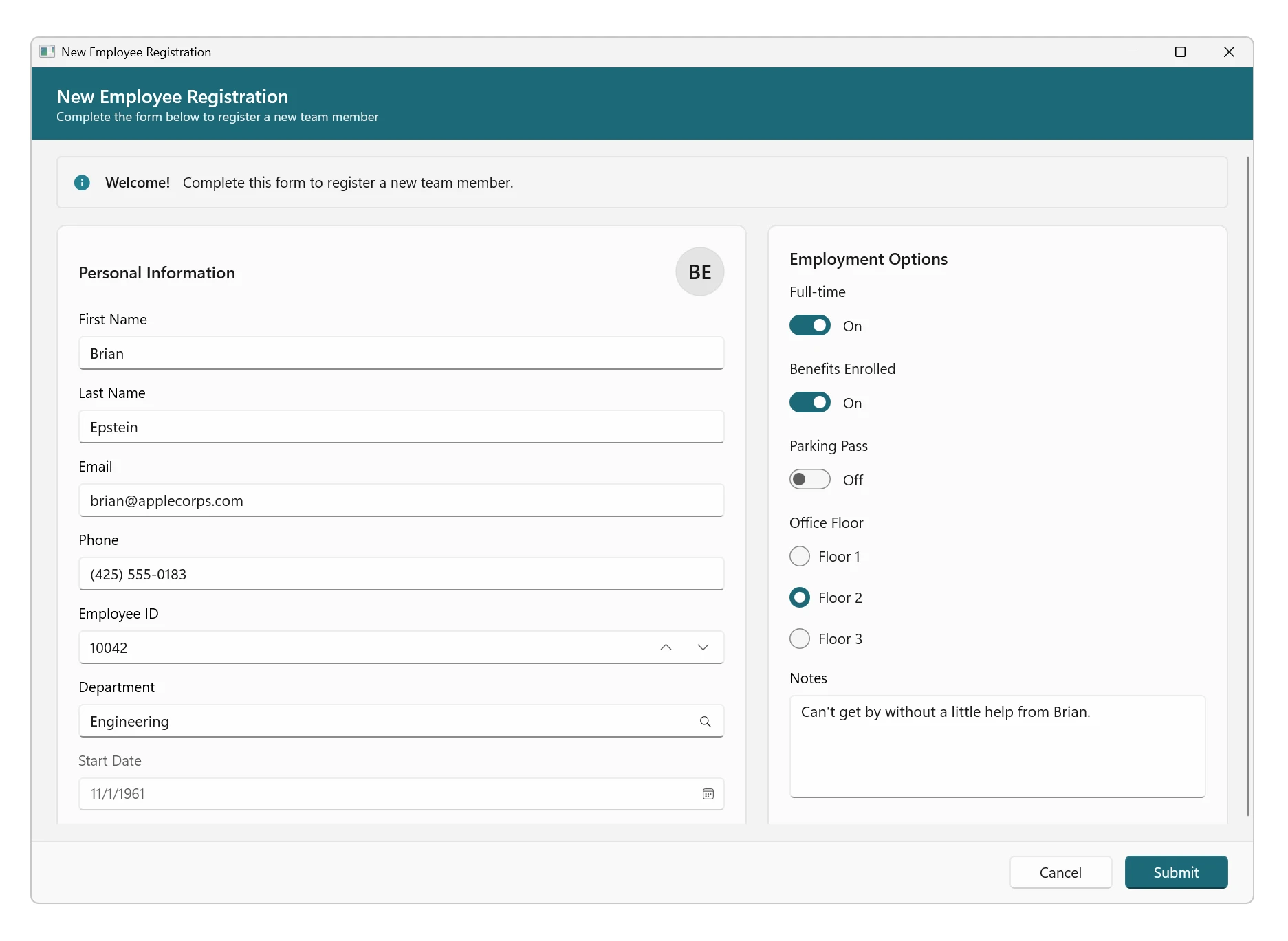
Fluent controls in a WinUI 3 application.
With WinUI 3, there are now indeed three officially supported desktop frameworks to choose from.
MAUI
In the early 2010s, Xamarin ported .NET to iOS and Android and introduced a UI toolkit that worked simultaneously on both platforms. You could write your UI once and ship to both. Under the hood, it used the native toolkits: UIKit on iOS, and Android Views on Android.
Microsoft acquired Xamarin in 2016 and eventually turned it into a Multi-platform App UI, MAUI. The core idea stayed the same: wrap native toolkits, one codebase for all platforms. And then MAUI came to the desktop.
On desktop, MAUI supports only Windows and macOS. It uses the same architecture as on mobile: wrap the native toolkit for each platform. On Windows, that’s WinUI 3. On macOS, it’s Mac Catalyst.
That makes four: WinForms, WPF, WinUI 3, and MAUI. Four frameworks that sort of compete, but also sort of complement each other in the Windows desktop space.
Web comes for us all
While we’re talking about native toolkits, by the time we finally choose one, it may become obsolete. Every time I download a new application, I play a game: native or Chromium? Every other application is now a browser in disguise. With any game launcher or random utility, there’s a good chance you’ll be looking at HTML and CSS rather than WPF.
Many developers dislike this type of application because they consume too much memory and CPU resources for relatively simple tasks. And to put this into perspective, at the time of writing, RAM is more expensive than actual gold.
But it’s hard to compete with the web, because the economics are brutally honest. The development on the web is just so much faster: you have thousands of mature component libraries, customizations are cheaper, and AI understands web technologies much better.
And so Microsoft decided not to compete with this trend. Instead, they joined the party.
Blazor Hybrid
Blazor Hybrid is Microsoft’s most direct and official way to build desktop apps with a web UI.
Blazor Hybrid allows you to use C#, stay within the .NET ecosystem and build the interface using Blazor, an originally server-side technology.
Blazor Hybrid embeds a Blazor rendering engine that shows the pages inside a regular desktop window. Under the hood, that is usually a MAUI desktop app that hosts a WebView2 control, so the UI is still HTML and CSS rendered by Chromium.
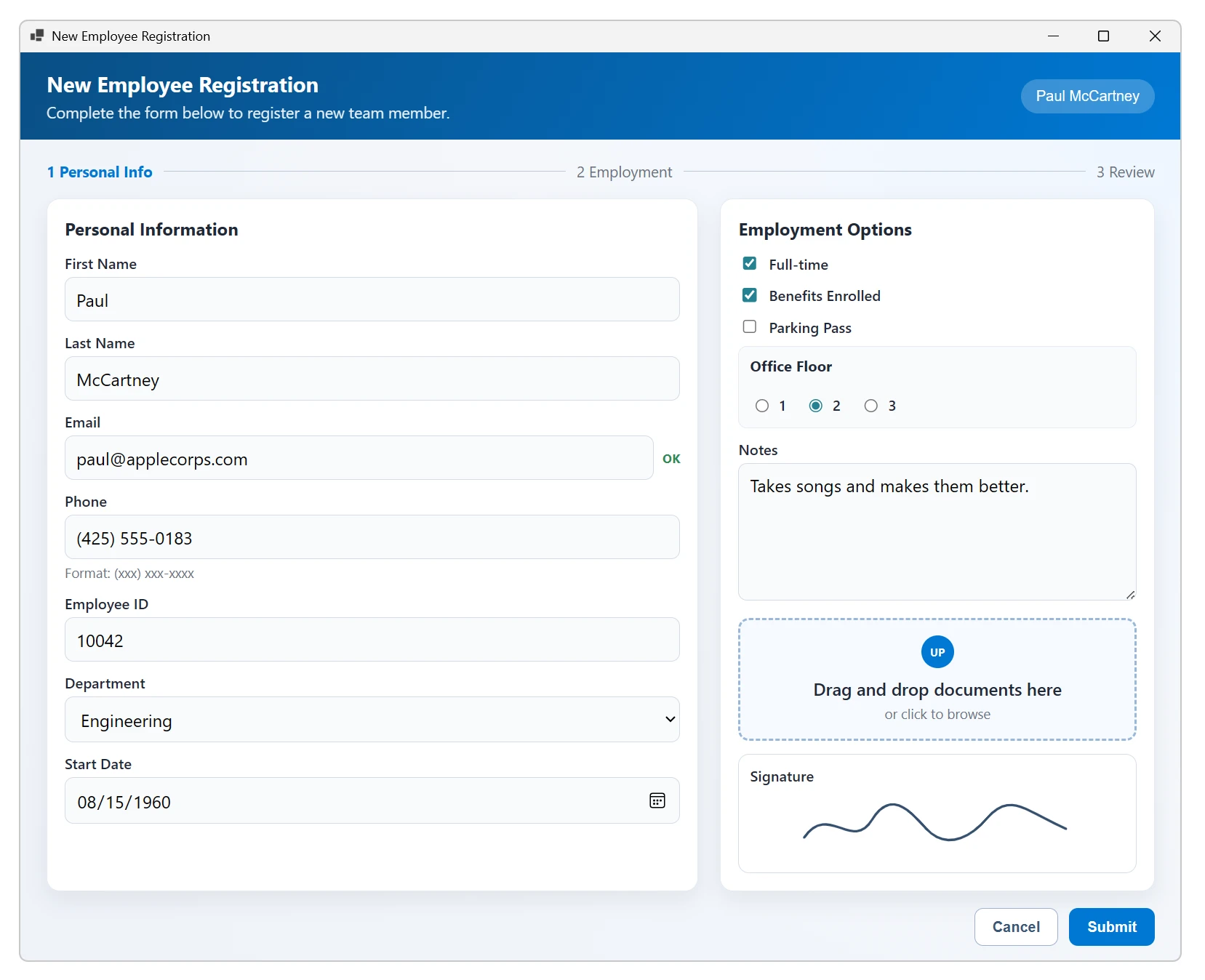
Blazor Hybrid app with a web interface rendered inside WebView2.
WebView2
WebView2 is an Edge-based web view control for Windows desktop apps. It’s a continuation of the obsolete WebView that was based on Internet Explorer. You add it to a WinForms, WPF, WinUI 3, or MAUI app and point it at some web content.
You see it even in older apps: login screens and dashboards are often just web pages. And once you start implementing parts of the UI as web pages, it can be a matter of time before the whole application gets sucked into the web view.
To be fair, WebView2 is an odd one out in this article. It’s not a framework, but I think it’s worth mentioning because of its enabler role. This component is what allows .NET developers and Microsoft themselves to opt-in for web UI and use it selectively, when it makes sense.
Electron
Electron is the technology for building desktop apps with web UI. It kicked off this whole category of software, to the point that people often say " Electron app", even when the app is built on something else.
It lets you build a desktop app with the very same stack you use for a web app. The front-end is HTML, CSS, and JavaScript running in a bundled Chromium, and the back-end is also in JavaScript, but running in a separate Node.js thread, where you have access to such things as files, processes, and OS integration.
Obviously, Electron is not a Microsoft technology. Even though it was started at GitHub which was later acquired by Microsoft, the project is not owned or governed by Microsoft.
The reason I mention it here is the sheer scale of the phenomenon and the fact that Microsoft itself uses Electron a lot.
Practicality over doctrine
WinForms was the original desktop UI library for .NET. If you were building a Windows application in managed code in the early 2000s, this was the only supported option.
WPF introduced a more modern UI model: layout-driven design, vector rendering, templating, and XAML. It was a clear step beyond the limitations of WinForms.
UWP was Microsoft’s attempt to unify the phone and desktop under a single design language and application model. Metro defined the visual direction; UWP was the platform built to implement it.
WinUI 3 continues the Fluent design language for desktop applications without requiring the original UWP platform. It decouples modern Windows controls from the earlier app model.
MAUI targets cross-platform development with a single UI abstraction across mobile and desktop. Windows becomes one of several supported platforms rather than the center.
Blazor Hybrid and WebView2 acknowledge that web technologies dominate UI development. They provide a supported way to host HTML and CSS inside desktop applications instead of competing with that trend.
Long story short: it’s not actually a mess. In fact, it’s Microsoft making pragmatic choices and caring about not breaking things that work. When the environment changes, they adapt and create a new technology that fits. And then, they keep the technology maintained because backward compatibility is important.
In fact, Microsoft applies the same practicality to its own apps: the new Teams client is React hosted in WebView2, Azure Data Studio is Electron, and people have even spotted React Native in the Start menu.
So don’t look for the one blessed framework. Start with your constraints, pick the tool that matches them, and move on. The upside of Microsoft being practical is that you can be practical, too.

Sending…
Sorry, the sending was interrupted
Please try again. If the issue persists, contact us at info@teamdev.com.
Your personal DotNetBrowser trial key and quick start guide will arrive in your Email Inbox in a few minutes.