Printing
This guide shows how to work with the Printing API.
Overview
The web page can be printed using the following ways:
- The
window.print()JavaScript function. It can be invoked from the JavaScript code on a web page. - The
IFrame.Print()method of the DotNetBrowser API. It requests printing of the frame. If you need to print the whole page, call thePrint()method in the main frame. See the code sample below:
browser.MainFrame?.Print();
If browser.MainFrame IsNot Nothing Then
    browser.MainFrame.Print()
End If
The web page is not printed immediately. The RequestPrintHandler will be invoked to tell the engine how to handle the print request. By default, all print requests are canceled.
Configure printing
There are three handlers that can be used to configure printing:
RequestPrintHandleris used to determine how to handle the print requests. This handler can be used to cancel printing completely, show print preview, or tell the browser to print the content programmatically.PrintHtmlContentHandleris used to configure how to print the HTML content programmatically.PrintPdfContentHandleris used to configure how to print the PDF content programmatically.
Cancel printing
To cancel any print request or disable printing at all, register the RequestPrintHandler as shown in the code sample below:
browser.RequestPrintHandler =
    new Handler<RequestPrintParameters, RequestPrintResponse>(p =>
    {
        return RequestPrintResponse.Cancel();
    });
browser.RequestPrintHandler =
    New Handler(Of RequestPrintParameters, RequestPrintResponse)(Function(p)
        Return RequestPrintResponse.Cancel()
    End Function)
Print preview
To allow the print request and display the Print Preview dialog, use the code sample below:
browser.RequestPrintHandler =
    new Handler<RequestPrintParameters, RequestPrintResponse>(p =>
    {
        return RequestPrintResponse.ShowPrintPreview();
    });
browser.RequestPrintHandler =
    New Handler(Of RequestPrintParameters, RequestPrintResponse)(Function(p)
        Return RequestPrintResponse.ShowPrintPreview()
    End Function)
In the Print Preview dialog, you can select the preferred printing options:
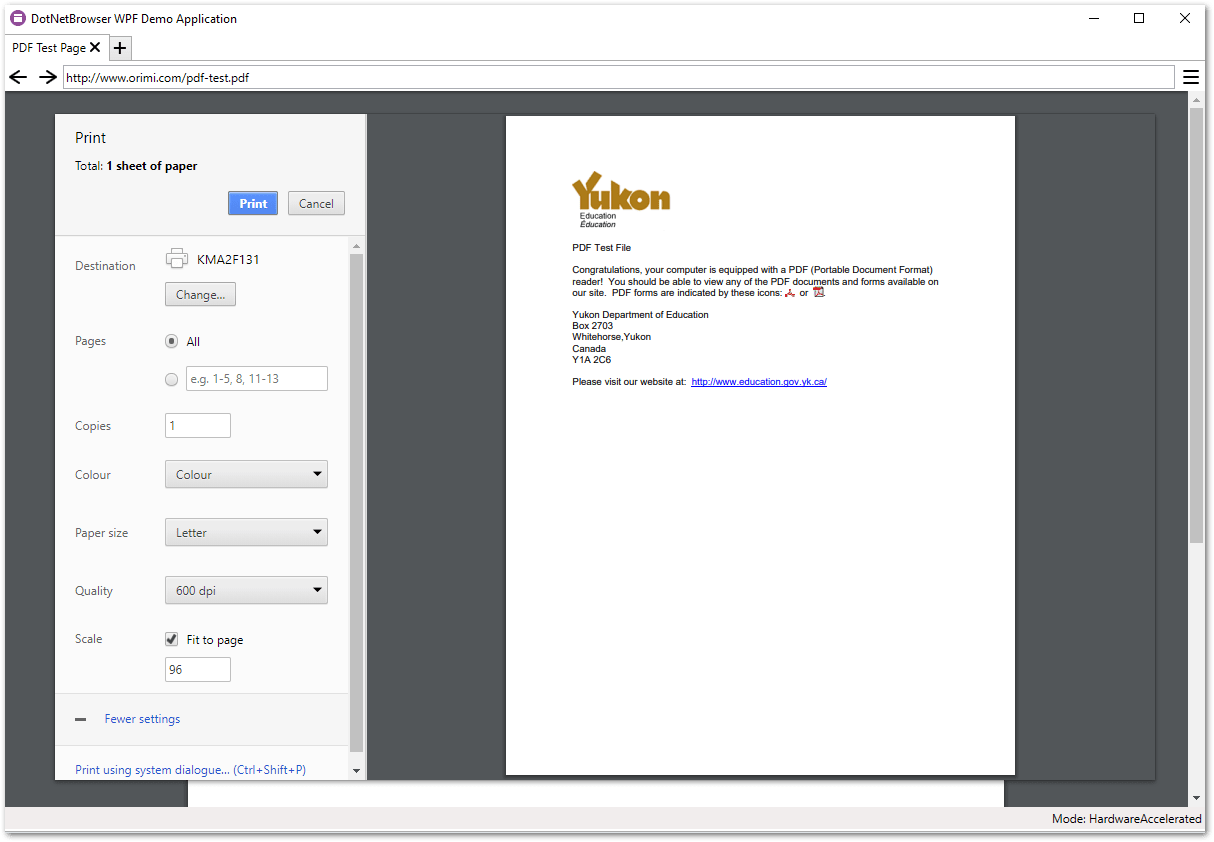
The Print Preview dialog can also be used to print the content to PDF. In the dialog, you need to click the Change… button in the Destination section, and select Save as PDF. The web page will be saved after pressing the Save button.
Print preview events
To get notified when the Print Preview dialog has been opened or closed, use PrintPreviewOpened and PrintPreviewClosed events:
Browser.PrintPreviewOpened += (sender, args) =>
{
    // The Print Preview dialog is opened.
};

Browser.PrintPreviewClosed += (sender, args) =>
{
    // The Print Preview dialog is closed.
};
AddHandler Browser.PrintPreviewOpened, Sub(sender, args)
	' The Print Preview dialog is opened.
End Sub

AddHandler Browser.PrintPreviewClosed, Sub(sender, args)
	' The Print Preview dialog is closed.
End Sub
Print the content programmatically
To print the content programmatically and configure the print settings without showing any dialogs, you need to use several handlers.
First of all, you need to register the RequestPrintHandler as shown in the code sample below:
browser.RequestPrintHandler =
    new Handler<RequestPrintParameters, RequestPrintResponse>(p =>
    {
        return RequestPrintResponse.Print();
    });
browser.RequestPrintHandler =
    New Handler(Of RequestPrintParameters, RequestPrintResponse)(Function(p)
        Return RequestPrintResponse.Print()
    End Function)
When Chromium is told to perform printing programmatically, it will use either PrintHtmlContentHandler or PrintPdfContentHandler to determine how the content should be printed.
The handler that will be invoked depends on the current content loaded into the browser - the PrintHtmlContentHandler will be used for regular web pages, and the PrintPdfContentHandler will be used for printing the PDF files.
Choose a printer
The parameters for PrintHtmlContentHandler and PrintPdfContentHandler contain the Printers property - a set of the printers that is currently available for printing. For example, here is how to obtain the printer you need in the PrintHtmlContentHandler implementation:
browser.PrintHtmlContentHandler
    = new Handler<PrintHtmlContentParameters, PrintHtmlContentResponse>(p =>
    {
        // Get the collection of the available printers.
        var printers = p.Printers;

        // Get the default printer in the environment.
        var defaultPrinter = printers.Default;

        // Get the built-in PDF printer.
        var pdfPrinter = printers.Pdf;

        // Find a printer by its device name.
        var xpsPrinter = printers.FirstOrDefault(pr => pr.DeviceName.Contains("XPS"));

        // Print the content using the particular printer.
        return PrintHtmlContentResponse.Print(xpsPrinter);
    });
browser.PrintHtmlContentHandler =
    New Handler(Of PrintHtmlContentParameters, PrintHtmlContentResponse)(Function(p)
        ' Get the collection of the available printers.
        Dim printers = p.Printers

        ' Get the default printer in the environment.
        Dim defaultPrinter = printers.Default

        ' Get the built-in PDF printer.
        Dim pdfPrinter = printers.Pdf

        ' Find a printer by its device name.
        Dim xpsPrinter =
            printers.FirstOrDefault(Function(pr) pr.DeviceName.Contains("XPS"))

        ' Print the content using the particular printer.
        Return PrintHtmlContentResponse.Print(xpsPrinter)
    End Function)
The Print() response in the handlers is used to specify which printer to use for printing.
Each printer has its own capabilities, which include the paper sizes, color models and duplex modes supported by the particular printer. For instance, here is how to check if the printer supports A4:
bool a4Supported = xpsPrinter.Capabilities.PaperSizes.Contains(PaperSize.IsoA4);
Dim a4Supported As Boolean = xpsPrinter.Capabilities.PaperSizes.Contains(PaperSize.IsoA4)
Configure print settings
Each printer contains a PrintJob that represents the current printing operation. The print settings for the particular printing operation are available as a part of the print job. Here is how to customize and apply the print settings:
pdfPrinter.PrintJob.Settings.Apply((s) =>
{
    s.Orientation = Orientation.Landscape;
    s.PageRanges = new[] { new PageRange(2, 5) };
    s.PaperSize = PaperSize.IsoA4;
    s.PdfFilePath = pdfFilePath;
    // Other settings.
});
pdfPrinter.PrintJob.Settings.Apply(Sub(s)
    s.Orientation = Orientation.Landscape
    s.PageRanges = { New PageRange(2, 5) }
    s.PaperSize = PaperSize.IsoA4
    s.PdfFilePath = pdfFilePath
    ' Other settings.
End Sub)
During applying the print settings, the page layout is performed, and the print preview document that will be later sent to the printer is regenerated. As a result, the Apply() call may take some time to execute.
If the settings applied by the handler implementation do not match the printer capabilities, an exception will be thrown.
It is required to specify the fully qualified path via PdfFilePath when the built-in PDF printer is used for printing. If the path is not set, the printing operation will be canceled.
PageCountUpdated event
After the page layout is done, the PageCountUpdated event is raised, providing the resulting page count. Here is how to subscribe to this event for the particular printer:
printer.PrintJob.PageCountUpdated += (s, e) =>
{
    int newPageCount = e.PageCount;
};
AddHandler printer.PrintJob.PageCountUpdated, Sub(s, e)
    Dim newPageCount As Integer = e.PageCount
End Sub
PrintCompleted event
After the printer is selected for printing via PrintHtmlContentResponse.Print() or PrintPdfContentResponse.Print(), the PrintCompleted event is raised for its print job as soon as the printing operation is completed. Here is how to subscribe to this event:
printer.PrintJob.PrintCompleted += (s, e) =>
{
    var printJob = e.PrintJob;
    bool completed = e.IsCompletedSuccessfully;
};
AddHandler printer.PrintJob.PrintCompleted, Sub(s, e)
    Dim printJob = e.PrintJob
    Dim completed As Boolean = e.IsCompletedSuccessfully
End Sub
Print web page to PDF programmatically
Here is the code snippet that demonstrates the general approach to print the web page to PDF programmatically:
public static async Task Main()
{
    var engineOptions = new EngineOptions.Builder
    {
        RenderingMode = RenderingMode.OffScreen,
        LicenseKey = "your license key"
    }.Build();

    using var engine = EngineFactory.Create(engineOptions);
    using var browser = engine.CreateBrowser();

    await browser.Navigation.LoadUrl(Path.GetFullPath("template.html"));
...

    var whenPrintCompleted = ConfigurePrinting(browser);
    browser.MainFrame.Print();
    var resultPath = await whenPrintCompleted.Task;
    Console.WriteLine($"PDF is generated: {resultPath}");
    Console.WriteLine("Press any key to terminate...");
    Console.ReadKey();
}

private static TaskCompletionSource<string> ConfigurePrinting(IBrowser browser)
{
    // Tell the browser to print automatically instead of showing the print preview.
    browser.RequestPrintHandler = new Handler<RequestPrintParameters, RequestPrintResponse>(
       p => RequestPrintResponse.Print()
    );

    TaskCompletionSource<string> whenCompleted = new();
    // Configure how the browser prints an HTML page.
    browser.PrintHtmlContentHandler = new Handler<PrintHtmlContentParameters, PrintHtmlContentResponse>(
        parameters =>
        {
            // Use the PDF printer.
            var printer = parameters.Printers.Pdf;
            var job = printer.PrintJob;

            // Generate a random name for PDF file.
            var guid = Guid.NewGuid();
            var path = Path.GetFullPath($"{guid}.pdf");
            job.Settings.PdfFilePath = path;

            // Remove white areas on the sides.
            job.Settings.PageMargins = PageMargins.None;
            // Remove default browser headers and footers.
            job.Settings.PrintingHeaderFooterEnabled = false;
            job.PrintCompleted += (_, _) => whenCompleted.SetResult(path);

            // Proceed with printing using the PDF printer.
            return PrintHtmlContentResponse.Print(printer);
        });
    return whenCompleted;
}
Public Shared Sub Main()
    Dim engineOptions As New EngineOptions.Builder With {
            .RenderingMode = RenderingMode.OffScreen,
            .LicenseKey = "your license key"
            }

    Using engine = EngineFactory.Create(engineOptions.Build())
        Using browser = engine.CreateBrowser()

            browser.Navigation.LoadUrl(Path.GetFullPath("template.html")).Wait()
...

            Dim whenPrintCompleted = ConfigurePrinting(browser)
            browser.MainFrame.Print()
            Dim resultPath = whenPrintCompleted.Task.Result
            Console.WriteLine($"PDF is generated: {resultPath}")
            Console.WriteLine("Press any key to terminate...")
            Console.ReadKey()
        End Using
    End Using
End Sub

Private Shared Function ConfigurePrinting(browser As IBrowser) _
    As TaskCompletionSource(Of String)
    ' Tell the browser to print automatically instead of showing the print preview.
    browser.RequestPrintHandler =
        New Handler(Of RequestPrintParameters, RequestPrintResponse)(
            Function(p) RequestPrintResponse.Print())

    Dim whenCompleted As New TaskCompletionSource(Of String)()
    ' Configure how the browser prints an HTML page.
    browser.PrintHtmlContentHandler =
        New Handler(Of PrintHtmlContentParameters, PrintHtmlContentResponse)(
            Function(parameters)
                ' Use the PDF printer.
                Dim printer = parameters.Printers.Pdf
                Dim job = printer.PrintJob

                ' Generate a random name for PDF file.
                Dim guid As Guid = Guid.NewGuid()
                Dim path As String = IO.Path.GetFullPath($"{guid}.pdf")
                job.Settings.PdfFilePath = path

                ' Remove white areas on the sides.
                job.Settings.PageMargins = PageMargins.None
                ' Remove default browser headers and footers.
                job.Settings.PrintingHeaderFooterEnabled = False
                AddHandler job.PrintCompleted, Sub(o, e) whenCompleted.SetResult(path)

                ' Proceed with printing using the PDF printer.
                Return PrintHtmlContentResponse.Print(printer)
            End Function)
    Return whenCompleted
End Function