BrowserView
The document describes how to embed a visual component that displays content of web pages in WinForms, WPF, WinUI 3, and Avalonia UI applications.
Embedding
DotNetBrowser can be used in .NET applications built with the following .NET GUI frameworks:
- WinForms
- WPF
- WinUI 3
- Avalonia UI
The IBrowser component itself is not a visual one that allows displaying web page. To display the content of a web page loaded in IBrowser, please use one of the following controls, depending on the GUI framework used:
DotNetBrowser.WinForms.BrowserViewDotNetBrowser.Wpf.BrowserViewDotNetBrowser.WinUi3.BrowserViewDotNetBrowser.AvaloniaUi.BrowserView
All of these controls implement the IBrowserView interface. The connection of a view with a specific IBrowser instance is established when necessary by calling InitializeFrom(IBrowser) extension method.
It is not possible to initialize several views from a single browser - if there is a browser view bound to this browser instance, that view will be de-initialized by a subsequent InitializeFrom call.
The InitializeFrom(IBrowser) extension method should be called from the UI thread.
The IBrowserView implementations do not dispose the connected IBrowser or IEngine instances when the application is closed. As a result, the browser and engine will appear alive even after all the application windows are closed and prevent the application from terminating. To handle this case, it is necessary to dispose IBrowser or IEngine instances during your application shutdown.
In WinUI 3, closing the last window stops the UI thread’s message loop, even while the engine is still being created; see WinUI 3.
WinForms
To display the content of a web page in a .NET WinForms application create an instance of the DotNetBrowser.WinForms.BrowserView:
using DotNetBrowser.WinForms;
// ...
BrowserView browserView = new BrowserView();
browserView.InitializeFrom(browser);
Imports DotNetBrowser.WinForms
' ...
Dim browserView As New BrowserView()
browserView.InitializeFrom(browser)
And embed it into a Form:
form.Controls.Add(view);
form.Controls.Add(view)
Here is the complete example:
using System.Windows.Forms;
using DotNetBrowser.Browser;
using DotNetBrowser.Engine;
using DotNetBrowser.WinForms;

namespace Embedding.WinForms
{
    /// <summary>
    ///     This example demonstrates how to embed DotNetBrowser
    ///     into a Windows Forms application.
    /// </summary>
    public partial class Form1 : Form
    {
        private const string Url = "https://html5test.teamdev.com/";
        private readonly IBrowser browser;
        private readonly IEngine engine;

        public Form1()
        {
            // Create the Windows Forms BrowserView control.
            BrowserView browserView = new BrowserView
            {
                Dock = DockStyle.Fill
            };

            // Create and initialize the IEngine instance.
            EngineOptions engineOptions = new EngineOptions.Builder
            {
                RenderingMode = RenderingMode.HardwareAccelerated
            }.Build();
            engine = EngineFactory.Create(engineOptions);

            // Create the IBrowser instance.
            browser = engine.CreateBrowser();

            InitializeComponent();

            // Add the BrowserView control to the Form.
            Controls.Add(browserView);
            FormClosed += Form1_FormClosed;

            // Initialize the Windows Forms BrowserView control.
            browserView.InitializeFrom(browser);
            browser.Navigation.LoadUrl(Url);
        }

        private void Form1_FormClosed(object sender, FormClosedEventArgs e)
        {
            browser?.Dispose();
            engine?.Dispose();
        }
    }
}
Imports System.Windows.Forms
Imports DotNetBrowser.Browser
Imports DotNetBrowser.Engine
Imports DotNetBrowser.WinForms

Namespace Embedding.WinForms
    ''' <summary>
    '''     This example demonstrates how to embed DotNetBrowser
    '''     into a Windows Forms application.
    ''' </summary>
    Partial Public Class Form1
        Inherits Form

        Private Const Url As String = "https://html5test.teamdev.com/"
        Private ReadOnly browser As IBrowser
        Private ReadOnly engine As IEngine

        Public Sub New()
            ' Create the Windows Forms BrowserView control.
            Dim browserView As New BrowserView With {.Dock = DockStyle.Fill}

            ' Create and initialize the IEngine instance.
            Dim engineOptions As EngineOptions = New EngineOptions.Builder With {
                .RenderingMode = RenderingMode.HardwareAccelerated
            }.Build()
            engine = EngineFactory.Create(engineOptions)

            ' Create the IBrowser instance.
            browser = engine.CreateBrowser()

            InitializeComponent()

            ' Add the BrowserView control to the Form.
            Controls.Add(browserView)
            AddHandler FormClosed, AddressOf Form1_FormClosed

            ' Initialize the Windows Forms BrowserView control.
            browserView.InitializeFrom(browser)
            browser.Navigation.LoadUrl(Url)
        End Sub

        Private Sub Form1_FormClosed(sender As Object, e As FormClosedEventArgs)
            browser?.Dispose()
            engine?.Dispose()
        End Sub
    End Class
End Namespace
The output of this example looks as follows:
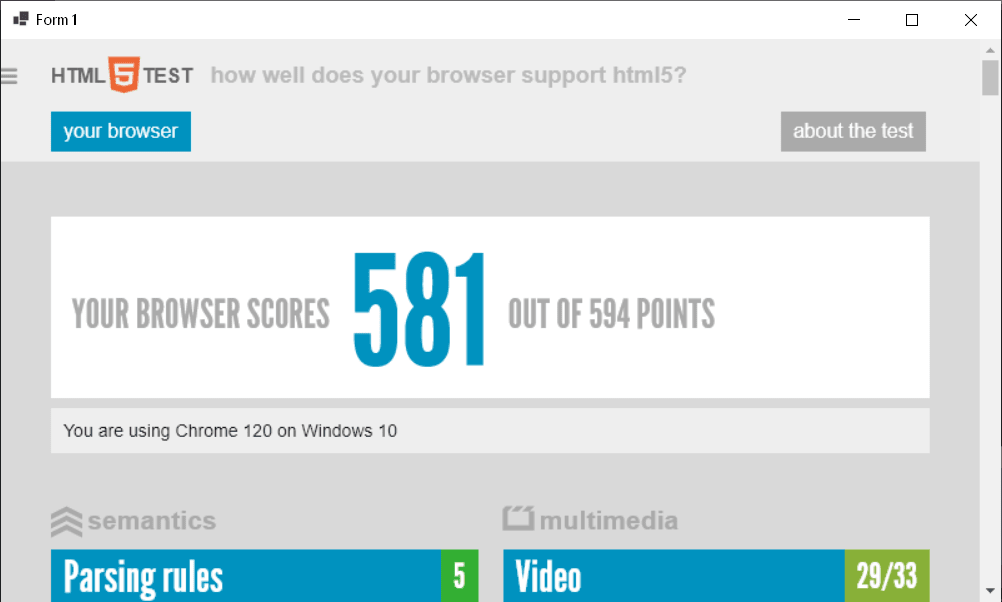
The complete project is available in our repository: C#, VB.
WPF
To display the content of a web page in a WPF application, create an instance of the DotNetBrowser.Wpf.BrowserView:
using DotNetBrowser.Wpf;
// ...
BrowserView browserView = new BrowserView();
browserView.InitializeFrom(browser);
Imports DotNetBrowser.Wpf
' ...
Dim browserView As New BrowserView()
browserView.InitializeFrom(browser)
Here is the complete example:
MainWindow.xaml
<Window
    xmlns="http://schemas.microsoft.com/winfx/2006/xaml/presentation"
    xmlns:x="http://schemas.microsoft.com/winfx/2006/xaml"
    xmlns:d="http://schemas.microsoft.com/expression/blend/2008"
    xmlns:mc="http://schemas.openxmlformats.org/markup-compatibility/2006"
    xmlns:WPF="clr-namespace:DotNetBrowser.Wpf;assembly=DotNetBrowser.Wpf"
    x:Class="Embedding.Wpf.MainWindow"
    mc:Ignorable="d"
    Title="DotNetBrowser — WPF" Height="480" Width="800" Closed="Window_Closed">
    <Grid>
        <WPF:BrowserView Name="browserView" />
    </Grid>
</Window>
using System;
using System.Windows;
using DotNetBrowser.Browser;
using DotNetBrowser.Engine;

namespace Embedding.Wpf
{
    /// <summary>
    ///     This example demonstrates how to embed DotNetBrowser
    ///     into a WPF application.
    /// </summary>
    public partial class MainWindow : Window
    {
        private const string Url = "https://html5test.teamdev.com/";
        private readonly IBrowser browser;
        private readonly IEngine engine;

        public MainWindow()
        {
            // Create and initialize the IEngine instance.
            EngineOptions engineOptions = new EngineOptions.Builder
            {
                RenderingMode = RenderingMode.HardwareAccelerated
            }.Build();
            engine = EngineFactory.Create(engineOptions);

            // Create the IBrowser instance.
            browser = engine.CreateBrowser();

            InitializeComponent();

            // Initialize the WPF BrowserView control.
            browserView.InitializeFrom(browser);
            browser.Navigation.LoadUrl(Url);
        }

        private void Window_Closed(object sender, EventArgs e)
        {
            browser?.Dispose();
            engine?.Dispose();
        }
    }
}
Imports System.Windows
Imports DotNetBrowser.Browser
Imports DotNetBrowser.Engine

Namespace Embedding.Wpf
    ''' <summary>
    '''     This example demonstrates how to embed DotNetBrowser
    '''     into a WPF application.
    ''' </summary>
    Partial Public Class MainWindow
        Inherits Window

        Private Const Url As String = "https://html5test.teamdev.com/"
        Private ReadOnly browser As IBrowser
        Private ReadOnly engine As IEngine

        Public Sub New()
            ' Create and initialize the IEngine instance.
            Dim engineOptions As EngineOptions = New EngineOptions.Builder With {
                .RenderingMode = RenderingMode.HardwareAccelerated
            }.Build()
            engine = EngineFactory.Create(engineOptions)

            ' Create the IBrowser instance.
            browser = engine.CreateBrowser()

            InitializeComponent()

            ' Initialize the WPF BrowserView control.
            browserView.InitializeFrom(browser)
            browser.Navigation.LoadUrl(Url)
        End Sub

        Private Sub Window_Closed(sender As Object, e As EventArgs)
            browser?.Dispose()
            engine?.Dispose()
        End Sub
    End Class
End Namespace
The output of this example looks as follows:
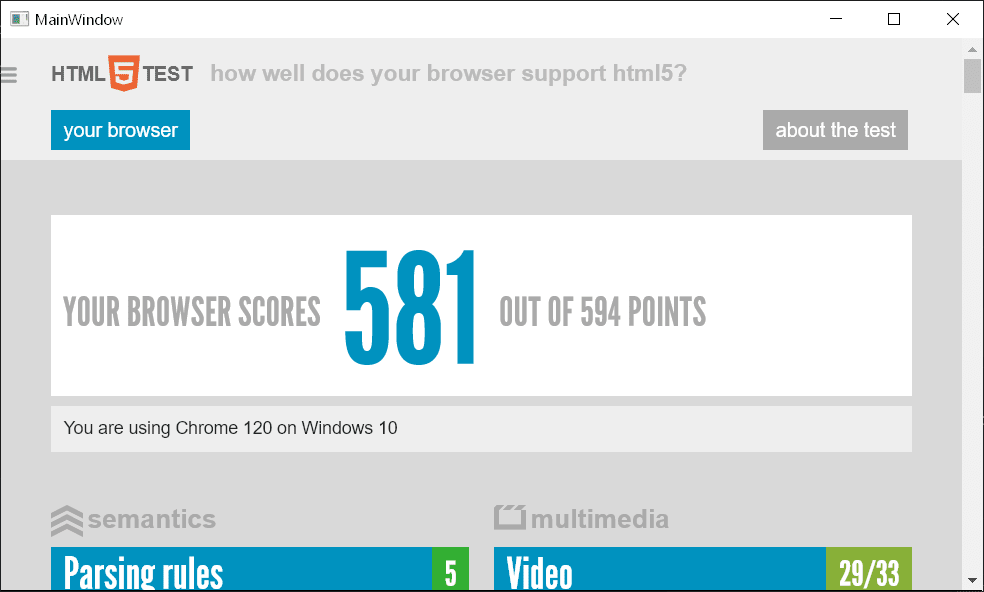
The complete project is available in our repository: C#, VB.
ElementHost
We recommend using WinForms BrowserView in WinForms applications as well as WPF BrowserView in WPF applications.
Sometimes you need to embed WPF BrowserView into a WinForms application. For example, when developing a complex web browser control using WPF UI Toolkit, and you have to display this WPF control in a WinForms application.
Since v.2.0, you can embed WPF BrowserView into a WinForms window using ElementHost. It is supported with all rendering modes.
using System;
using System.Windows.Forms;
using System.Windows.Forms.Integration;
using DotNetBrowser.Browser;
using DotNetBrowser.Engine;
using DotNetBrowser.Wpf;

namespace ElementHostEmbedding.WinForms
{
    public partial class Form1 : Form
    {
        private const string Url = "https://html5test.teamdev.com";
        private readonly IBrowser browser;
        private readonly IEngine engine;
        private readonly ElementHost host;

        public Form1()
        {
            // Create and initialize the IEngine instance.
            EngineOptions engineOptions = new EngineOptions.Builder
            {
                RenderingMode = RenderingMode.OffScreen,
                // Set the license key programmatically.
                LicenseKey = "your_license_key_goes_here"
            }.Build();
            engine = EngineFactory.Create(engineOptions);

            // Create the IBrowser instance.
            browser = engine.CreateBrowser();
            // Create the WPF BrowserView control.
            BrowserView browserView = new BrowserView();

            InitializeComponent();
            FormClosed += Form1_FormClosed;

            // Create and initialize the ElementHost control.
            host = new ElementHost
            {
                Dock = DockStyle.Fill,
                Child = browserView
            };
            Controls.Add(host);

            // Initialize the WPF BrowserView control.
            browserView.InitializeFrom(browser);
            browser.Navigation.LoadUrl(Url);
        }

        private void Form1_FormClosed(object sender, EventArgs e)
        {
            browser?.Dispose();
            engine?.Dispose();
        }
    }
}
Imports System.Windows.Forms.Integration
Imports DotNetBrowser.Browser
Imports DotNetBrowser.Engine
Imports DotNetBrowser.Wpf

Namespace ElementHostEmbedding.WinForms
    Partial Public Class Form1
        Inherits Form

        Private Const Url As String = "https://html5test.teamdev.com"
        Private ReadOnly browser As IBrowser
        Private ReadOnly engine As IEngine
        Private ReadOnly host As ElementHost

        Public Sub New()
            ' Create and initialize the IEngine instance.
            Dim engineOptions As EngineOptions = New EngineOptions.Builder With {
                .RenderingMode = RenderingMode.OffScreen,
                .LicenseKey = "your_license_key_goes_here"
            }.Build()
            engine = EngineFactory.Create(engineOptions)

            ' Create the IBrowser instance.
            browser = engine.CreateBrowser()
            ' Create the WPF BrowserView control.
            Dim browserView As New BrowserView()

            InitializeComponent()
            AddHandler FormClosed, AddressOf Form1_FormClosed

            ' Create and initialize the ElementHost control.
            host = New ElementHost With {
                .Dock = DockStyle.Fill,
                .Child = browserView
            }
            Controls.Add(host)

            ' Initialize the WPF BrowserView control.
            browserView.InitializeFrom(browser)
            browser.Navigation.LoadUrl(Url)
        End Sub

        Private Sub Form1_FormClosed(sender As Object, e As EventArgs)
            browser?.Dispose()
            engine?.Dispose()
        End Sub
    End Class
End Namespace
The complete example is available in our repository: C#, VB.
WinUI 3
To display the content of a web page in a WinUI 3 application, add the
DotNetBrowser.WinUi3.BrowserView control to the window:
<Window
    x:Class="Example.WinUi.MainWindow"
    xmlns="http://schemas.microsoft.com/winfx/2006/xaml/presentation"
    xmlns:x="http://schemas.microsoft.com/winfx/2006/xaml"
    xmlns:app="using:DotNetBrowser.WinUi3"
    Closed="Window_Closed">
    <app:BrowserView Name="BrowserView" />
</Window>
Pass the window that hosts the view to BrowserView.SetWindow():
InitializeComponent();
BrowserView.SetWindow(this);
BrowserView.InitializeFrom(browser);
As in the other frameworks, dispose the browser and the engine in the
Closed handler of the window.
In WinUI 3, closing the last window stops the application’s event loop. If the
window creates the engine with EngineFactory.CreateAsync() and the user
closes the window before the engine is ready, the engine still starts, but the
code that would dispose it no longer runs. To keep the application running
until that engine is disposed, set Application.Current.DispatcherShutdownMode
to DispatcherShutdownMode.OnExplicitShutdown on the window’s UI thread before
you await the engine creation. This property requires Windows App SDK 1.5 or
later. In this mode, the application does not exit on its own. Call
Application.Current.Exit() when both of the following are true: the window is
closed, and the engine creation has finished, whether it succeeded or failed:
- If the engine creation has finished when the window closes, dispose the
browser and the engine, if they were created, in the
Closedhandler, and then callApplication.Current.Exit(). - If the window closes while the engine is being created, call
Application.Current.Exit()after the creation finishes: dispose the engine if the creation succeeded, and exit also if it failed, for example in afinallyblock.
For a complete project, see the WinUI 3 quick start.
Avalonia UI
To display the content of a web page in an Avalonia UI application, create an instance of the DotNetBrowser.AvaloniaUi.BrowserView:
using DotNetBrowser.AvaloniaUi;
// ...
BrowserView browserView = new BrowserView();
browserView.InitializeFrom(browser);
Imports DotNetBrowser.AvaloniaUi
' ...
Dim browserView As New BrowserView()
browserView.InitializeFrom(browser)
Here is the complete example:
MainWindow.axaml
<Window xmlns="https://github.com/avaloniaui"
        xmlns:x="http://schemas.microsoft.com/winfx/2006/xaml"
        xmlns:d="http://schemas.microsoft.com/expression/blend/2008"
        xmlns:mc="http://schemas.openxmlformats.org/markup-compatibility/2006"
        xmlns:app="clr-namespace:DotNetBrowser.AvaloniaUi;assembly=DotNetBrowser.AvaloniaUi"
        mc:Ignorable="d" d:DesignWidth="800" d:DesignHeight="450"
        x:Class="Embedding.AvaloniaUi.MainWindow"
        Title="DotNetBrowser — Avalonia" Closed="Window_Closed">
    <app:BrowserView x:Name="BrowserView"/>
</Window>
MainWindow.axaml.cs
using System;
using Avalonia.Controls;
using DotNetBrowser.Browser;
using DotNetBrowser.Engine;

namespace Embedding.AvaloniaUi
{

    /// <summary>
    ///     This example demonstrates how to embed DotNetBrowser
    ///     into an Avalonia application.
    /// </summary>
    public partial class MainWindow : Window
    {
        private const string Url = "https://html5test.teamdev.com/";
        private readonly IBrowser browser;
        private readonly IEngine engine;

        public MainWindow()
        {
            // Create and initialize the IEngine instance.
            EngineOptions engineOptions = new EngineOptions.Builder
            {
                //LicenseKey = "your_license_key"
            }.Build();
            engine = EngineFactory.Create(engineOptions);

            // Create the IBrowser instance.
            browser = engine.CreateBrowser();

            InitializeComponent();

            // Initialize the Avalonia UI BrowserView control.
            BrowserView.InitializeFrom(browser);
            browser.Navigation.LoadUrl(Url);
        }

        private void Window_Closed(object? sender, EventArgs e)
        {
            browser?.Dispose();
            engine?.Dispose();
        }
    }
}
The output of this example looks as follows:
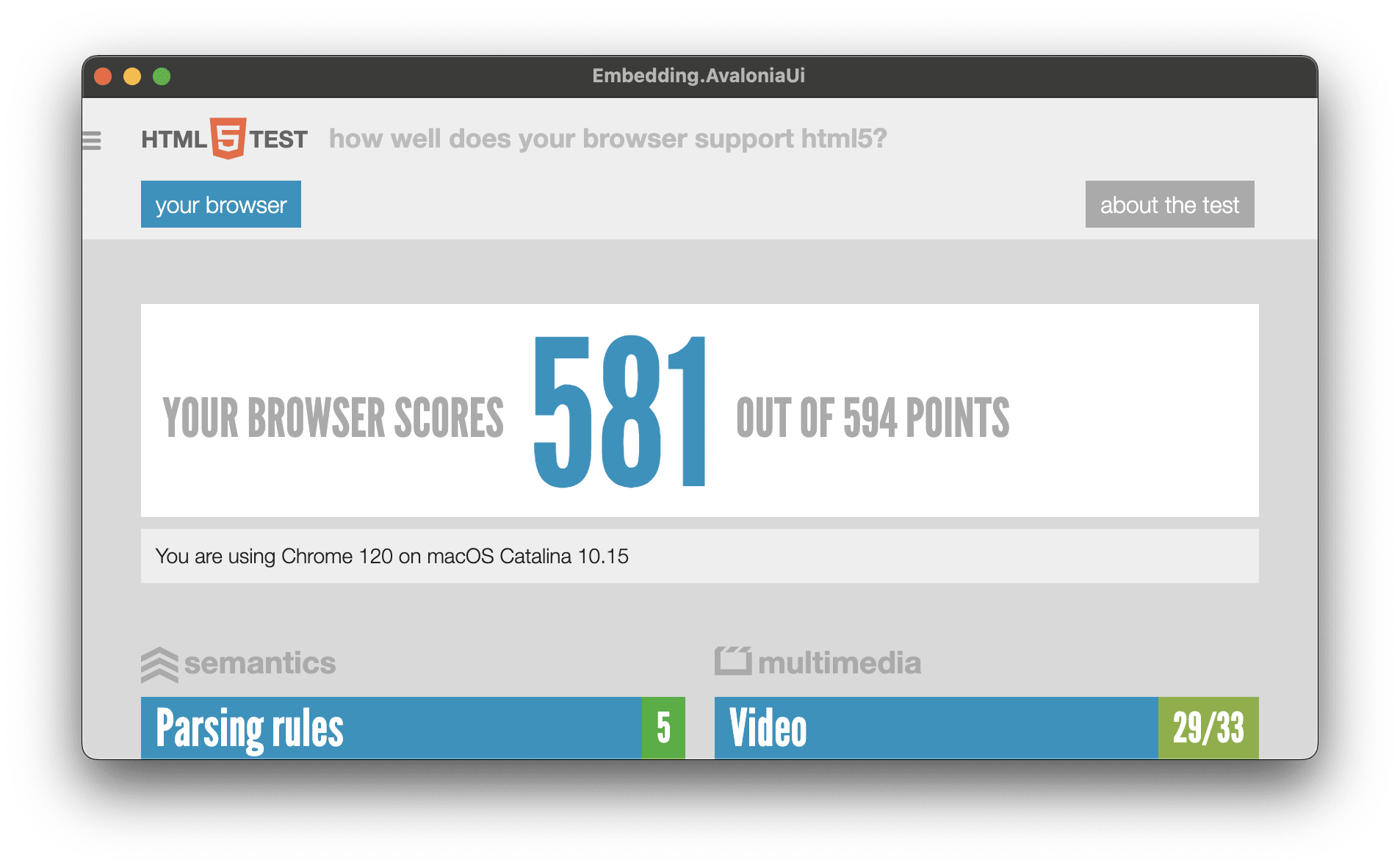
The complete project is available in our repository: C#, VB.
On Windows, keep the app.manifest file that the DotNetBrowser Avalonia UI
project templates include, together with the
<ApplicationManifest>app.manifest</ApplicationManifest> project property.
This manifest declares PerMonitorV2 DPI awareness, so the application is
per-monitor DPI aware from the start. If you create the project another way,
add the same declaration to its manifest, as described in
Setting the default DPI awareness for a process.
Without it, another component can set a different DPI mode first, and the
BrowserView can look blurry or misplaced on monitors with display scaling.
For Avalonia UI 12, use the DotNetBrowser.AvaloniaUi.v12 package. Its
BrowserView is in the same DotNetBrowser.AvaloniaUi namespace, but in the
DotNetBrowser.AvaloniaUi.v12 assembly, so reference it in XAML as
clr-namespace:DotNetBrowser.AvaloniaUi;assembly=DotNetBrowser.AvaloniaUi.v12.
For a complete project, see the
Avalonia UI 12 quick start.
Rendering
DotNetBrowser supports several rendering modes. In this section, we describe each of the modes with their performance and limitations, and provide you with recommendations on choosing the right mode depending on the type of the .NET application.
The rendering mode set for the engine is the default for all browsers of the
engine. To use a different mode for one browser, pass it to
IProfile.CreateBrowser(RenderingMode):
IBrowser browser = engine.Profiles.Default.CreateBrowser(RenderingMode.OffScreen);
Dim browser As IBrowser = engine.Profiles.Default.CreateBrowser(RenderingMode.OffScreen)
Popup browsers inherit the rendering mode of their parent browser. The
IBrowser.RenderingMode property returns the mode of a browser.
Hardware-accelerated
The library renders the content of a web page using the GPU in Chromium GPU process and displays it directly on a surface. In this mode the BrowserView creates and embeds a native heavyweight window (surface) on which the library renders the produced pixels.
Off-screen
The library renders the content of a web page using the GPU in Chromium GPU process and copies the pixels to an off-screen buffer allocated in the .NET process memory. In this mode, BrowserView creates and embeds a lightweight component that reads the pixels from the off-screen buffer and displays them using the UI framework capabilities.
Limitations
WPF airspace issue
It is not recommended to display other WPF components over the BrowserView when the HardwareAccelerated rendering mode is enabled since BrowserView displays a native Win32 window using HwndHost. As a result, it can often cause well-known airspace issues.
WPF layered windows
Configuring a WPF Window with the AllowsTransparency style adds the WS_EX_LAYERED window style flag to WPF window on Windows. This flag is used to create a layered window. The layered window is a window that draws its content off-screen. If we embed a native window into a layered window when the HardwareAccelerated rendering mode is enabled, its content is not painted due to the window types conflict.
Mouse, keyboard, touch, drag and drop
In the OffScreen rendering mode, mouse, keyboard, and touch events are processed on the .NET side and forwarded to the Chromium engine.
At the moment, full touch and gestures support is available in WPF and Avalonia UI. In WinForms, this functionality is limited to tapping and long-pressing, because touch support in WinForms itself is limited.
Drag and Drop (DnD) functionality is not supported for WPF, and WinForms in the OffScreen rendering mode.