
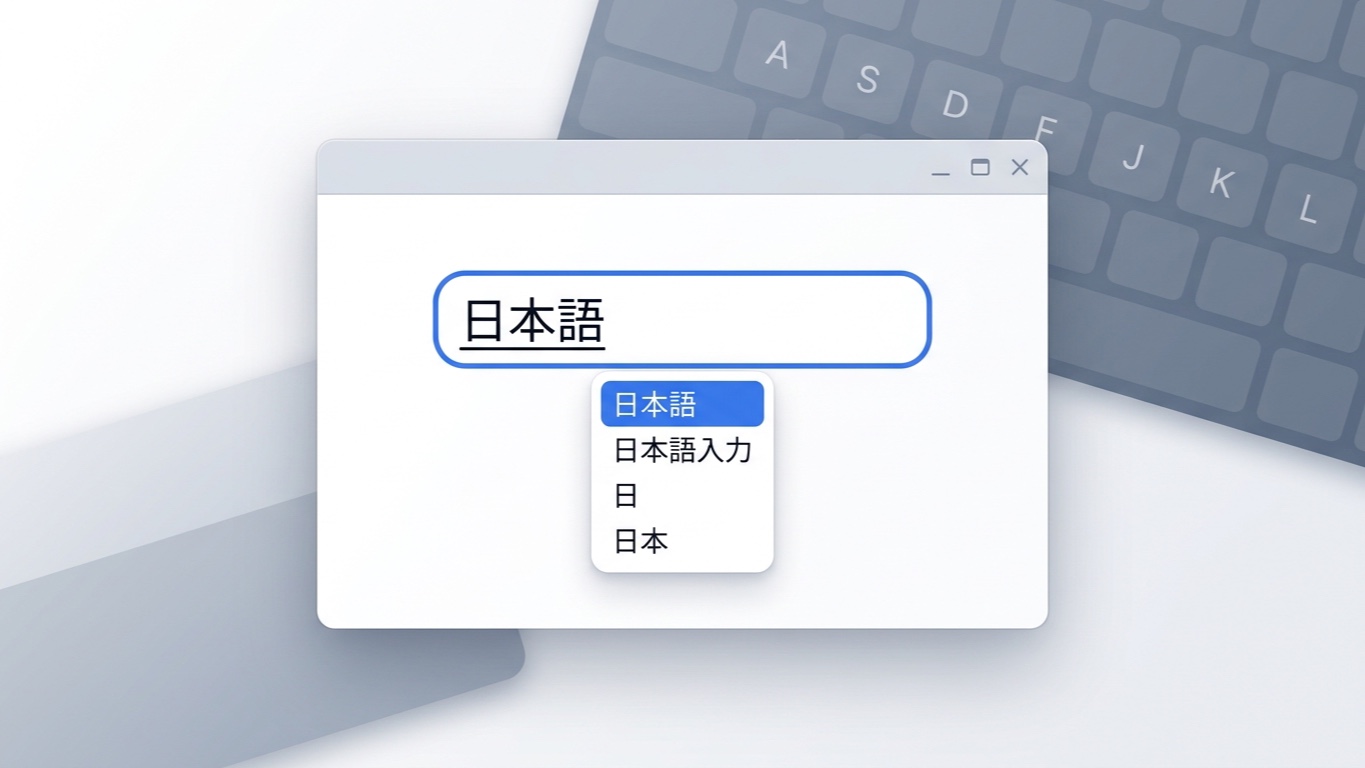
Many languages need more than a keyboard. A Japanese user types “nihongo” in Latin letters and then picks 日本語 from a list of suggestions. A Chinese user does the same with Pinyin, the Latin-letter spelling of Chinese. A Korean user builds each syllable out of several keystrokes. The part of the operating system that makes this possible is called an input method editor, or IME.
In Google Chrome, IME works without any setup, and most users don’t think about it. In a Java desktop app with an embedded browser, the input takes a longer path. The web page lives inside a component of a Java UI toolkit, and keystrokes may pass through that toolkit before they reach the page.
Along the way, something has to draw the text the user is still composing. Something also has to place the list of suggestions right next to the cursor.
JxBrowser can display web content in two rendering modes, and each mode routes input differently. JxBrowser fully supports IME in both of them. JavaFX also comes with its own embedded browser, WebView, so we test it alongside JxBrowser as a point of reference.
In this article, we type the same text into JxBrowser in both rendering modes and into JavaFX WebView, on Windows, macOS, and Linux. We look at what happens on screen in each case and finish with recommendations on choosing a rendering mode.
How IME works
Let’s follow one word through a Japanese IME. The user wants to type 日本語, which means “Japanese language.” Here’s what happens on screen:
- Composition. The user types
nihongo. The IME turns the letters into hiragana, the Japanese phonetic script: にほんご. It shows them right in the text field with an underline. This underlined text is the composition. It isn’t part of the field’s value yet, and the user can still edit it. - Conversion. The user presses Space. The IME converts the hiragana into kanji, the Chinese characters used in Japanese, and brings up the candidate window, a small pop-up with other spellings of the same word. The user picks 日本語 from the list.
- Commit. The user presses Enter. The underline disappears, and 日本語 becomes regular text in the field.
Chinese and Korean IMEs follow the same pattern with their own details. A Pinyin IME shows the candidate window while the user is still typing. A Korean IME composes one syllable at a time and commits it when the next syllable starts.
For an embedded browser, this means two jobs. It must draw the composition inside the page, with the underline, exactly where the user types. It must also place the candidate window next to the cursor, so the user doesn’t have to look for it elsewhere on the screen. These two details are what we watch in every test below.
Composing and committing Japanese text in JxBrowser.
The test bench
To compare the browsers side by side, we put them in one window and load the same page into each of them. The test app is a JavaFX application with three panes:
- JavaFX WebView.
- JxBrowser in the
OFF_SCREENrendering mode. - JxBrowser in the
HARDWARE_ACCELERATEDrendering mode.
We use JavaFX because WebView is a JavaFX component, and it lets us place all three browsers in one window. JxBrowser also works with Swing, SWT, and Compose, which use the same approach in the off-screen mode. We used JxBrowser 9.5.2 and JavaFX 21.0.8.
The app creates one Chromium engine and two browsers in it.
The engine’s rendering mode is only a default, so each browser sets
its own mode when it’s created. A BrowserView shows each browser, and
the app loads the same HTML into every pane. Here’s the relevant
part:
// `html` holds the test page, read from the app resources.
var engine = Engine.newInstance(HARDWARE_ACCELERATED);

var offScreenBrowser = engine.newBrowser(OFF_SCREEN);
offScreenBrowser.navigation().loadHtml(html);
var offScreenView = BrowserView.newInstance(offScreenBrowser);

var hardwareAcceleratedBrowser = engine.newBrowser(HARDWARE_ACCELERATED);
hardwareAcceleratedBrowser.navigation().loadHtml(html);
var hardwareAcceleratedView =
        BrowserView.newInstance(hardwareAcceleratedBrowser);

var webView = new WebView();
webView.getEngine().loadContent(html);
The page itself is a short form. It has a text input, a text area, and a content-editable element, which are the common kinds of editable elements on a web page.
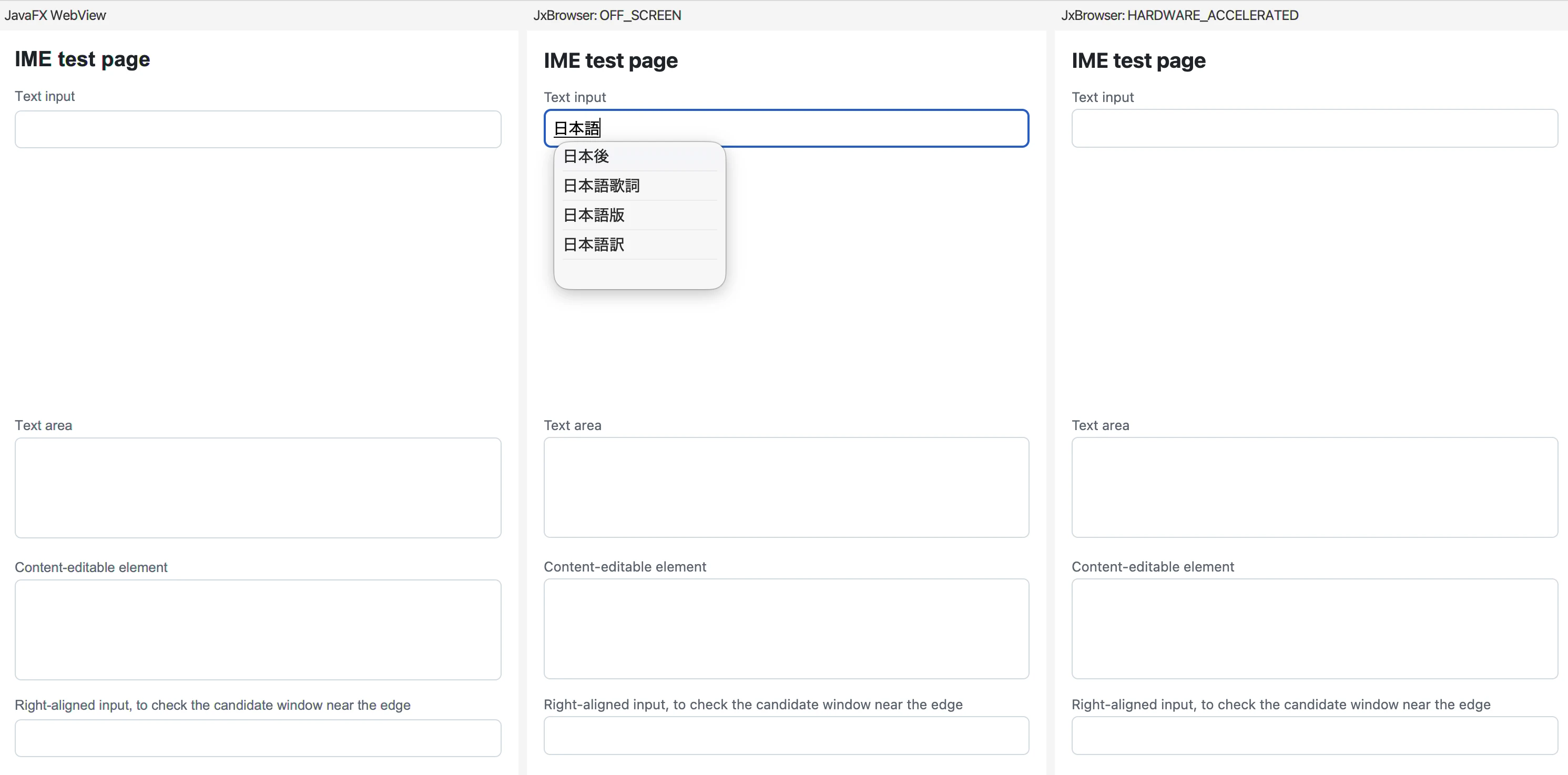
JavaFX WebView, JxBrowser off-screen, and JxBrowser hardware-accelerated in one window.
Unless a caption says otherwise, the screenshots and videos come from macOS.
Off-screen mode
In the OFF_SCREEN mode, Chromium renders the page into a buffer
in memory. BrowserView is a regular JavaFX node that copies pixels from
that buffer to the screen. There is no Chromium window on the screen,
so the operating system sends keystrokes to the Java window. JavaFX
passes them to BrowserView, and JxBrowser forwards them to Chromium.
On Windows and macOS, three components share the two jobs from the previous section:
- JavaFX talks to the operating system’s IME. It receives
the composition and owns the candidate window, just as it does for
a regular JavaFX
TextField. - JxBrowser passes the composition to Chromium, and Chromium draws it inside the page with the underline.
- Chromium reports where the text cursor is, and JxBrowser uses that position to place the candidate window right below the cursor.
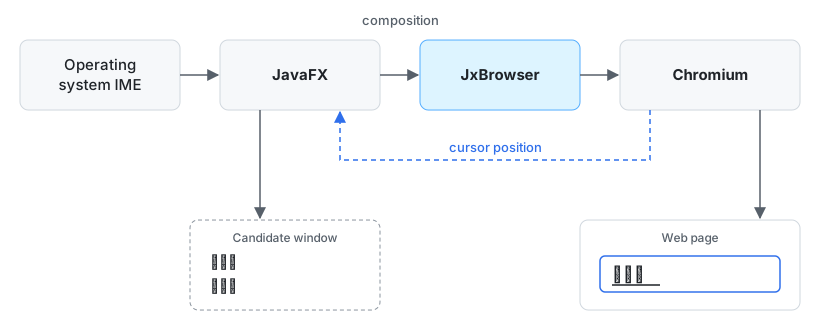
IME in the off-screen mode on Windows and macOS.
Longer phrases show that more than plain text reaches the page. When the user types a whole sentence, such as 今日は良い天気です (“It’s nice weather today”), the IME splits it into clauses and converts each clause separately. The clause the user is editing looks different from the rest. JxBrowser passes this highlighting from JavaFX to Chromium, so the page shows the clauses the same way the IME sees them.
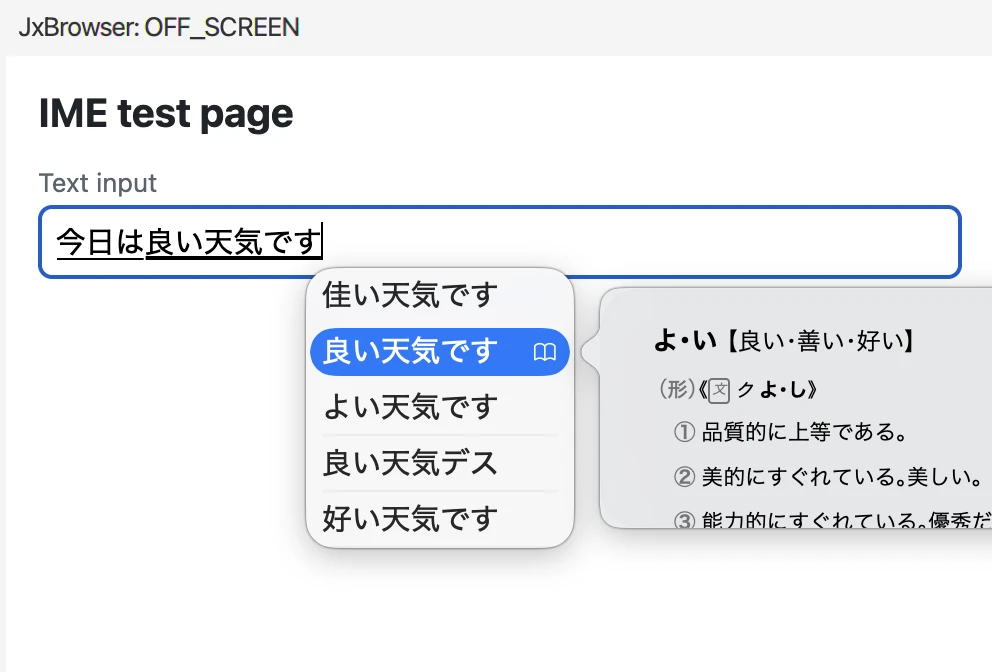
Each clause is highlighted separately during conversion.
On Linux, Chromium handles IME itself in both rendering modes. We come back to this in the platform notes below.
On Windows and macOS, JxBrowser takes part in every step of the input. The hardware-accelerated mode works differently.
Hardware-accelerated mode
In the HARDWARE_ACCELERATED mode, Chromium renders the page directly
on a surface that JxBrowser places on top of BrowserView. What that
surface is depends on the operating system, and so does the way IME
works.
On Windows and Linux, the surface is a native Chromium window embedded into the Java window. The user interacts with this window directly, so the operating system sends keystrokes and IME input to Chromium, bypassing JavaFX. Chromium draws the composition and places the candidate window by itself, exactly as it does in Google Chrome.
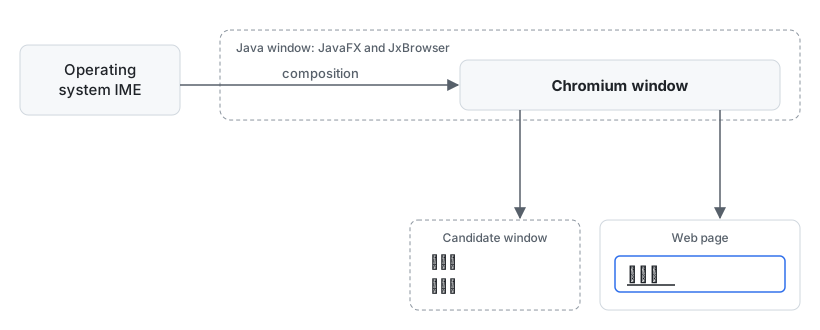
On Windows and Linux, Chromium receives IME input directly.
On macOS, an app can embed a window only into another window of the same process. Chromium runs in a separate process, so JxBrowser uses a shared rendering surface instead of a window. Keystrokes still go to the Java window, and IME works the same way as in the off-screen mode.
With both JxBrowser panes covered, let’s look at the third one.
JavaFX WebView
JavaFX WebView renders pages with WebKit, not Chromium. It’s a regular JavaFX node with no native window of its own, so its input goes through JavaFX, as in the off-screen mode of JxBrowser.
We ran the same test in the WebView pane on macOS. WebView shows the composition with an underline and places the candidate window right below the text. Pressing Enter commits the text into the field.
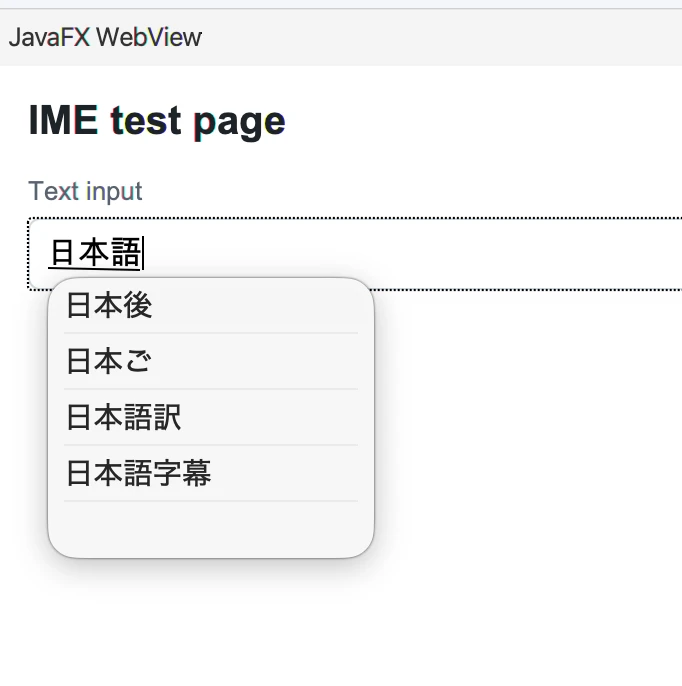
Composing Japanese text in JavaFX WebView on macOS.
The page looks slightly different from the JxBrowser panes. For example, WebView draws a dotted outline around the focused field. That’s WebKit’s default style and has nothing to do with IME. For this basic test on macOS, WebView and JxBrowser handle IME the same way.
Next, let’s see what changes on Windows and Linux.
Platform notes
The IME and its candidate window come from the operating system, so
they look different on each platform. This section covers Windows and Linux. For
this part of the tests, we switched to Chinese and typed nihao with
a Pinyin IME to get 你好, which means “hello.”
Windows
We used Microsoft Pinyin. All three panes behave the same way. The composition shows with an underline, and the user commits a candidate with the number keys 1–9 or picks it with the arrow keys. The candidate window appears above or below the text, depending on where the app window is on the screen. Google Chrome follows the same rule.
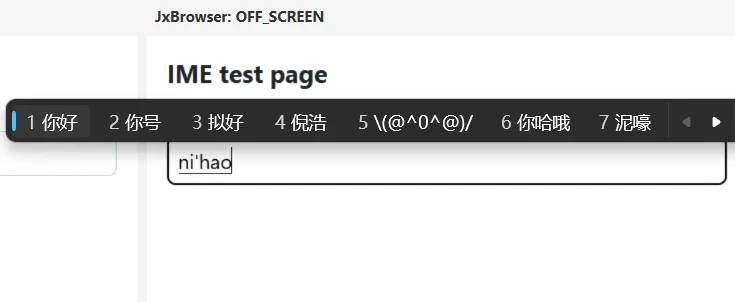
Typing Pinyin in JxBrowser on Windows.
Linux
We tested on Ubuntu 24.04 in a Wayland session, using Pinyin with IBus, Ubuntu’s default input method framework. In JxBrowser, Chromium handles IME in both rendering modes, and IME works in both of them. The composition shows with an underline, the candidate window appears right below the text, and the user commits a candidate with the number keys 1–9.
JavaFX WebView behaved differently. In our test with JavaFX 21.0.8, IME didn’t work in WebView: it showed neither the composition nor the candidate window, and the Latin letters went into the field as typed. The video below shows the same keystrokes in all three panes.
Typing Pinyin on Ubuntu 24.04 (Wayland, IBus, JavaFX 21.0.8).
Edge cases
Typing and committing is the common path. But users also leave a composition unfinished. We tested two such cases on macOS, in the off-screen pane.
The first case is clicking another field before picking a candidate.
The user types nihao, so the candidate window offers 你好, and then
clicks the text area below.
JxBrowser commits the composition as it is. With Pinyin,
the composition still holds the Latin letters the user typed, so
nihao stays in the first field, and the text area gets
the focus. Google Chrome does the same.
The pending text is committed when the user clicks elsewhere.
The second case is switching to another app in the middle of
a composition. We typed nihao again and pressed Cmd+Tab before picking
a candidate. The composition ended, and the letters stayed in
the field as plain text, ni hao
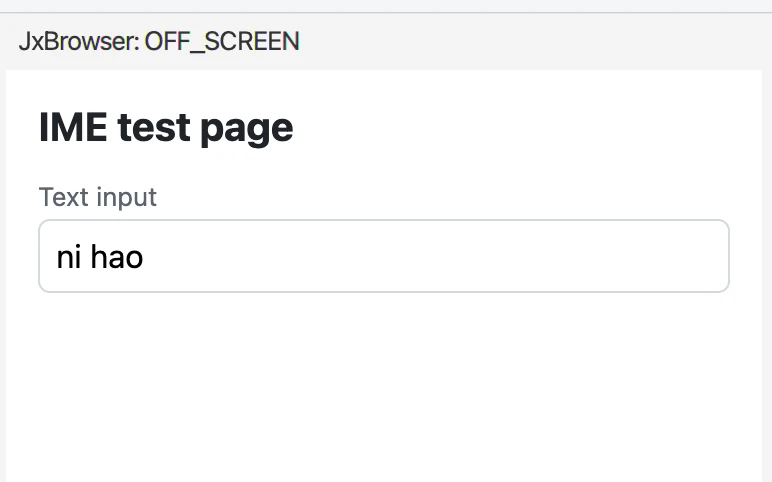
The pending text stays in the field after switching to another app.
Recommendations
In our tests, IME worked in both JxBrowser rendering modes on all three platforms. Either mode is a safe choice for IME. The modes differ in how they fit into the rest of the UI.
Prefer HARDWARE_ACCELERATED when nothing needs to overlap
the browser. On Windows and Linux, Chromium handles IME in this mode by
itself, so typing with an IME behaves exactly as in Google Chrome.
The trade-off is that Chromium’s surface always sits on top of
BrowserView, and other JavaFX nodes can’t appear over it. For example, avoid
this mode when BrowserView shares a StackPane with other nodes.
Use OFF_SCREEN when you need overlays or transparency. In this mode,
BrowserView is a regular JavaFX node. You can place other UI on top of it
or show it in a transparent Stage on Windows. IME is fully supported here
too: the composition, the candidate window, and committing look and
work for the user as in the other mode.
Conclusion
We typed Japanese and Chinese text into the same page in three embedded browsers on Windows, macOS, and Linux. JxBrowser handled IME in both rendering modes on every platform. The composition showed in the page, the candidate window appeared next to the text, and the text was committed into the field.
The two modes differ in what handles the input. In the off-screen mode on Windows and macOS, JavaFX receives the composition, and JxBrowser passes it to Chromium. In the hardware-accelerated mode on Windows and Linux, Chromium handles it alone, as in Google Chrome. The user sees the same result either way, so you can choose the rendering mode based on the rest of your UI.
JavaFX WebView matched JxBrowser on macOS and Windows. On Linux, IME didn’t work in WebView in our tests.

Sending…
Sorry, the sending was interrupted
Please try again. If the issue persists, contact us at info@teamdev.com.
Your personal JxBrowser trial key and quick start guide will arrive in your Email Inbox in a few minutes.