
App icon

Talk. Don’t type.

Press a shortcut. Speak in any app. MoVoice drops the words right where you were typing — on your Mac, with a quiet history kept neatly out of the way.

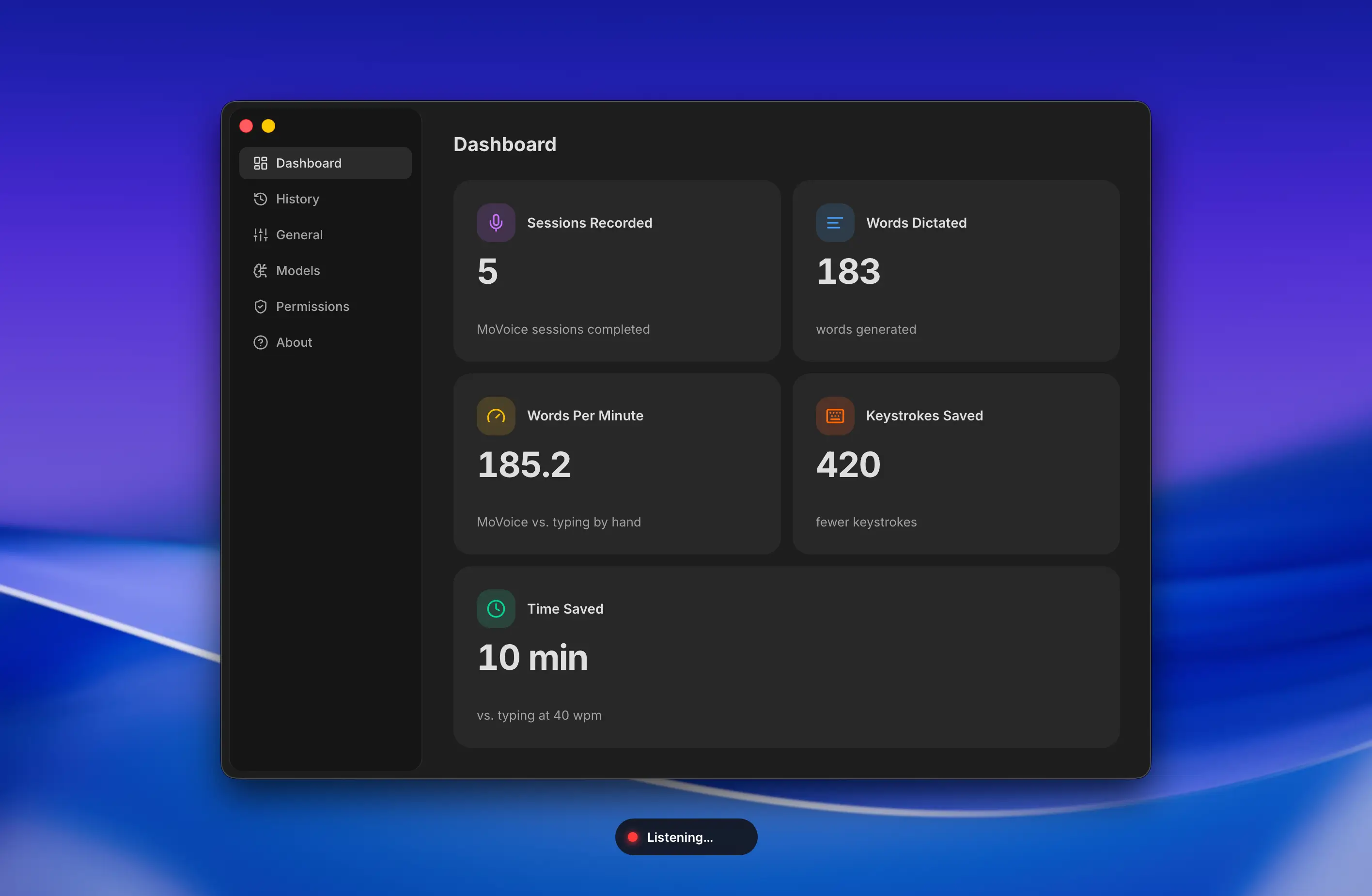
MoVoice app

Why it matters

Typing slows you down.
Your voice doesn’t.

Email replies, Slack threads, meeting notes, that quick idea before it slips away — all of them get typed at half the speed your brain works. MoVoice closes that gap.

Speed 3× faster than typing

Speak as fast as you think. The moment you stop, the text lands in the focused field.

Privacy Stays on your Mac

Recognition runs locally. Audio and transcripts never leave your laptop unless you decide to share them.

Where it lives In your menu bar

A small icon ready when you are. No window to open, no app to switch to.

What it does for you

Talk to your Mac. It writes for you.

Speak from anywhere on the Mac

A single global shortcut starts dictation in any app — no window switching, no waiting for a dialog.

Your voice never leaves your laptop

Recognition runs locally. Audio, transcripts, and history live on your machine — and only there.

Come back to anything you’ve said

Every recording keeps its audio, transcript, and timestamp — so when you need that one sentence again, it’s right there.

How it works

Three calm steps.
Then back to your day.

01

Press the shortcut

Anywhere on the Mac — even mid-sentence in another app — start dictation with one key combo.

02

Just speak

The waveform shows it’s listening. Recognition runs on your laptop — never a server.

03

Keep typing

Your words are already in the field. No copy-paste, no app switching.

Inside the app

The details that make it feel right.

One shortcut, every app

Set the key combo once. From then on, speak inside Slack, your inbox, your editor — wherever you happen to be typing.

Private by design

Speech recognition runs on your Mac. Nothing is sent to a server, ever.

A quiet menu-bar app

MoVoice doesn’t take a whole window. It sits in the menu bar and stays out of your way.

Set up in a minute

Pick the shortcut, give it permission to listen and paste, download the model — done.

FAQ

Honest answers about how it works.

Does my voice get sent anywhere?

No. Recognition runs locally on your Mac. Audio and transcripts stay on your laptop unless you choose to share them.

Do I need internet to use it?

Only the first time, to download the speech model. After that, MoVoice works fully offline.

Which apps does it work in?

All of them. MoVoice pastes into the focused field — whether that’s Slack, Mail, Notion, your browser, or anywhere else.

How accurate is it?

Accuracy depends on the model and your accent. MoVoice ships with a high-quality on-device model and lets you swap in others as they improve.

What permissions does it need?

Microphone access, and Accessibility access so the shortcut can start a recording from any app.

Can I look at my old recordings?

Yes. The History view keeps every recording with its audio and transcript so you can replay or copy from it.