
Coding agents now write a growing share of application code. Our job shifts toward describing what we want and checking what we get.
The checking part is where things often go wrong. An agent changes the code, the project compiles, and the agent reports that the feature is done. Then you launch the app, click the new button, and nothing happens.
To catch this, the agent has to run the app and use it the way a person would. Web apps have mature tooling for that: the agent opens the page in a browser and drives it with a tool like Playwright. A desktop app is harder. It runs in its own windows, and its native dialogs block the app until someone answers them.
In this article, we look at what it takes for an agent to verify a desktop app built with web technologies, how Electron and Tauri approach it, and how MōBrowser does it with built-in automation. At the end, we watch an agent add a feature to a small file manager and check the result in the running app.
Desktop app automation
By automation, we mean a way for an agent to launch the app, operate it, and read the result without a person in the loop. After each code change, the agent runs the same cycle: it launches the app, looks at it, does something, checks what happened, and fixes the code if the result is wrong.
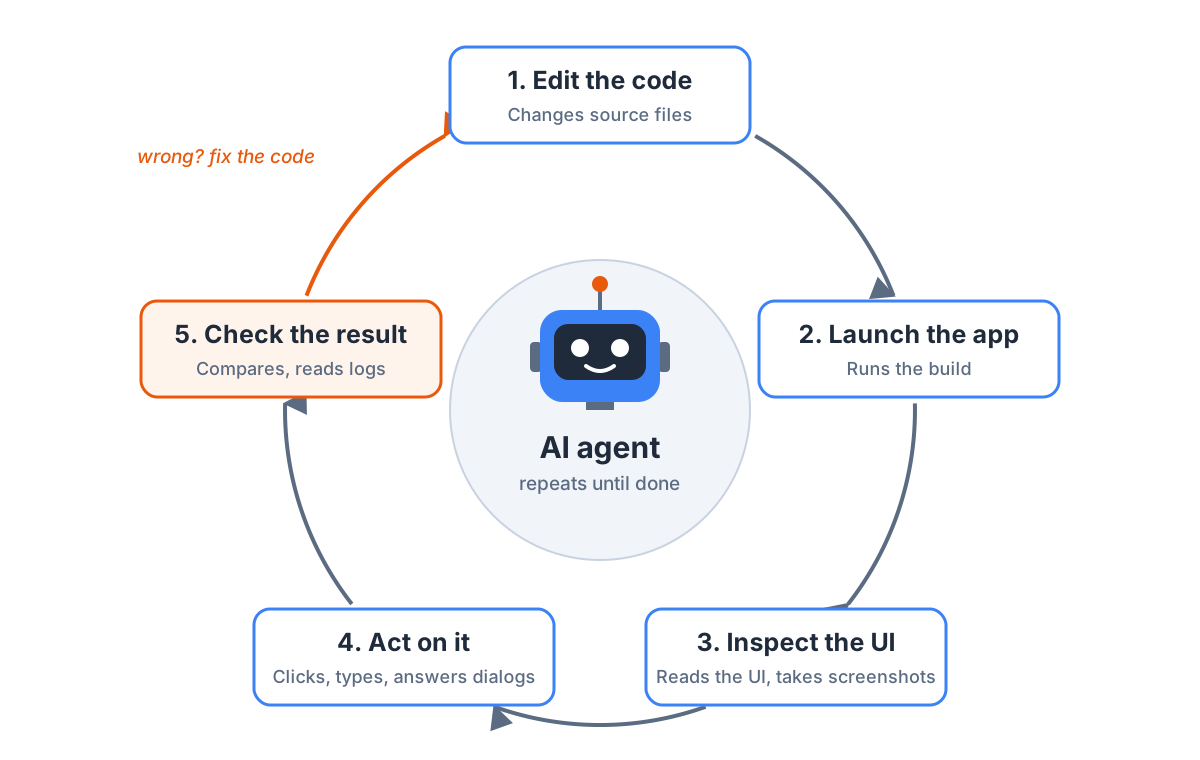
The agent's verification loop.
For this cycle to work on a desktop app, the agent needs to do five things:
- See the interface. A screenshot shows how the app looks, but it doesn’t tell the agent which pixels form the “Save” button. A text description of the UI, such as the accessibility tree that screen readers use, gives the agent element names and roles it can refer to.
- Act on it. The agent clicks buttons, types into fields, picks options from dropdowns, presses keys, and hovers over elements to reveal tooltips.
- Get past native dialogs. An open-file or save dialog belongs to the operating system, not to the app’s web UI. Until someone answers it, the app waits.
- Switch windows. Settings or a second document may open in a separate window, and the agent has to choose which one to work with.
- Read the logs. When the result is wrong, console errors and failed network requests tell the agent why.
Let’s see how other desktop frameworks cover these needs.
Other frameworks’ approach
There are several frameworks for building desktop apps with web technologies. We compared five of them in another article. Here we focus on two: Electron and Tauri.
Electron doesn’t ship automation of its own and points to WebdriverIO, Selenium, and Playwright instead. These tools drive an Electron app without changes to its code, though Playwright’s Electron support is still marked as experimental.
Native dialogs are where these tools stop. Playwright “does not intercept
the native Electron dialog API”, so the test
code replaces dialog.showOpenDialog in the main process with a stub
that returns a fixed path. WebdriverIO does the same through its
mocking API.
Tauri doesn’t ship automation either. Its tauri-driver
For AI agents, both frameworks have community MCP servers, such as electron-mcp-server and mcp-server-tauri. Each needs some setup: the Electron app must open a remote debugging port, and the Tauri app needs a Rust plugin with its own permissions. We found no documented way to answer a native dialog from any of these tools.
| Electron | Tauri | MōBrowser | |
|---|---|---|---|
| Automation | Third-party tools | tauri-driver | Built in |
| Setup | Install Playwright, WebdriverIO, or an MCP server | Add Rust plugins and permissions | None |
| Agent instructions | None | None | AGENTS.md |
| UI snapshot and screenshots | Via tools | Via tools | Yes |
| Native dialogs | Replace the dialog API in test code | No documented way | Answers queued from the CLI |
| Multiple windows | Via tools | Via tools | Yes |
| Console and network logs | Via tools | Logs via tools | Yes |
Agent automation in Electron, Tauri, and MōBrowser.
In both frameworks, the developer assembles the automation stack and teaches the agent to use it. Let’s see what MōBrowser does instead.
MōBrowser’s approach
MōBrowser takes a simpler route. Automation is part of the framework, so there is nothing to install, no plugin to register, and no test code to write. It works only in development: production builds and packaged apps don’t start the automation server.
No setup needed
Every project created with npm create mobrowser-app@latestAGENTS.md file. Coding agents read this file to
learn how to work in the project. The MōBrowser rules in it tell
the agent where to find the framework documentation, how to launch
the app, and which commands to use to inspect and drive it.
The agent starts automation when it launches the app. For UI work, it runs the development server with automation enabled:
npm run dev -- --automation
Vite’s hot module reload applies renderer changes right away, so the agent can edit the UI and check the result without restarting the app. When the change touches the main process or a native module, the agent builds the app and launches it as a separate process:
npm run dev:build
npm run mobrowser -- agent launch
You don’t need to learn these commands or explain them in your prompts.
AGENTS.md already does that. You describe the feature, and the agent
knows how to check it.
Seeing and acting
To see the app, the agent takes a snapshot. It’s a compact
accessibility tree of the window instead of the full DOM, and each
interactive element in it gets a reference, such as e4:
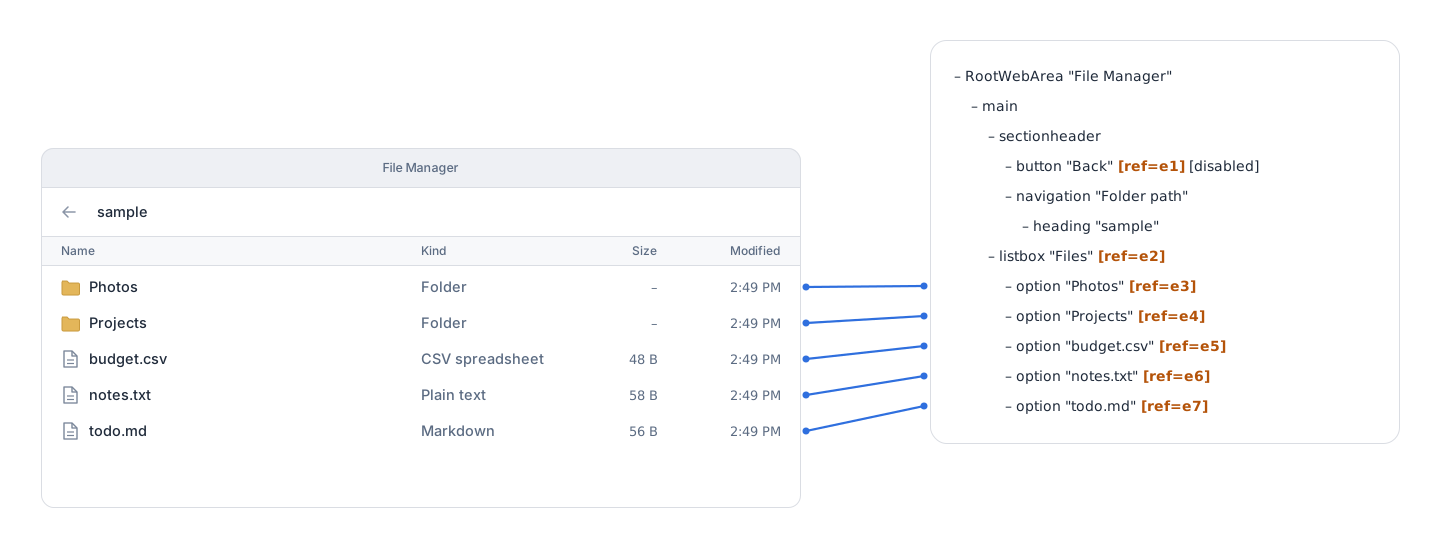
The app window and its snapshot.
The agent clicks, types, presses keys, and selects options by these references, so it doesn’t have to calculate screen coordinates. To check the result, it takes another snapshot or a screenshot. When something is wrong, it reads the console messages and network requests of the page.
Dialogs and windows
The agent’s commands drive only the app’s web UI, so it can’t click inside a native dialog. Instead, it queues an answer before the action that opens the dialog: a file path, a button, or cancel.
MōBrowser intercepts the dialog and returns that answer as if the user had picked it. Unlike in Electron, no test code replaces the dialog API.
When the app opens several windows, the agent lists them and selects the one to work with by index, title, or URL. All later commands then target that window. For the exact commands, see the AI automation guide.
Interactive or autonomous
By default, automation runs in interactive mode. The app window stays visible and keeps running, so you can watch the agent work, check the result, and ask for follow-up changes.
In autonomous mode, the window is hidden, and the agent stops
the app when it finishes, even after a failed scenario. This mode fits
unattended tasks. The hidden window keeps rendering, so snapshots and
screenshots work as usual. You choose the mode in mobrowser.conf.json:
{
  "automation": {
    "mode": "autonomous"
  }
}
A real example
Let’s see the whole loop on a real task: an agent adds a feature to a small desktop app and checks it in the running app.
The file manager
We start with a simple file manager. We created the project using the scaffolding command:
npm create mobrowser-app@latest
The app shows the contents of a sample folder. You can open subfolders and go back up. The main process reads the folder and sends the list to the UI over IPC.
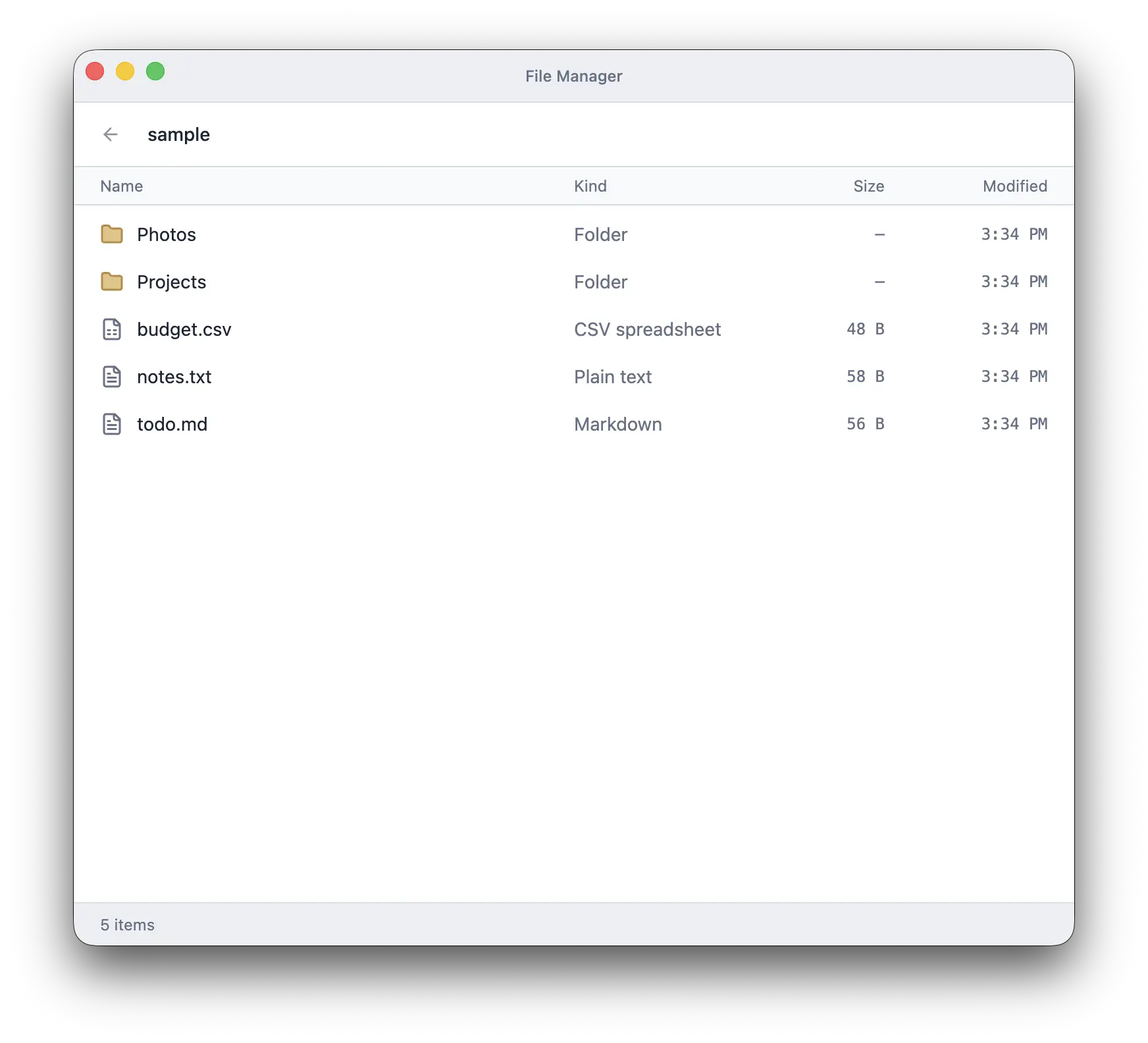
The file manager before the agent's changes.
The app can’t change any files yet. That’s the feature we ask the agent to add.
The prompt
We ask for three file actions. The first and the third open native dialogs, and the second needs typing and key presses:
Add three file actions to the file manager:

1. An "Import file…" button in the toolbar. It opens a native open-file
   dialog and copies the selected file into the current folder.
2. A "Rename" button for the selected file. It turns the name into a text
   field. Enter saves the new name, and Escape cancels.
3. A "Delete" button for the selected file. Before deleting, show a native
   confirmation dialog with "Delete" and "Cancel" buttons.

Run all file operations in the main process. When you're done, check each
action in the running app, including both dialogs.
The last sentence asks the agent to check its work, but it doesn’t say
how. The project’s AGENTS.md already covers that.
The agent at work
Here is the agent at work:
Wrapping up
When agents write the code, checking the result in the running
app becomes part of their job. For a desktop app, that means seeing
the UI, using it, and getting past native dialogs. MōBrowser covers this
out of the box: an automation server in development builds and rules
in AGENTS.md that tell the agent how to use it.
To try it, create a project with
npm create mobrowser-app@latest