
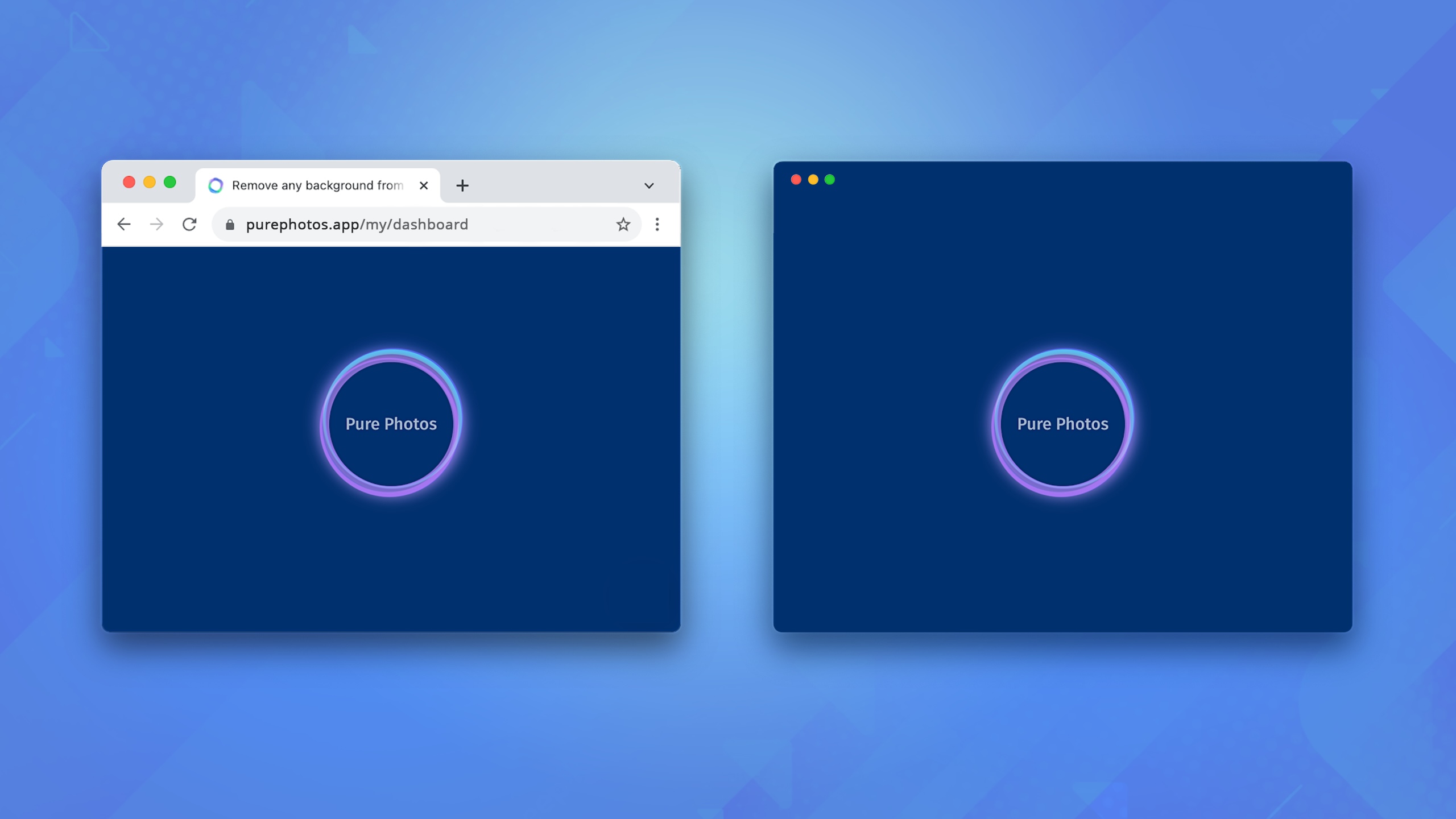
We all use various applications every day. We run them on different platforms including mobile, web, desktop, tablet, TV. Each software company decides for itself which platforms its app should support.
There are cases when limiting to just one platform is not an option, and it’s necessary to make the application available on different platforms. Developing separate applications for each platform requires a lot of time and effort. It’s necessary to create a separate team of developers for each platform, and this is quite expensive. In addition, it’s necessary to maintain each application separately, which also requires additional resources.
We all know that the most popular platform at the moment is the web. According to Top Website Statistics For 2025, there are about 1.2 billion websites on the Internet in 2025. A new website is built every three seconds.
It is not surprising that many companies prefer to initially create a web application and then convert it into a mobile or desktop application. Such applications look like regular native applications, but in fact, they actually display a web app or its special version.
This approach to supporting multiple platforms saves software companies and developers a significant amount of time and money. It allows the companies to quickly create a mobile or desktop application and test its demand on these platforms before investing more in the development of separate applications for each platform using native development tools.
In this article, I will talk about when it makes sense to convert a web app or website to a desktop app and how to do it professionally using MōBrowser.
When to convert a web app to a desktop app
First of all, let’s talk about when we should convert a web app to a desktop app.
I believe there’s no point in creating a desktop application that merely displays a web app or website. It wouldn’t be fair to ask a user to download and install your desktop app when they wouldn’t gain any additional value from it compared to simply visiting a URL in their favorite web browser.
If a user wants to quickly open a web app or website with a click on the Taskbar (Windows, Linux) or Dock (macOS) item or from a shortcut on their Desktop, they can create a shortcut for the website in Google Chrome or download the PWA version of the web application if available.
It makes sense to convert a web app to a desktop app when you can enhance the capabilities of the web application through integration with the desktop and operating system. For instance, this can include access to file system, access to hardware, displaying native desktop notifications, launching on startup, running command line utilities, automating specific scenarios within the web application, etc.
How to convert a web app to a desktop app
To convert any web application or website to a modern cross-platform desktop application, you can use MōBrowser.
What’s MōBrowser
MōBrowser is a platform for building cross-platform desktop apps with TypeScript, HTML, and CSS. It provides a set of tools and frameworks that simplifies the cross-platform desktop app development process, enabling you to build, test, and deploy cross-platform desktop apps faster. It allows software companies to save time and money by reusing the same codebase across all platforms.
One of the special features of MōBrowser is its use of Chromium for rendering the user interface within the application’s windows. This allows you to construct the entire user interface of the application using web technologies or to load and display any modern web app or website directly within the desktop application.
Moreover, MōBrowser provides a framework that allows web applications to interact with low-level native APIs and make use of the operating system’s capabilities. This greatly extends the capabilities of web applications and removes the limitations typically associated with running web applications in a standard web browser.
In the next sections, I will show you how to convert a web app to a desktop app using MōBrowser.
Generating a project from a template
First of all, we need to generate a project. MōBrowser offers a special utility called create-mobrowser-app . This is the official project scaffolding tool that allows you to create a project based on a specific template. To generate a project, execute the following command:
npm create mobrowser-app@latest
Specify your application’s name and choose the None as the frontend framework. We won’t need a frontend framework when loading an existing URL:
? Project name: PurePhotos
? Select a framework: None
? Add support for native C++ addons? (y/N): No
? Set up the project? (Y/n): Yes

Done! To get started run:
  cd PurePhotos
  npm install
  npm run mobrowser dev
Loading the web app
Once the project is generated, we can open PurePhotos/src/main/index.ts and
replace the default URL:
import { BrowserWindow } from '@mobrowser/api';

const win = new BrowserWindow()
win.browser.loadUrl('https://purephotos.app/my/dashboard')
win.setSize({ width: 1000, height: 800 })
win.show()
After that, execute the following commands to build and run your desktop application:
cd PurePhotos
npm install
npm run mobrowser dev
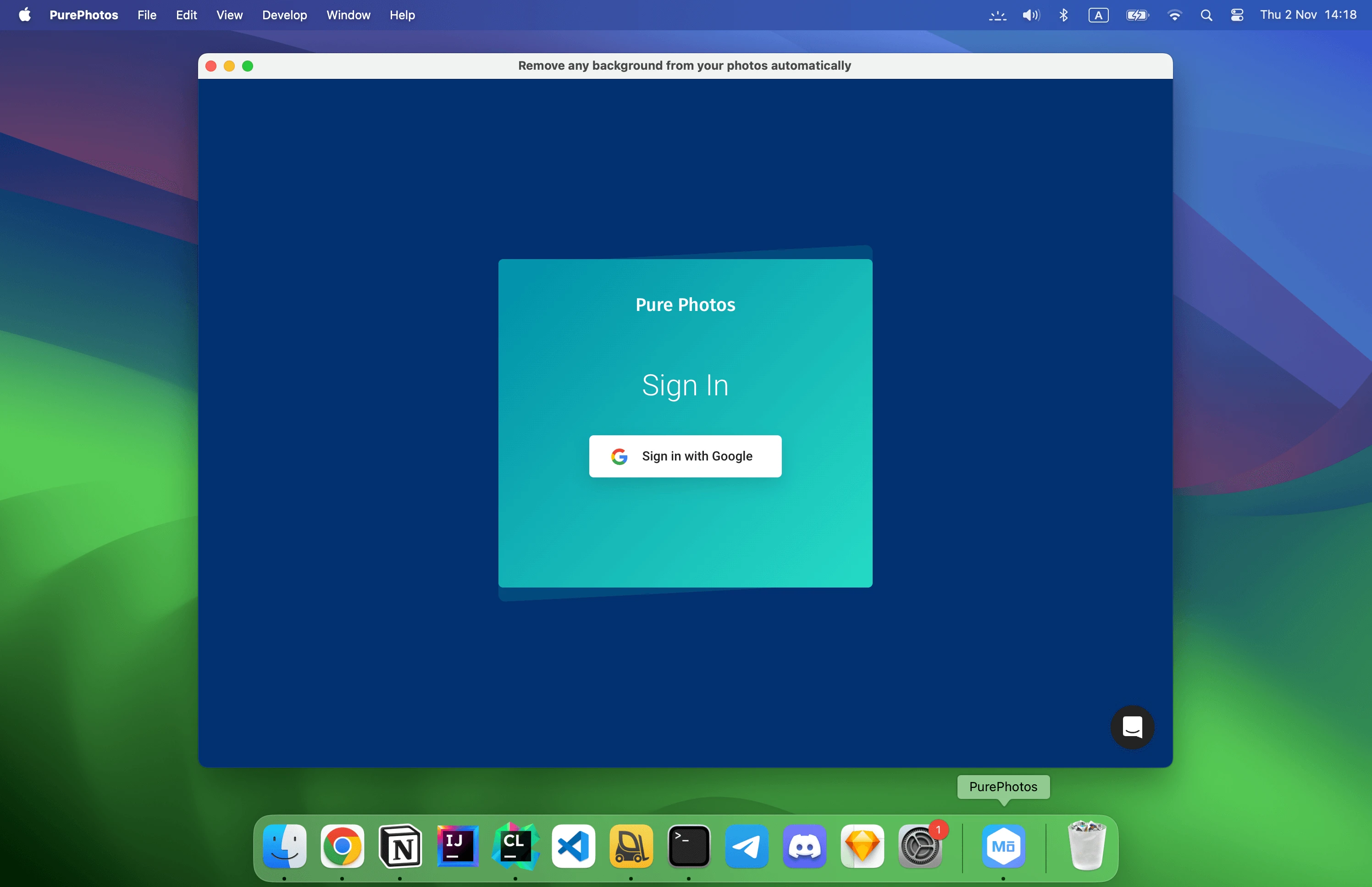
After launching, you will see a login form to access the web application:
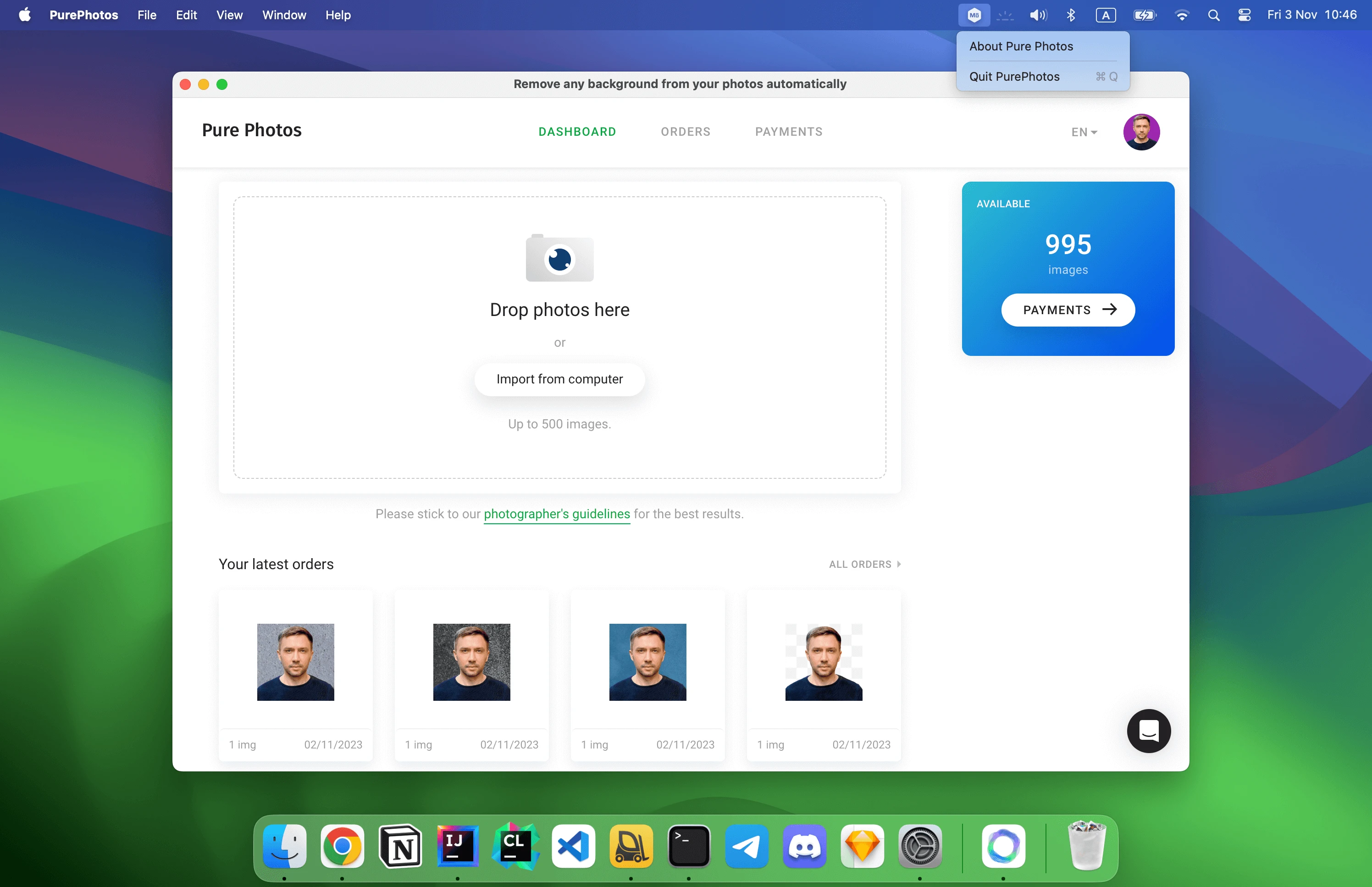
About Pure Photos
In this example, we are converting the web app called Pure Photos . It allows you to remove any background from your photos and hide any imperfections from your photo automatically.
With Pure Photos you can:
- Find people in photos and align their heads to be on the same levels across the whole batch.
- Correct exposure and colors.
- Detect noise and remove it.
- Get rid of pimples, freckles, and spots.
- Generate a layered image in Adobe Photoshop Document (APD) file format.
Working from IDE
Let’s extend our desktop application with some features.
MōBrowser generates a TypeScript project that works with any modern editor. Open
the project directory in VS Code or another TypeScript-capable IDE and edit
src/main/index.ts to implement the logic of your desktop application.
The other files and directories to know:
mobrowser.conf.json— application name, version, author, bundle identifiers, icon paths, and installer settings.assets/— application icons for all platforms.resources/— files copied into the application bundle as-is, such as tray icons.
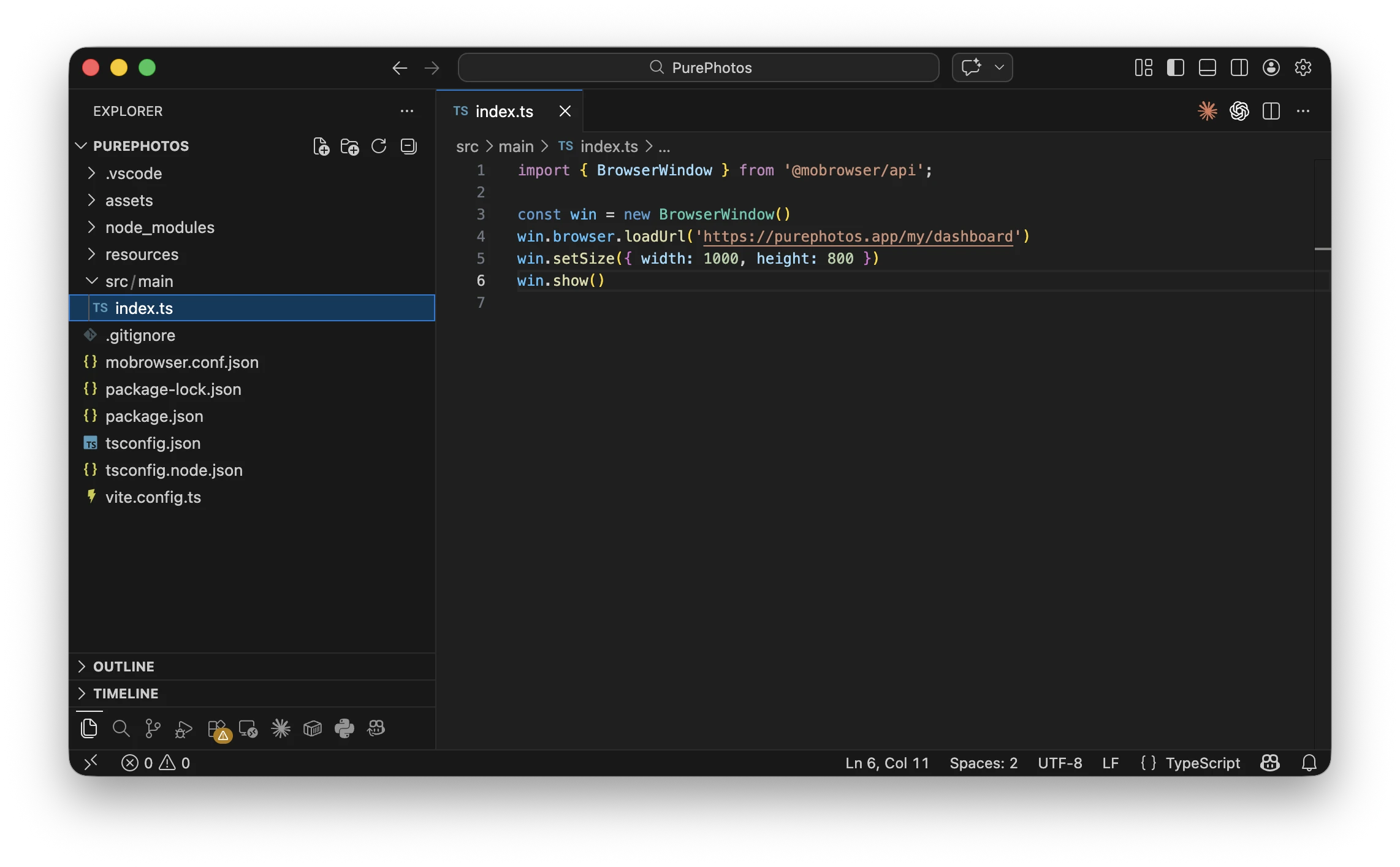
The generated project open in VS Code, with src/main/index.ts selected.
Displaying the app in system tray
Let’s make our application appear in the system tray. For this, we will create and configure the application tray as shown in the following code:
import { app, desktop, Menu, MenuItem, Tray } from '@mobrowser/api';

const tray = new Tray({
  tooltip: 'Pure Photos Desktop',
  imagePath: app.getPath('appResources') + '/imageTemplate.png',
  menu: new Menu({
    items: [
      new MenuItem({
        id: 'about-pure-photos',
        label: 'About Pure Photos',
        action: () => {
          desktop.openUrl('https://purephotos.app');
        },
      }),
      'separator',
      new MenuItem({
        id: 'quit',
        label: 'Quit',
        action: () => {
          app.quit();
        }
      }),
    ],
  }),
});

Customizing app icon
To customize the app icon, we can take the official Pure Photos logo, convert it to the required format, and use it to replace the default app icon.
Launch the application and make sure the new icon is being used:

Generating app installer
Once all the necessary features are implemented in our desktop application, we are ready to deliver it to end-users. For a smooth user experience, MōBrowser automatically generates an application installer in the native format for the current operating system.
To build the production version of the desktop application and generate an app installer, execute the following command:
npm run mobrowser build
The installer will be placed in the build/dist/<platform>-<arch>/pack
directory.
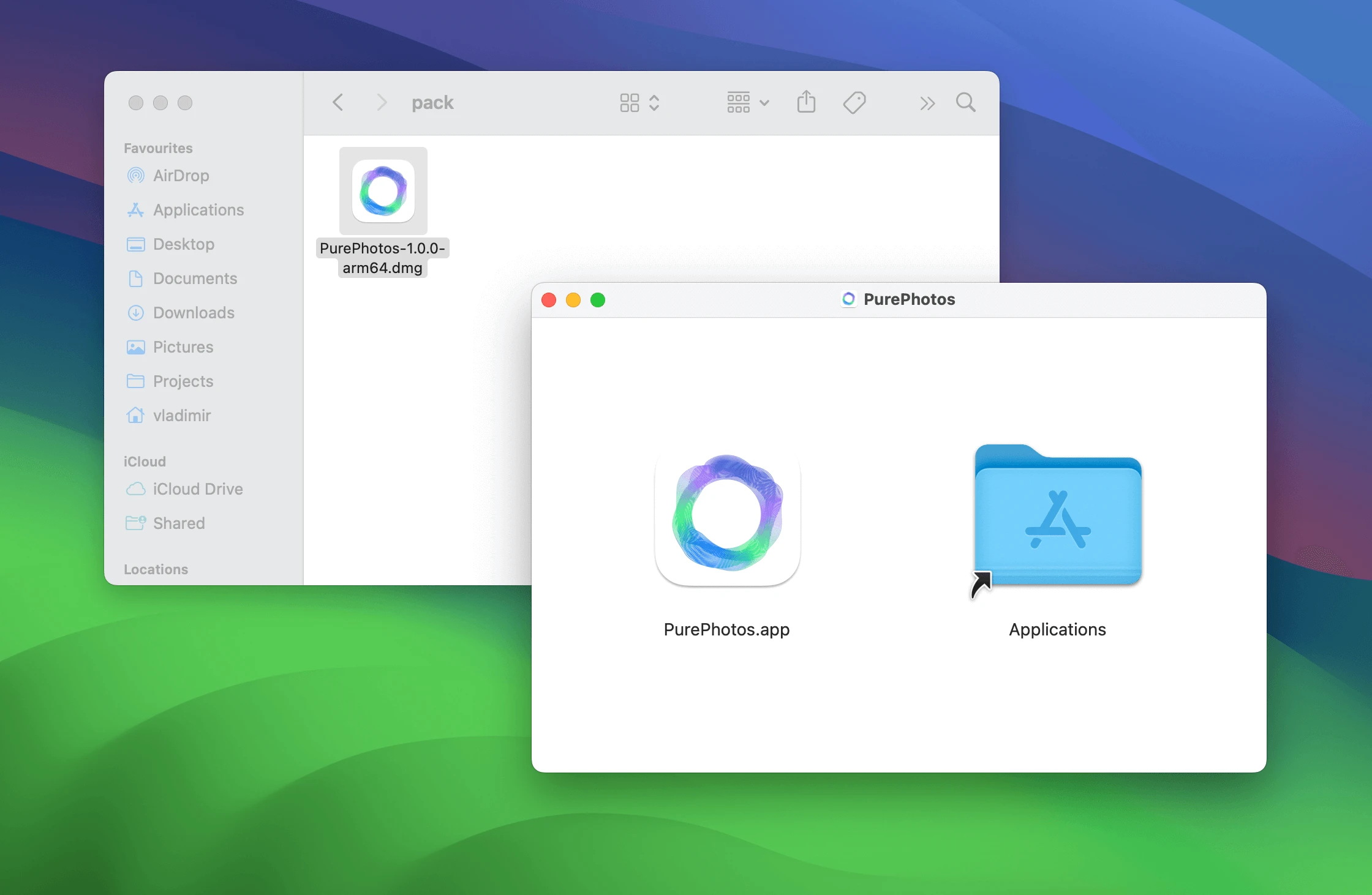
It’s recommended that you sign and notarize your application before distributing it to end-users. It’s because macOS require all applications to be signed and notarized to be able to run them.
That’s it! With MōBrowser, you can extend your desktop application with many other features , but covering them all would make this article too extensive.
By the way, you can convert not only your own web app or website ;)
Full example
Here’s full source code of the created desktop application:
import { app, BrowserWindow, desktop, Menu, MenuItem, Tray } from '@mobrowser/api';

const win = new BrowserWindow()
win.browser.loadUrl('https://purephotos.app/my/dashboard')
win.setSize({ width: 1000, height: 800 })
win.show()

const tray = new Tray({
  tooltip: 'Pure Photos Desktop',
  imagePath: app.getPath('appResources') + '/imageTemplate.png',
  menu: new Menu({
    items: [
      new MenuItem({
        id: 'about-pure-photos',
        label: 'About Pure Photos',
        action: () => {
          desktop.openUrl('https://purephotos.app');
        },
      }),
      'separator',
      new MenuItem({
        id: 'quit',
        label: 'Quit',
        action: () => {
          app.quit();
        }
      }),
    ],
  }),
});

tray.on('mouseDown', () => {
  tray.openMenu();
});
What’s next
Convert your web app to a desktop app with MōBrowser in minutes. Make sure on your own how MōBrowser simplifies the development process and let you build modern and beautiful cross-platform desktop apps in less time.
If you have any questions or need expert guidance, just let us know . We’ll be delighted to assist your company in creating a modern, beautiful, and functional cross-platform desktop app.