Publishing to Microsoft Store
Build your Windows application and publish it in the Microsoft Store.
OverviewWindows
The Microsoft Store accepts desktop applications as MSIX packages or as EXE and MSI installers. MōBrowser publishes to the Store as an MSIX package: the Windows package format that installs, updates, and removes an application as a single unit. You build it with npm run pack -- --msix and upload it to Partner Center, Microsoft’s portal for Store publishers.
Publishing takes these steps:
- Reserve a name for the application in Partner Center.
- Add the package identity from Partner Center to
mobrowser.conf.json. - Prepare the tile and logo images.
- Build the MSIX package.
- Test the package on your machine.
- Submit the package and the Store listing (the description and screenshots customers see) for certification, Microsoft’s review of every submission.
- After certification, the Store publishes the application and delivers its updates to your users.
Prerequisites
To publish an application in the Microsoft Store, you need:
- MōBrowser 2.20.0 or later.
- A Windows machine with the Windows SDK installed.
- A Microsoft Store developer account in Partner Center.
MōBrowser runs makeappx.exe and makepri.exe from the x64 directory of the newest SDK version in C:\Program Files (x86)\Windows Kits\10\bin. To use the tools from a different directory, set the MOBROWSER_WINDOWS_SDK_BIN environment variable to its path.
Your project must also meet two requirements:
- The
app.versionproperty inmobrowser.conf.jsonis set, with a major version greater than 0. - The
app.updateServerUrlproperty is empty. See Releasing updates for why.
MōBrowser turns app.version into the four-part package version <major>.<minor>.<patch>.0, so each part must be a number from 0 to 65535 without leading zeros. The Store requires the major version to be greater than 0.
Reserving the application in Partner Center
Every package uploaded to the Microsoft Store carries an identity that Partner Center assigns to your application. To get it, reserve a name for your application first:
- Open the Apps and games page in Partner Center.
- Click New product and select MSIX or PWA app.
- Enter the name of your application and click Check availability.
- Click Reserve product name.
You can reserve more than one name and pick the final one when you publish. See Reserve your MSIX app’s name for details.
Once the name is reserved, open the application in Partner Center, expand Product management, and select Product identity. The page lists the three values that you’ll copy to mobrowser.conf.json in the next step:
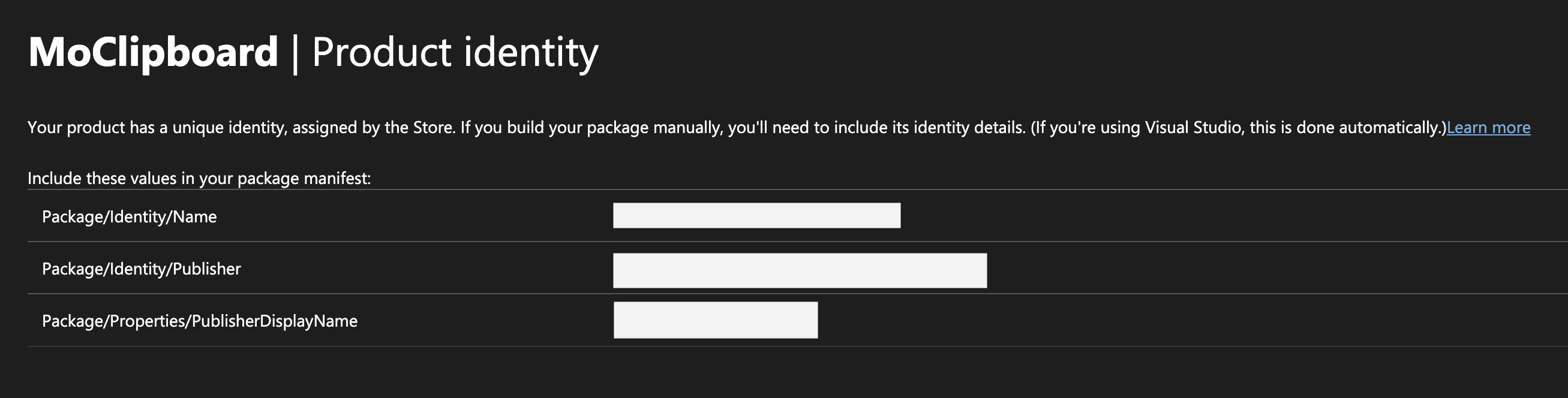
| Partner Center value | Property in mobrowser.conf.json |
|---|---|
| Package/Identity/Name | identityName |
| Package/Identity/Publisher | publisher |
| Package/Properties/PublisherDisplayName | publisherDisplayName |
The values in the package must match the ones in Partner Center exactly; otherwise, the Store rejects the upload. The same applies to the name of your application: the package must use one of the names you reserved.
Configuring the project
To configure the package, add the msix section under app → bundle → Windows → installer in mobrowser.conf.json, next to the exe section of the regular installer. Set the three identity values from the Product identity page:
{
  "app": {
    "name": "My App",
    "bundle": {
      "Windows": {
        "icon": "assets/app.ico",
        "installer": {
          "exe": { ... },
          "msix": {
            "identityName": "PublisherName.MyApp",
            "publisher": "CN=00000000-0000-0000-0000-000000000000",
            "publisherDisplayName": "Publisher Name"
          }
        }
      },
      ...
    },
    ...
  }
}
The other properties are optional and have defaults:
| Property | Description |
|---|---|
identityName | Required. The Package/Identity/Name value from Partner Center. |
publisher | Required. The Package/Identity/Publisher value from Partner Center. It starts with CN=. |
publisherDisplayName | Required. The Package/Properties/PublisherDisplayName value from Partner Center. The Store shows it as the publisher of your application. |
displayName | The application name shown in the Start menu. It must be one of the names you reserved in Partner Center. If not specified, app.name is used, so set this property when app.name differs from the reserved name. |
description | The description of the application tile. If not specified, app.description is used. |
applicationId | The identifier of the application inside the package. If not specified, the identifier is generated from the executable name by keeping only the ASCII letters and digits, for example, MyApp. |
assets | The path to the directory with the visual assets. If not specified, assets/msix is used when it exists. |
logo | The path to the image that the visual assets are generated from when there’s no assets directory. If not specified, bundle.Windows.icon is used. |
minWindowsVersion | The lowest Windows version the package installs on, for example, 10.0.22000.0. If not specified, 10.0.19041.0 (Windows 10 version 2004) is used. You can’t set a lower version. |
name | The name of the package file. If not specified, the name is generated from the executable name and the application version, for example, My App-1.0.0-x64.msix. |
You can reference environment variables in identityName, publisher, publisherDisplayName, displayName, and description through the ${ENV_NAME} syntax. The other properties take plain values.
The package manifest declares the languages your application supports. MōBrowser takes them from app.locales and always lists en-US first. If app.locales is ["all"], the manifest declares only en-US. See Localization for how to configure the locales.
Note: Like npm run pack, npm run pack -- --msix checks that mobrowser.conf.json hasn’t changed since the last build. Run npm run build again after you add or edit the msix section.
Preparing visual assets
Windows and the Store show your application with a set of tile and logo images that the package carries in its Assets directory. The set contains seven images in five display scales, plus the application icon in the fixed sizes that Windows uses for the taskbar and the Start menu: 50 PNG files in total.
You don’t have to draw them by hand. MōBrowser generates the whole set from one square image:
npm run mobrowser -- icon --msix --source assets/logo-1024.png
The command writes the images to assets/msix. To write them to a different directory, add --output <path>.
The source image can be a PNG or an ICO file. For an ICO file, MōBrowser uses its largest image. The source must be square and at least 256×256 pixels. Use 1024×1024 or larger: MōBrowser warns you about a smaller source, because the largest images in the set, up to 1240×1240, would look blurred.
On the square images, the source fills the whole image. On the wide tile and the splash screen, the source takes the full height and is centered on a transparent background, so it’s never stretched.
Generated or committed assets
When you run npm run pack -- --msix, MōBrowser looks for the assets in this order:
- The directory set in the
assetsproperty. - The
assets/msixdirectory. - If neither exists, it generates the set on the fly from the
logoimage or, iflogoisn’t set, frombundle.Windows.icon.
If you want to review or hand-tune the images, generate them once with icon --msix, edit the files you need, and commit the directory to your repository.
Building the package
To create the package, build the application and run pack with the --msix flag:
npm run build
npm run pack -- --msix
The command runs instead of the regular npm run pack, which builds the Velopack installer and update packages. It doesn’t create any of them and leaves the ones already in the pack directory as they are. For the same reason, the --msix flag can’t be combined with --releases.
MōBrowser writes the package to the build/dist/win-x64/msix directory:
build/
|-- dist/
|   `-- win-x64/
|   |   `-- bin/
|   |   |   `-- <APP_EXECUTABLE_NAME>.exe
|   |   `-- msix/
|   |   |   `-- <APP_EXECUTABLE_NAME>-<APP_VERSION>-x64.msix
The package is unsigned, which is fine for Partner Center: the Store signs the package itself before publishing it. To install the package on your machine before uploading, see Testing before submission.
What’s in the package
The package contains:
- The built application from
build/dist/win-x64/bin, except the.pdb,.lib, and.expfiles. - The tile and logo images that Windows and the Store show for your application. See Preparing visual assets.
- The
AppxManifest.xmlpackage manifest. It declares your application as a full-trust desktop application, so it runs with the same permissions as before packaging. Windows starts it from its executable. - The
resources.priresource index, which lets Windows pick the image that matches the display scale.
Packing again
If a package with the same name already exists, the command stops instead of overwriting it. Increment app.version or replace the package with --force:
npm run pack -- --msix --force
The command builds the package in a temporary directory and moves it to the msix directory only after every step succeeds. If a step fails, the msix directory stays as it was.
Testing before submission
Before you submit the package, check it with the Windows App Certification Kit and install it on your machine to see how the application runs from it.
Windows installs an MSIX package only if it’s signed with a certificate trusted on the machine. For a quick check, register the unpacked package files in Developer Mode, which doesn’t require a signature. To install the package file itself, sign it with a test certificate.
Running the Windows App Certification Kit
Store certification includes the technical tests of the Windows App Certification Kit, which is also part of the Windows SDK. To find problems before you submit, run the kit on your package. In PowerShell with administrator rights, run:
$appcert = "C:\Program Files (x86)\Windows Kits\10\App Certification Kit\appcert.exe"
& $appcert reset
& $appcert test -appxpackagepath "C:\path\to\My App-1.0.0-x64.msix" -reportoutputpath C:\path\to\report.xml
The kit writes its results to the report file. Fix the failed tests before you upload the package.
Installing without signing
Enable Developer Mode, unpack the package, and register its manifest. In PowerShell, run from the project directory:
makeappx unpack /p "build\dist\win-x64\msix\My App-1.0.0-x64.msix" /d build\dist\win-x64\msix\unpacked
Add-AppxPackage -Register build\dist\win-x64\msix\unpacked\AppxManifest.xml
If makeappx.exe isn’t in your PATH, run it from the SDK directory described in Prerequisites. The application appears in the Start menu, and you can launch it from there.
Signing the package
Windows accepts the signature only if the subject of the certificate equals the publisher value, for example, CN=00000000-0000-0000-0000-000000000000. If your code signing certificate has a different subject, you need a separate certificate made for this one. You can create a self-signed certificate with this subject as described in Create a certificate for package signing.
To sign the package, add the --sign flag, which works only together with --msix:
npm run pack -- --msix --sign
MōBrowser signs the package with bundle.Windows.signCommand, the same command it uses for signing the application. For the package, the command must pass /fd SHA256 to SignTool, because the package uses the SHA256 hash. See Sign an app package using SignTool for the command syntax.
Note: npm run build signs the application binaries with the same command and requires their signatures to be valid. If signCommand uses a self-signed test certificate, make the certificate trusted on the build machine first, for example, by importing it into the Local Machine → Trusted Root Certification Authorities store.
After signing, MōBrowser checks that the package is signed and that the signer matches publisher. If the certificate isn’t trusted on your machine, the command prints a warning. Import the certificate into the Local Machine → Trusted People store, and then install the package by double-clicking it.
Note: Signing is only needed for local testing. The package you upload to Partner Center doesn’t have to be signed, because the Store signs it itself.
Submitting to the Microsoft Store
With the package built and tested, open the application overview in Partner Center and click Start submission in the Product release section. Partner Center creates a draft submission with six pages. You can fill them in any order:
| Page | What you provide |
|---|---|
| Pricing and availability | The base price. Markets, audience, discoverability, and the release schedule have defaults you can keep. |
| Properties | The category. A privacy policy URL if your application collects or transmits personal information. |
| Age ratings | Answers to the age rating questionnaire. |
| Packages | The .msix package. |
| Store listings | A description and at least one screenshot for at least one language. Microsoft recommends four or more screenshots. |
| Submission options | A justification for the restricted capabilities of the package. Optionally, notes for the testers and publishing options. |
The Packages and Submission options pages need MōBrowser-specific input and are described below. For the other pages, see Create an app submission for your MSIX app.
When every page is complete, click Submit for certification on the application overview.
Uploading the package
On the Packages page, upload the .msix file as npm run pack -- --msix created it. Partner Center validates the package right after the upload and shows the errors it finds, such as identity values that don’t match the Product identity page. To fix an error, remove the package, fix the configuration, build the package again, and upload the new one.
Justifying the full-trust capability
The package manifest declares the runFullTrust capability, which every packaged desktop application that runs with full trust needs. Microsoft classifies it as a restricted capability, so the Submission options page shows a Restricted capabilities section. In that section, answer the question Why do you need the runFullTrust capability, and how will it be used in your product?
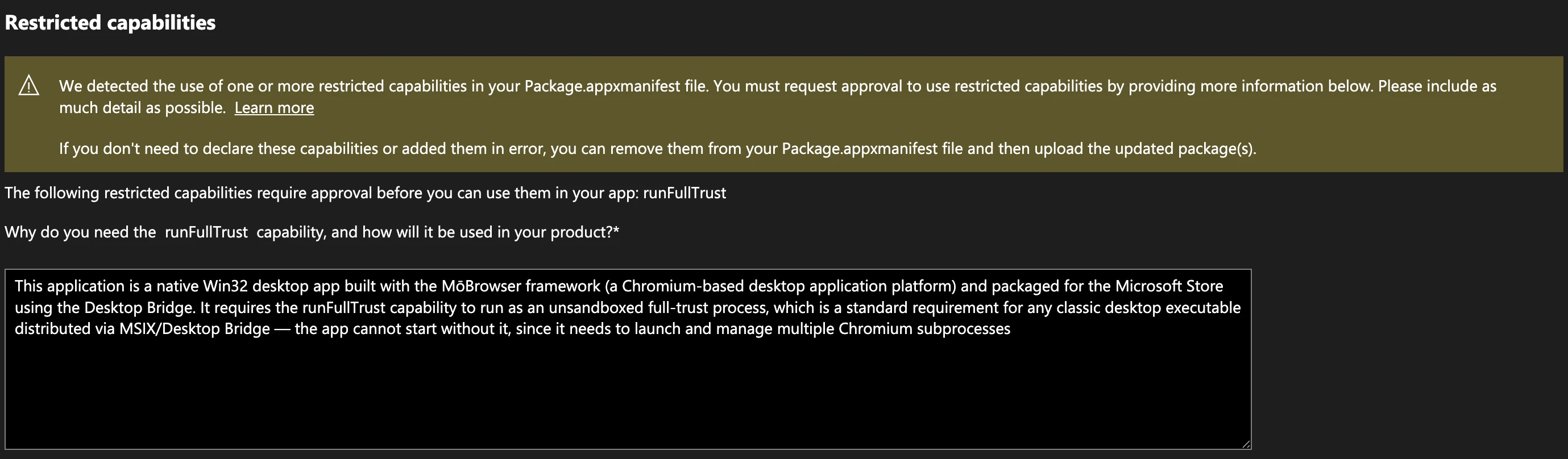
Describe your application and why it needs full trust. For example:
This application is a native Win32 desktop app built with the MōBrowser framework (a Chromium-based desktop application platform) and packaged for the Microsoft Store as an MSIX package. It requires the runFullTrust capability to run as an unsandboxed full-trust process, which is a standard requirement for any classic desktop executable distributed via MSIX. The app cannot start without it, since it needs to launch and manage multiple Chromium subprocesses.
The testers review the justification during certification, which can add time to the process. You usually don’t have to justify the capability again in later submissions, unless the package declares new restricted capabilities.
If your application needs a test account or has features that are hard to find, describe them in Notes for certification on the same page.
Certification and publishing
Certification can take up to three business days. The Store runs security tests, the technical tests of the Windows App Certification Kit, and a content review.
After certification, you get a report. If the submission fails, the report names the failed test or the policy that wasn’t met. Fix the problem and create a new submission.
When the submission passes certification, the Store signs the package with a Microsoft certificate and publishes it. By default, publishing starts right away. In Submission options, you can instead publish the submission manually or on a specific date. Customers usually see the listing within 15 minutes after publishing, and the application overview in Partner Center shows that the product is available in the Store:

See The app certification process for details.
Releasing updates
The Store delivers updates to the users who installed your application. To release a new version:
- Increment
app.versioninmobrowser.conf.json. - Build the application and the package with
npm run buildandnpm run pack -- --msix. - In Partner Center, create a new submission in the Product release section of the application overview. Partner Center copies the details and the package of the previous submission into it and marks the copied pages as Unchanged.
- On the Packages page, upload the new package. If Partner Center warns that the previous version’s package is redundant, remove it from the submission.
- Change the other pages if needed, and click Submit for certification.
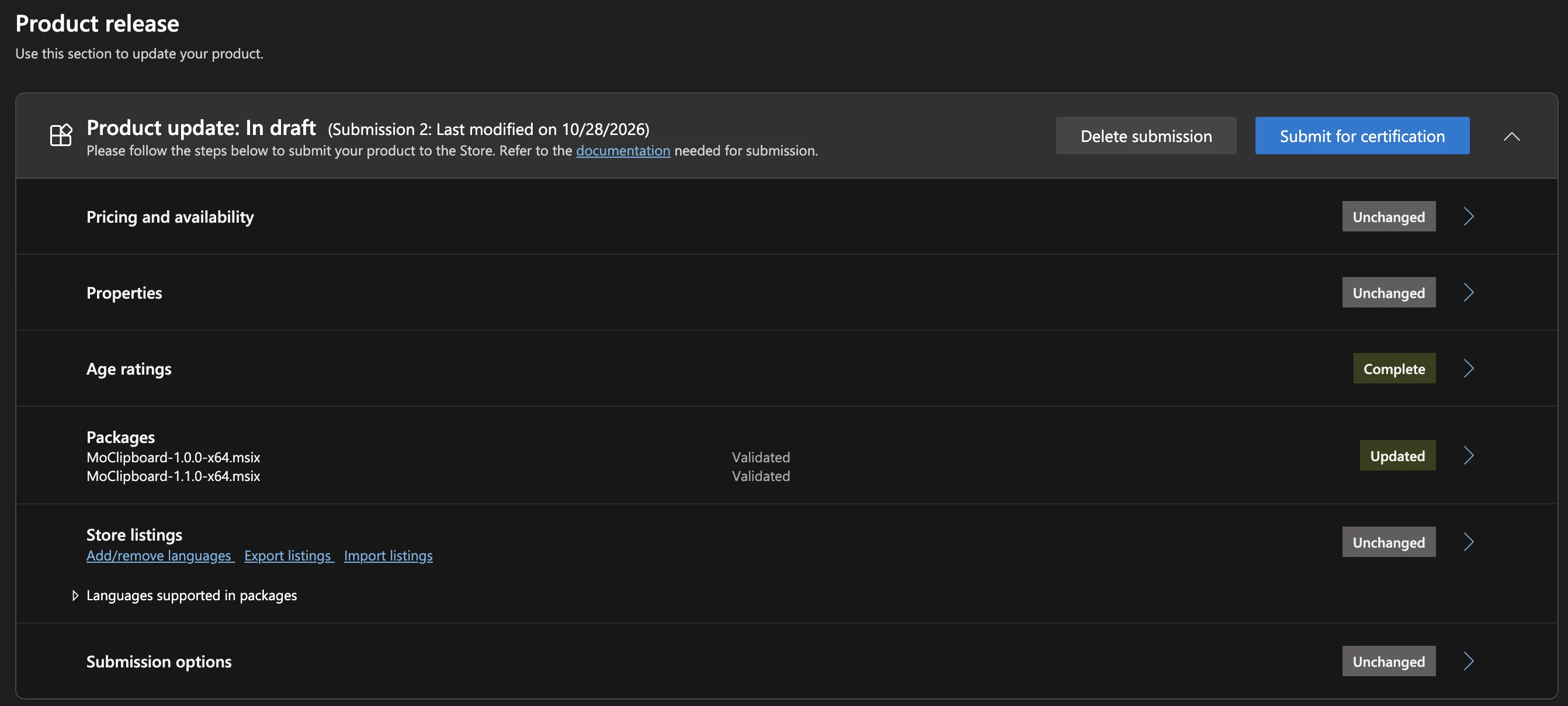
The Store offers each user the highest-versioned package that fits their device, so the new version must be higher than the published one. See Package version numbering.
For updates, the Packages page also offers a gradual rollout. The Store then delivers the new package to a percentage of your users, which you can increase or halt at any time. See Gradual package rollout.
Why the built-in updater stays off
The built-in updater can’t work in a package. It replaces the application files in the directory where the Velopack installer put them, while Windows installs the package into a read-only directory under C:\Program Files\WindowsApps. MōBrowser also starts the updater only in an application installed by Velopack, so the updater stays off in the package even if app.updateServerUrl is set. To keep the configuration consistent with that, npm run pack -- --msix fails if the property is set and asks you to clear it.
How the application runs from the package
Windows installs MSIX packages into a read-only directory, so an application can’t write files next to its executable. To keep your application and the MōBrowser runtime working without changes, the package manifest enables installed location virtualization. With it, Windows redirects the files your application writes into its installation directory to the application’s data folder for the current user, %LOCALAPPDATA%\Packages\<package family name>\LocalCache\Local\Microsoft\WritablePackageRoot. The package family name is shown on the Product identity page in Partner Center.
Windows deletes the redirected files when the user uninstalls the application, so don’t keep anything there that must survive a reinstall. Only writes into the installation directory are redirected. For example, a file written to %TEMP% goes to the real %TEMP% directory.
Installed location virtualization requires Windows 10 version 2004 (build 19041), so MōBrowser sets the package’s minimum Windows version to at least 10.0.19041.0, and the package doesn’t install on earlier versions.
When the package is updated, files from the package that your application modified or deleted are restored from the new version, while files it added are kept.
Some features work differently in a packaged application. For example, notifications identify your application by the ID that the package manifest assigns instead of the one MōBrowser sets for a regular installation.
Troubleshooting
Building the package
| Problem | Solution |
|---|---|
mobrowser.conf.json changed since the last build | Run npm run build again, then pack. |
makeappx.exe not found or makepri.exe not found | Install the Windows SDK, or set MOBROWSER_WINDOWS_SDK_BIN to the directory with the tools. See Prerequisites. |
app.updateServerUrl is set | Clear app.updateServerUrl, run npm run build, and pack again. See Why the built-in updater stays off. |
app.version … is not valid for an MSIX package | Use numbers from 0 to 65535 without leading zeros in every part of app.version. |
… already exists — bump app.version, or pass --force | Increment app.version, or add --force to replace the package. See Packing again. |
no MSIX assets | Generate the assets with icon --msix, or set the logo property. See Preparing visual assets. |
Submitting the package
| Problem | Solution |
|---|---|
| Partner Center rejects the package because of its identity | Copy identityName, publisher, and publisherDisplayName from the Product identity page exactly. The values are case-sensitive. Rebuild and upload the package. |
| Partner Center rejects the display name | Set displayName to one of the names you reserved in Partner Center. |
| Partner Center rejects the version | Set the major version in app.version to a number greater than 0. |
| Users don’t get the update after publishing | Make sure the new app.version is higher than the published one. See Releasing updates. |
| Certification fails on the restricted capability | Give a more detailed justification for runFullTrust. See Justifying the full-trust capability. |
| Certification fails on technical compliance | Run the Windows App Certification Kit locally, fix the failed tests, and create a new submission. |
Limitations
MōBrowser creates only x64 MSIX packages. Other architectures and .msixbundle files aren’t supported yet.