Application Menu
Create a native application menu on macOS or a window menu on Windows and Linux.
On macOS, the menu belongs to the application. Set it once with app.setMenu(). On Windows and Linux, each BrowserWindow has its own menu bar. Attach a menu with win.setMenu(), and pass null to remove it. Different windows can display different menus at the same time.
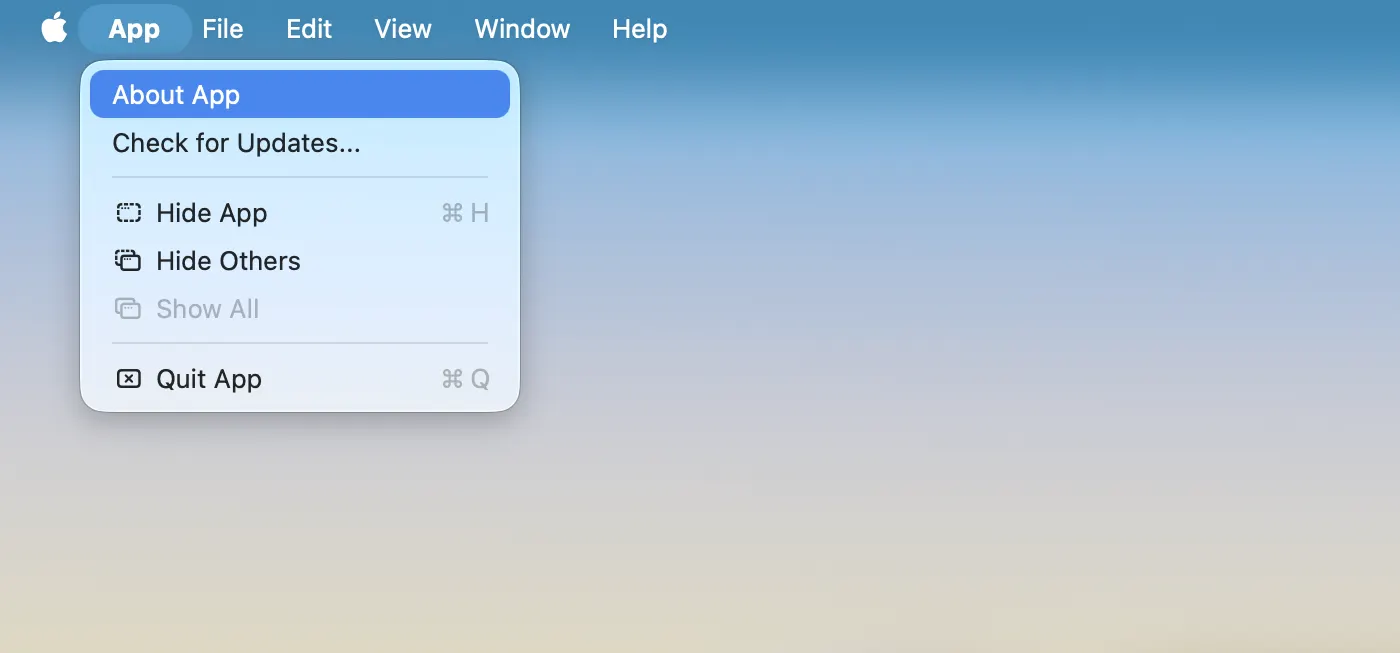
Default main menumacOS
The default main menu contains different items depending on how you run the application. When you run it in the development mode, the menu contains the items useful for debugging and development. When the application is packaged, the menu doesn’t contain the items for debugging and development for security reasons. The default main menu contains the following items:
<APP_NAME>
  Hide Others
  Show All
  ---
  Quit <APP_NAME>
File
  Close Window
Edit
  Undo
  Redo
  ---
  Cut
  Copy
  Paste
  Paste and Match Style
  Delete
  Select All
  ---
  Autofill
  Start Dictation...
  Emojy & Symbols
View
  Back
  Forward
  ---
  Reload This Page
  Force Reload This Page
  ---
  Actual Size
  Zoom In
  Zoom Out
  ---
  Enter Full Screen
Developer *
  View Source
  Developer Tools
  Inspect Elements
  JavaScript Console
  Annotation Mode
  ---
  Task Manager
Window
  Minimize
  Zoom
  Fill
  Center
  ---
  Move & Resize
  Full Screen Tile
  ...
Help
  Search
The Developer menu is available only when you run the application in the development mode using the npm run dev command. On macOS and Windows, development mode also shows a toolbar beside the window for Annotation Mode and Developer Tools. See Annotation Mode.
Window menusWindowsLinux
Windows and Linux do not have an application-wide menu. Assign a menu to a specific window:
import { BrowserWindow, Menu } from '@mobrowser/api';

const win = new BrowserWindow()
win.setMenu(new Menu({
  items: [
    new Menu({
      label: 'File',
      items: [
        'closeWindow'
      ]
    }),
    new Menu({
      label: 'Help',
      items: [
        'checkForUpdates'
      ]
    })
  ]
}))
The menu bar is displayed inside the window frame, below the title bar. win.menu reports the menu currently attached to that window. Calling win.setMenu(null) removes the menu bar and restores the content area.
The checkForUpdates role is available only on Windows. It appears only when app.updateServerUrl is set and the application was installed with the native installer. See Built-in update flow.
Setting the main menumacOS
The following code snippet shows how to set the application main menu that contains the standard and custom menu items:
const macAppMenu = new MenuWithRole({
  role: 'macAppMenu',
  items: [
    new MenuItem({
      id: 'about',
      label: 'About ' + app.name,
      action: (item: MenuItem) => {}
    }),
    'macHideApp',
    'macHideOthers',
    'macShowAll',
    'separator',
    'quit',
  ]
})

const fileMenu = new MenuWithRole({
  role: 'fileMenu',
  items: [
    'savePageAs',
    'separator',
    'print',
    'printUsingSystemDialog',
    'separator',
    'closeWindow',
  ]
})

const editMenu = new MenuWithRole({
  role: 'editMenu',
  items: [
    'undo',
    'redo',
    'separator',
    'cut',
    'copy',
    'paste',
    'pasteAndMatchStyle',
    'delete',
    'selectAll',
    'separator',
    'find',
    'findNext',
    'findPrevious',
  ]
})

const viewMenu = new Menu({
  label: 'View',
  items: [
    'goBack',
    'goForward',
    'separator',
    'stop',
    'reload',
    'reloadBypassCache',
    'separator',
    'zoomReset',
    'zoomIn',
    'zoomOut',
    'separator',
    'fullScreen',
    'separator',
    'viewSource',
    'devTools'
  ]
})

const windowMenu = new MenuWithRole({
  role: 'windowMenu',
  items: [
    'minimizeWindow',
    'maximizeWindow',
  ]
})

const helpMenu = new MenuWithRole({
  role: 'helpMenu',
  items: [
    new MenuItem({
      id: 'openWebsite',
      label: 'Open Website...',
      shortcut: 'CmdOrCtrl+O',
      action: (_item: MenuItem) => {
        desktop.openUrl('https://teamdev.com/mobrowser')
      }
    }),
  ]
})

const appMenu = new Menu({
  items: [
    macAppMenu,
    fileMenu,
    editMenu,
    viewMenu,
    windowMenu,
    helpMenu,
  ]
})
app.setMenu(appMenu)
The title of the application menu will be set to the name of your application.
Here’s how it will look like:
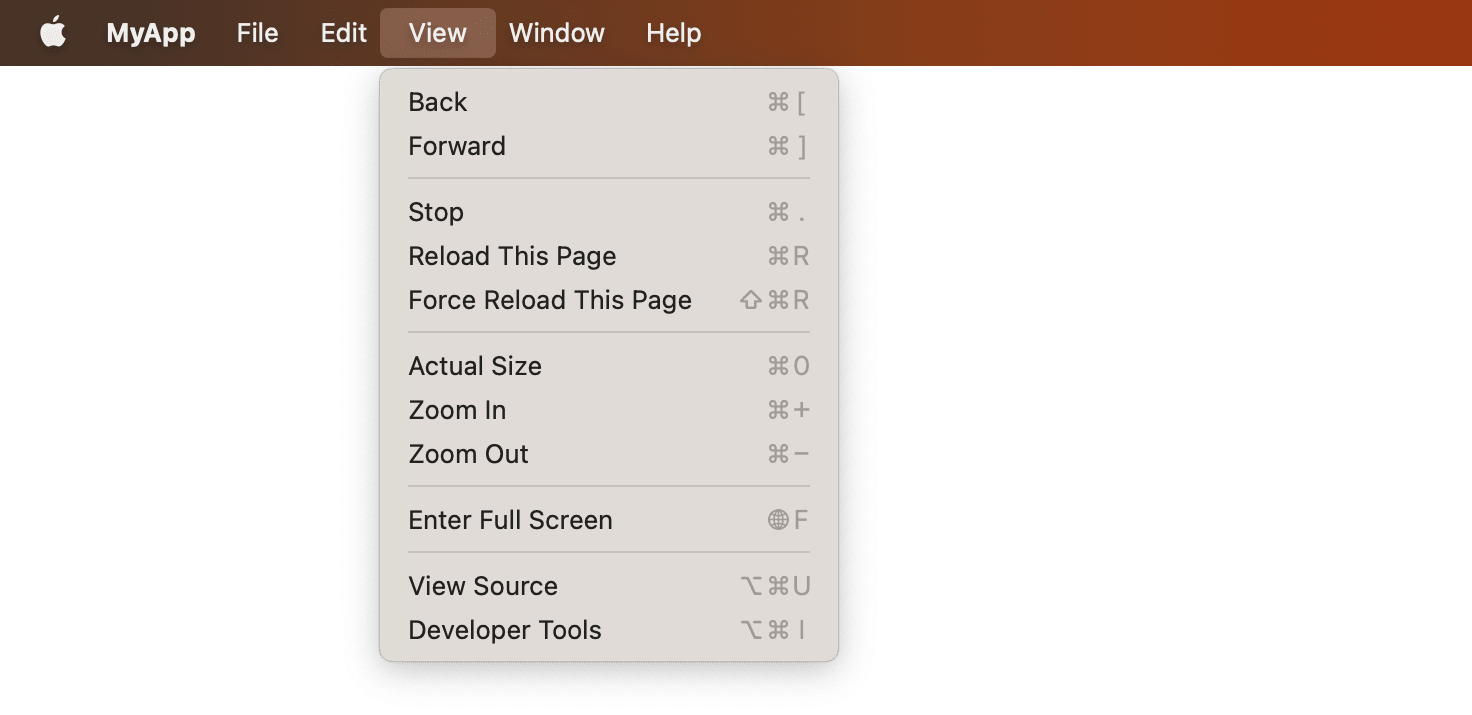
Main menu’s namemacOS
On macOS the name of the application menu is always your app’s name. You can set the app name in
the mobrowser.conf.json file.
{
  "app": {
    "name": "MyApp",
    "version": {
      "major": "1",
      "minor": "0",
      "patch": "0"
    },
    "author": "",
    "copyright": "",
    "description": "",
    ...
  }
}
Standard menu item roles
You can create a standard menu (without menu items) using the following roles:
| Role Name | Description |
|---|---|
'macAppMenu' | Creates the macOS $APP_NAME menu. |
'fileMenu' | Creates the File menu. |
'editMenu' | Creates the Edit menu. |
'viewMenu' | Creates the View menu. |
'windowMenu' | Creates the Window menu. |
'helpMenu' | Creates the Help menu. |
Use the following roles to create standard menu items:
| Role Name | Description |
|---|---|
'separator' | Creates a menu separator. |
'checkForUpdates' | Creates the Check for Updates… menu item. Available when app.updateServerUrl is configured. |
The application standard menu items:
| Role Name | Description |
|---|---|
'macHideApp' | Creates the Hide $APP_NAME menu item. |
'macHideOthers' | Creates the Hide Others menu item. |
'macShowAll' | Creates the Show All menu item. |
'quit' | Creates the Quit $APP_NAME menu item. |
The File standard menu item roles:
| Role Name | Description |
|---|---|
'savePageAs' | Creates the Save Page As… menu item. |
'print' | Creates the Print… menu item. |
'printUsingSystemDialog' | Creates the Print Using System Dialog menu item. |
'closeWindow' | Creates the Close Window menu item. |
The Edit standard menu item roles:
| Role Name | Description |
|---|---|
'undo' | Creates the Undo menu item. |
'redo' | Creates the Redo menu item. |
'cut' | Creates the Cut menu item. |
'copy' | Creates the Copy menu item. |
'paste' | Creates the Paste menu item. |
'pasteAndMatchStyle' | Creates the Paste and Match Style menu item. |
'delete' | Creates the Delete menu item. |
'selectAll' | Creates the Select All menu item. |
'find' | Creates the Find menu item. |
'findNext' | Creates the Find Next menu item. |
'findPrevious' | Creates the Find Previous menu item. |
The View standard menu item roles:
| Role Name | Description |
|---|---|
'goBack' | Creates the Back menu item. |
'goForward' | Creates the Forward menu item. |
'stop' | Creates the Stop menu item. |
'reload' | Creates the Reload menu item. |
'reloadBypassCache' | Creates the Reload Bypassing Cache menu item. |
'zoomReset' | Creates the Actual Size menu item. |
'zoomIn' | Creates the Zoom In menu item. |
'zoomOut' | Creates the Zoom Out menu item. |
'fullScreen' | Creates the Enter Full Screen menu item. |
'devTools' | Creates the Toggle Developer Tools menu item. |
'viewSource' | Creates the View Source menu item. |
The Window standard menu item roles:
| Role Name | Description |
|---|---|
'minimizeWindow' | Creates the Minimise menu item. |
'maximizeWindow' | Creates the Maximize menu item. |
Menu item shortcut
You can set the shortcut key for a menu item by using the shortcut property.
const helpMenu = new MenuWithRole({
  role: 'helpMenu',
  items: [
    new MenuItem({
      id: 'openWebsite',
      label: 'Open Website...',
      shortcut: 'CommandOrControl+O',
      action: (_item: MenuItem) => {
        desktop.openUrl('https://teamdev.com/mobrowser')
      }
    }),
  ]
})