Dialogs
This page describes what kind of dialogs you can show in your app.
Dialogs are a great way to provide information to your users, or to prompt them for information. The framework provides a set of the built-in dialogs you can show in your application. If you don’t want to show a specific dialog, you can always suppress it in the corresponding handler.
MessagesmacOSWindows
The message dialog is a simple native system dialog that shows a message to the user and has a single or multiple buttons. You can use this dialog to show warnings, errors, confirmations or other messages to the user.
To show a message dialog, use the showMessageDialog() function. The function accepts the dialog options and callback function.
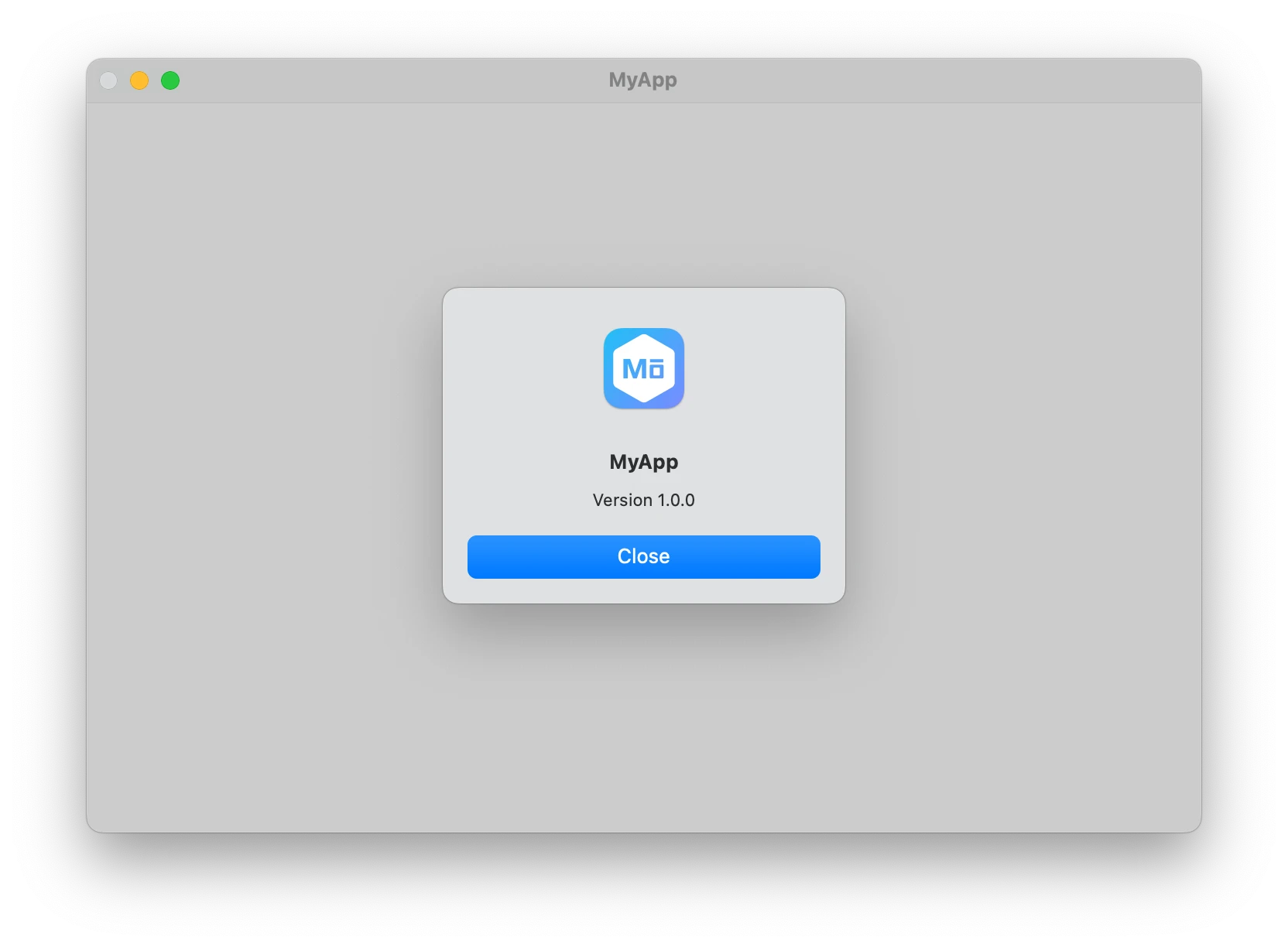
The following example demonstrates how to show a simple message dialog with the message, additional information, and the Close button:
import { app, BrowserWindow } from '@mobrowser/api';

// Create a new window.
const win = new BrowserWindow()
win.setTitle('MyApp')
win.show()

// Show a message dialog.
app.showMessageDialog({
  parentWindow: win,
  title: 'MyApp',
  message: 'Version 1.0.0',
  buttons: [{ label: 'Close', type: 'primary' }]
})
On macOS the message dialog will look like this:
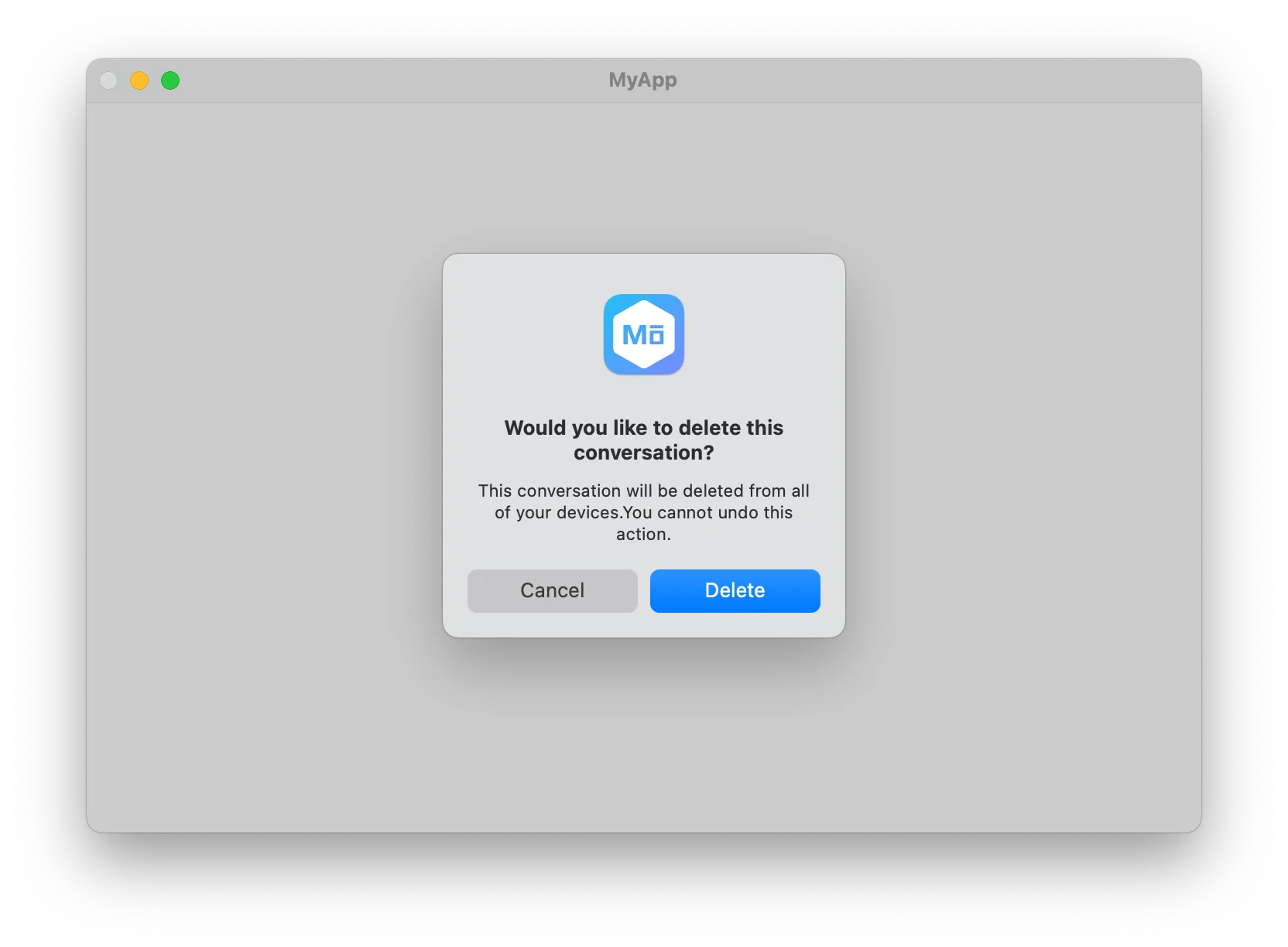
The message dialog API allows you to show different message dialogs. For example, the following code demonstrates how to show a confirmation dialog with two buttons:
const result = await app.showMessageDialog({
  parentWindow: win,
  title: 'Would you like to delete this conversation?',
  message: 'This conversation will be deleted from all of your devices. ' +
    'You cannot undo this action.',
  buttons: [
    { label: 'Cancel', type: 'secondary' },
    { label: 'Delete', type: 'primary' }
  ]
})

if (result.button.type === 'primary') {
  // The 'Delete' button was clicked.
}
On macOS the message dialog will look like this:
Open FilemacOSWindows
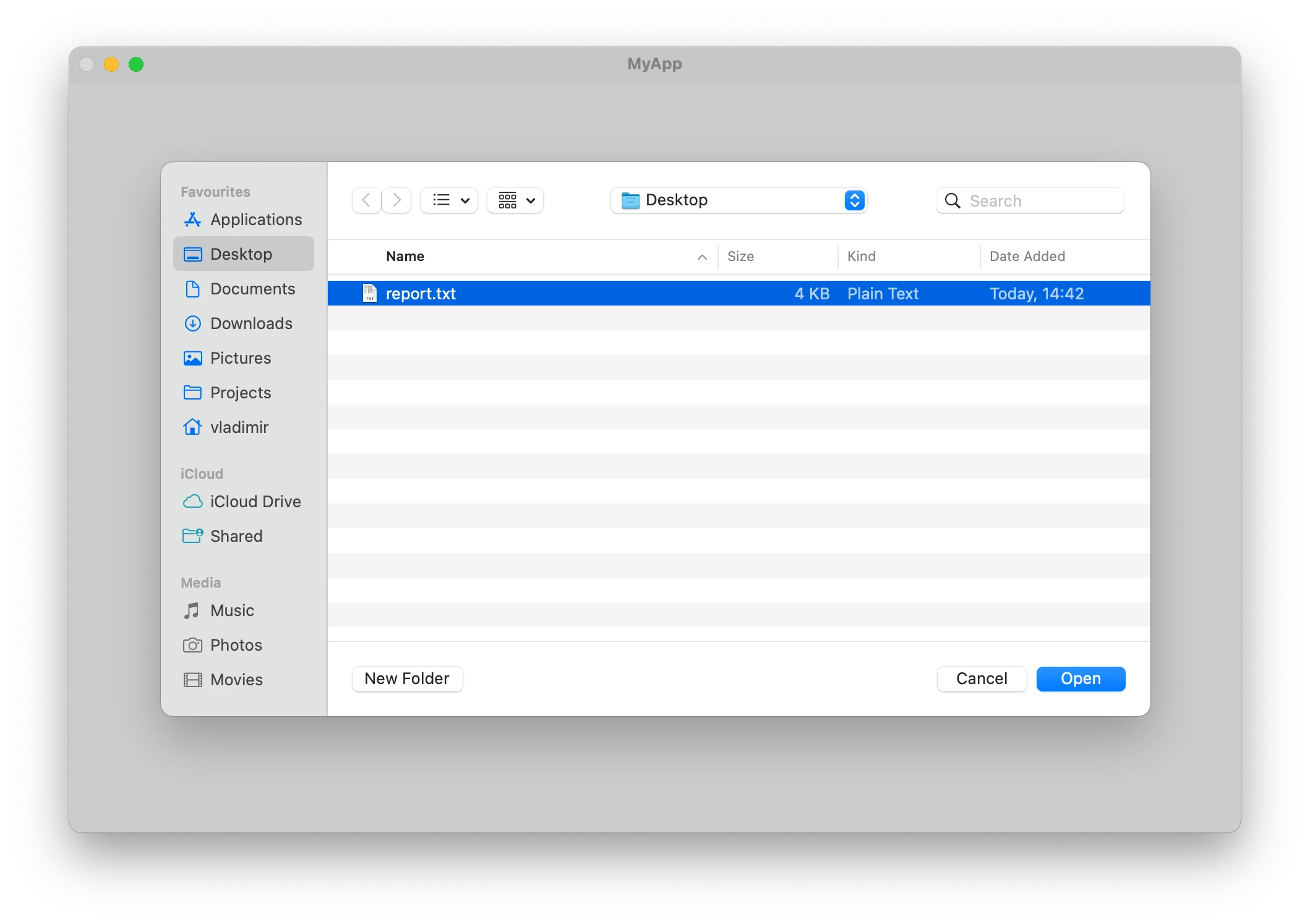
The open file dialog is a simple native system dialog that shows a file picker to the user.
To show an open file dialog, use the showOpenDialog() function. For example:
const result = await app.showOpenDialog({
  parentWindow: win,
  title: 'Open File',
  defaultPath: '/Users/vladimir/Desktop',
  selectionPolicy: 'files'
})

if (!result.canceled) {
  console.log('Selected path: ', result.paths[0])
}
The dialog will look like this on macOS:
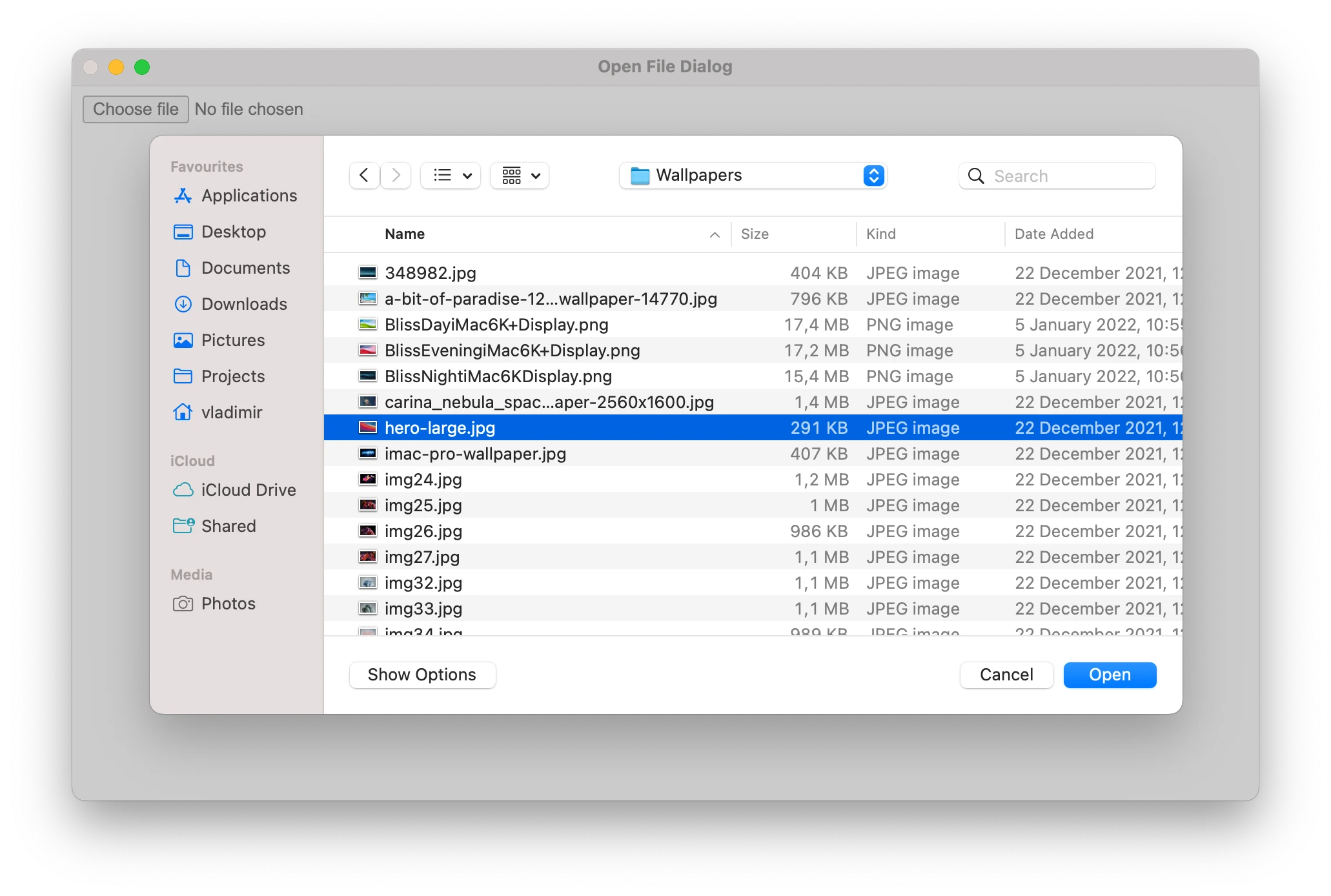
The file open dialog is automatically shown when user clicks the input element with the file type on the web page.
<input type="file" accept="image/png, image/jpeg">
The dialog will be configured according to the INPUT tag properties. For example, it will allow selecting only PNG or JPG image:
Open FilesmacOSWindows
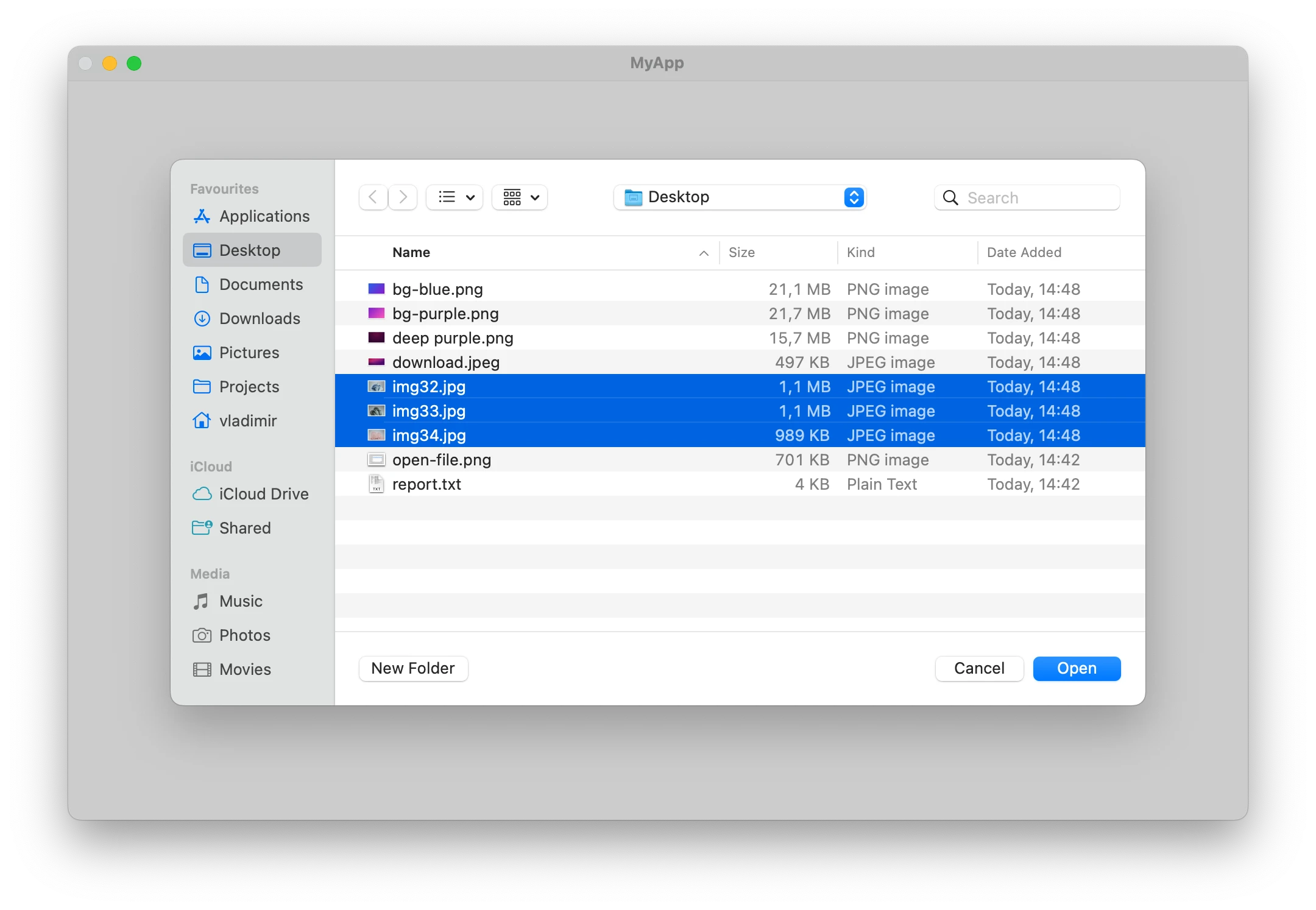
The open files dialog is a simple native system dialog that shows a file picker to the user.
To show an open files dialog, use the showOpenDialog() function. For example:
const result = await app.showOpenDialog({
  parentWindow: win,
  title: 'Open Files',
  defaultPath: '/Users/vladimir/Desktop',
  selectionPolicy: 'files',
  features: {
    allowMultiple: true,
    canCreateDirectories: true
  },
})

if (!result.canceled) {
  console.log('Selected paths: ', result.paths[0])
}
The dialog will look like this on macOS:
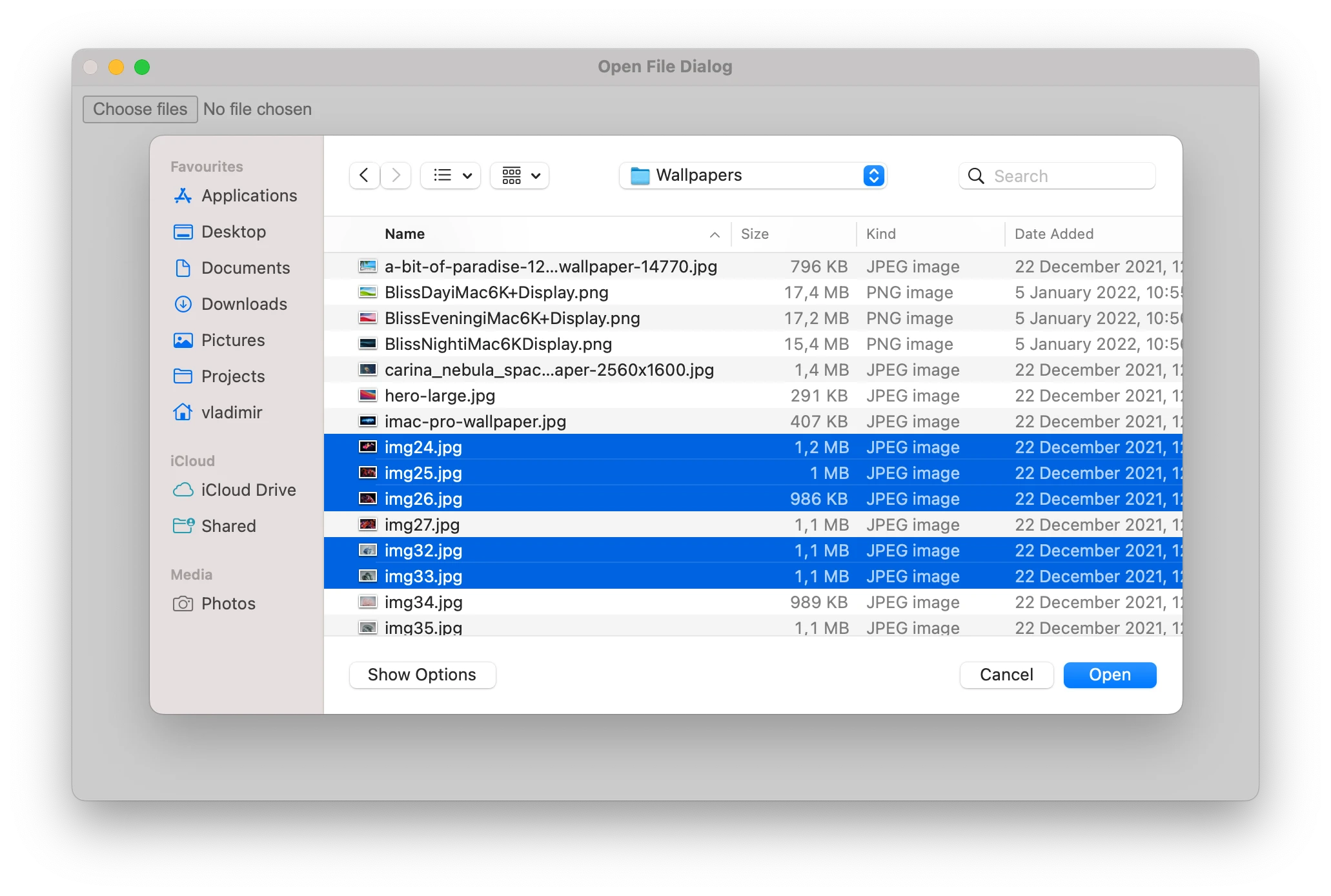
The files open dialog is automatically shown when user clicks the input element with the file type and the multiple attribute on the web page.
<input type="file" accept="image/png, image/jpeg" multiple>
The dialog will look like this on macOS:
Open DirectorymacOSWindows
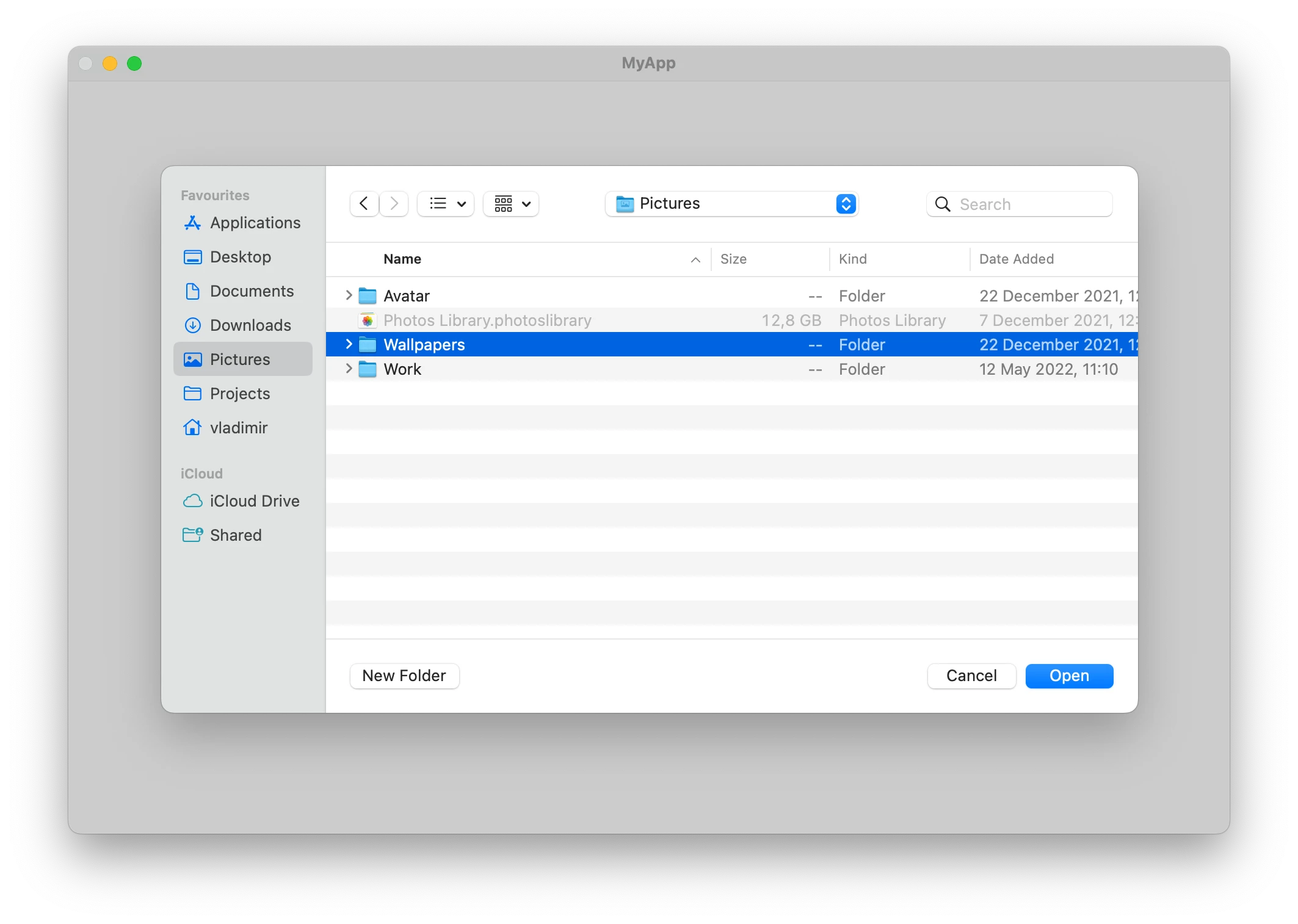
The open directory dialog is a simple native system dialog that shows a directory picker.
To show an open directory dialog, use the showOpenDialog() function with the following options:
const result = await app.showOpenDialog({
  parentWindow: win,
  title: 'Open Folder',
  defaultPath: '/Users/vladimir/Desktop',
  selectionPolicy: 'directories',
  features: {
    allowMultiple: false
  },
})

if (!result.canceled) {
  console.log('Selected path: ', result.paths[0])
}
The dialog will look like this on macOS:
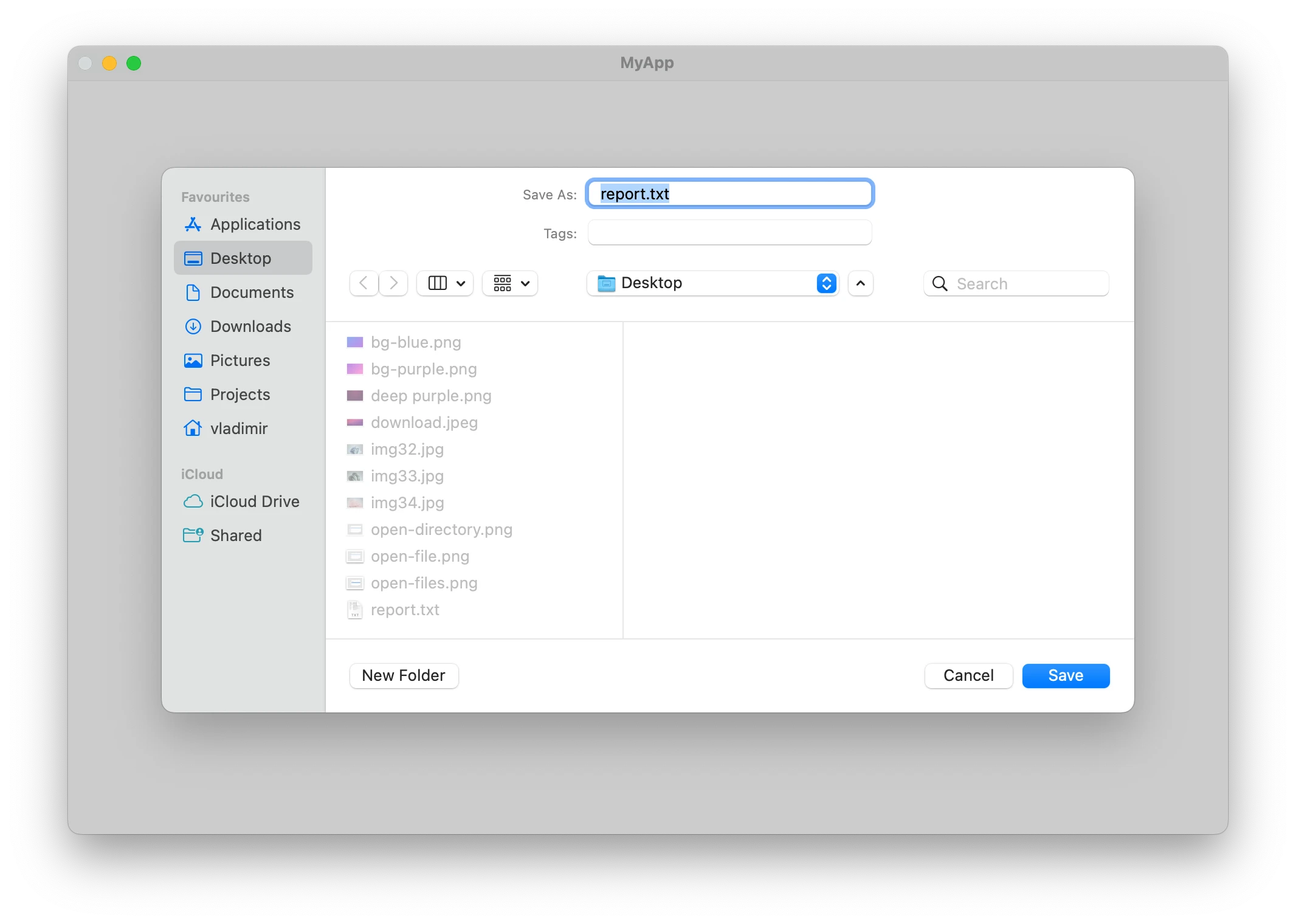
Save FilemacOSWindows
The save file dialog is a simple native system dialog that shows a file picker.
The following example demonstrates how to show a save file dialog that allows saving only text files:
const result = await app.showSaveDialog({
  parentWindow: win,
  title: 'Save File',
  defaultPath: '/Users/vladimir/Desktop',
  filters: [{ name: 'Text Files', extensions: ['txt'] }]
})

if (!result.canceled) {
  console.log('Selected path: ', result.path)
}
The dialog will look like this on macOS:
Alert
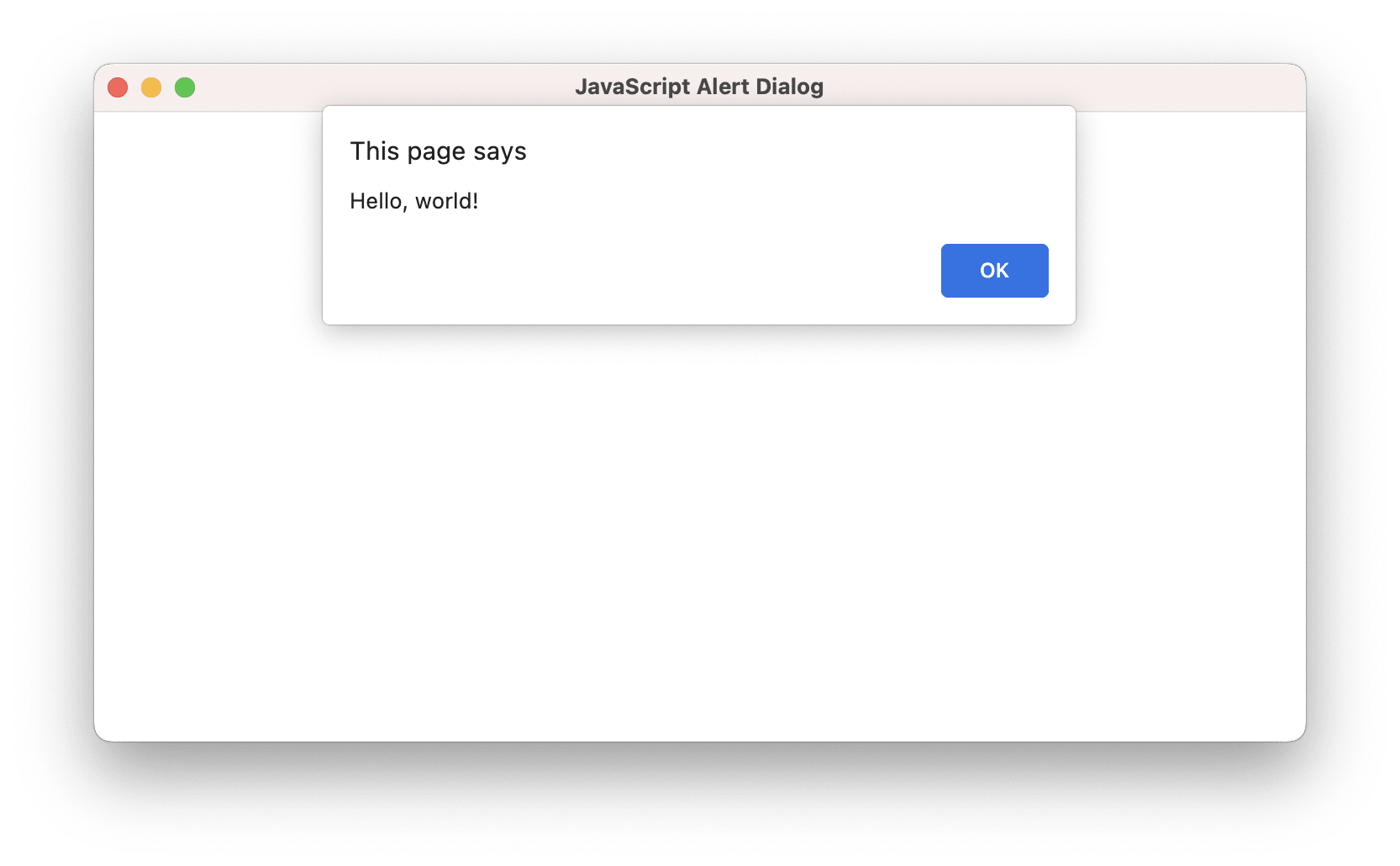
The alert dialog is a simple JavaScriptdialog that shows a message to the user. It has a single button that the user can click to dismiss the dialog.
To show the alert dialog, use the window.alert() function in JavaScript:
alert('Hello, world!');
The dialog will look like this on macOS:
You can handle the request to show the alert dialog to suppress it or show your own message dialog:
import { app, AlertParams } from '@mobrowser/api';

win.browser.handle('alert', async (params: AlertParams) => {
  await app.showMessageDialog({
    parentWindow: win,
    title: params.title,
    message: params.message,
    buttons: [{ label: params.labelOk, type: 'primary' }]
  })
  return 'ok'
})
To suppress the alert dialog, return 'ok' from the handler without showing your own message dialog.
Confirm
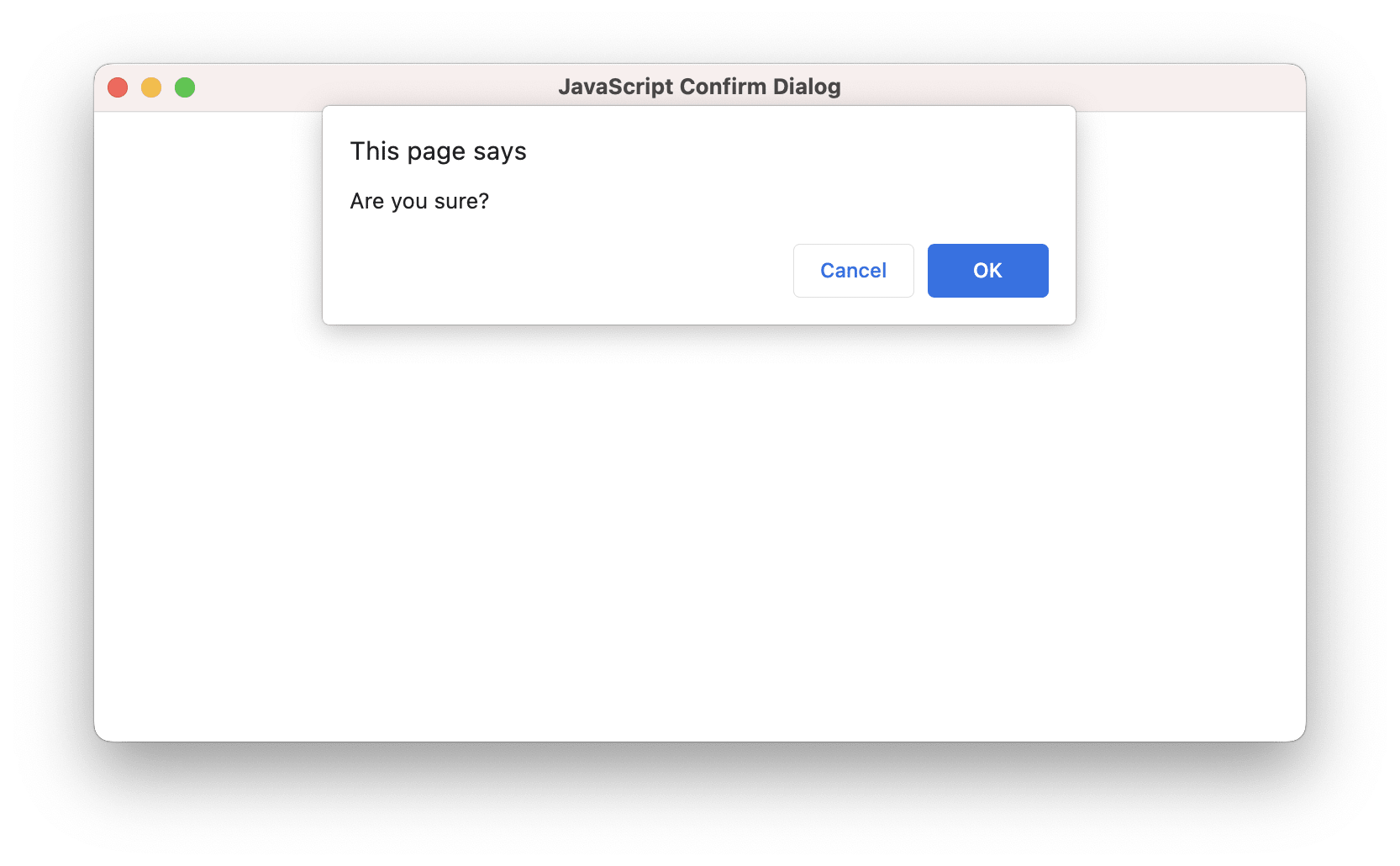
The confirm dialog is a simple JavaScript dialog that shows a message to the user and asks them to confirm or cancel the action. It has two buttons that the user can click to dismiss the dialog.
To show the confirm dialog, use the window.confirm() function in JavaScript:
var result = confirm('Are you sure?');
The dialog will look like this on macOS:
You can handle the request to show the confirm dialog to suppress it or show your own message dialog:
import { app, ConfirmParams } from '@mobrowser/api';

win.browser.handle('confirm', async (params: ConfirmParams) => {
  const result = await app.showMessageDialog({
    parentWindow: win,
    title: params.title,
    message: params.message,
    buttons: [
      { label: params.labelOk, type: 'primary' },
      { label: params.labelCancel, type: 'secondary' }
    ]
  })
  return result.button.type === 'primary' ? 'ok' : 'cancel'
})
To suppress the confirm dialog, return 'ok' or 'cancel' from the handler without showing your own message dialog.
Prompt
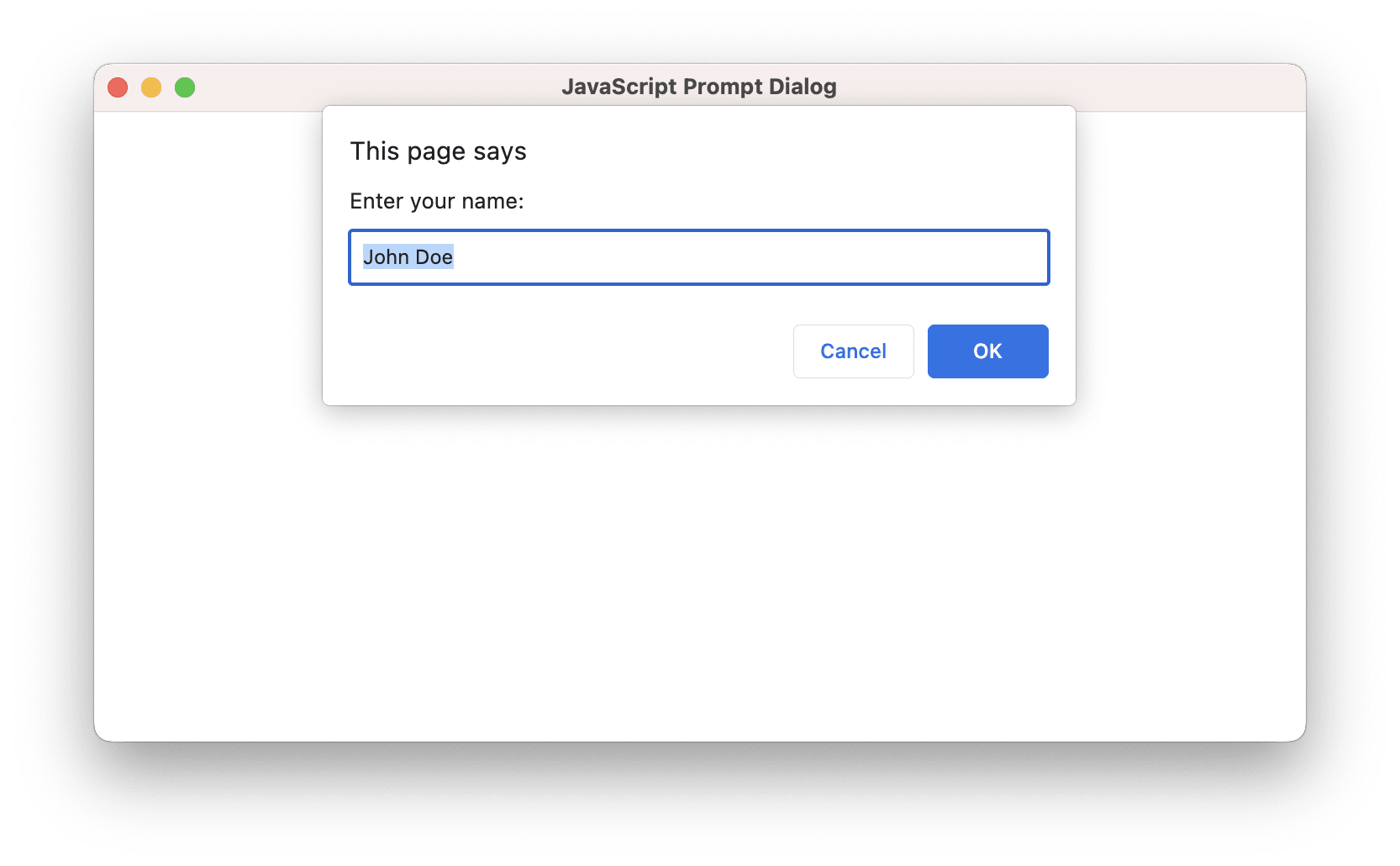
The prompt dialog is a simple JavaScript dialog that shows a message to the user and asks them to enter some text. It has two buttons that the user can click to dismiss the dialog.
To show the prompt dialog, use the window.prompt() function in JavaScript:
var result = prompt('Enter your name:', 'John Doe');
The dialog will look like this on macOS:
You can handle the request to show the prompt dialog to suppress it or show your own message dialog:
import { app, PromptParams } from '@mobrowser/api';

win.browser.handle('prompt', async (params: PromptParams) => {
  const result = await app.showMessageDialog({
    parentWindow: win,
    title: params.title,
    message: params.message,
    buttons: [
      { label: params.labelOk, type: 'primary' },
      { label: params.labelCancel, type: 'secondary' }
    ],
    textFields: [{
      placeholder: 'Your name',
      type: 'text',
      value: params.defaultValue
    }]
  })
  if (result.button.type === 'primary') {
    return { action: 'ok', value: result.textFieldValues?.[0] ?? '' }
  }
  return 'cancel'
})
You can also enter some text in the dialog programmatically without showing it to the user:
win.browser.handle('prompt', async (params: PromptParams) => {
  return { action: 'ok', value: 'John Doe' }
})
Before Unload
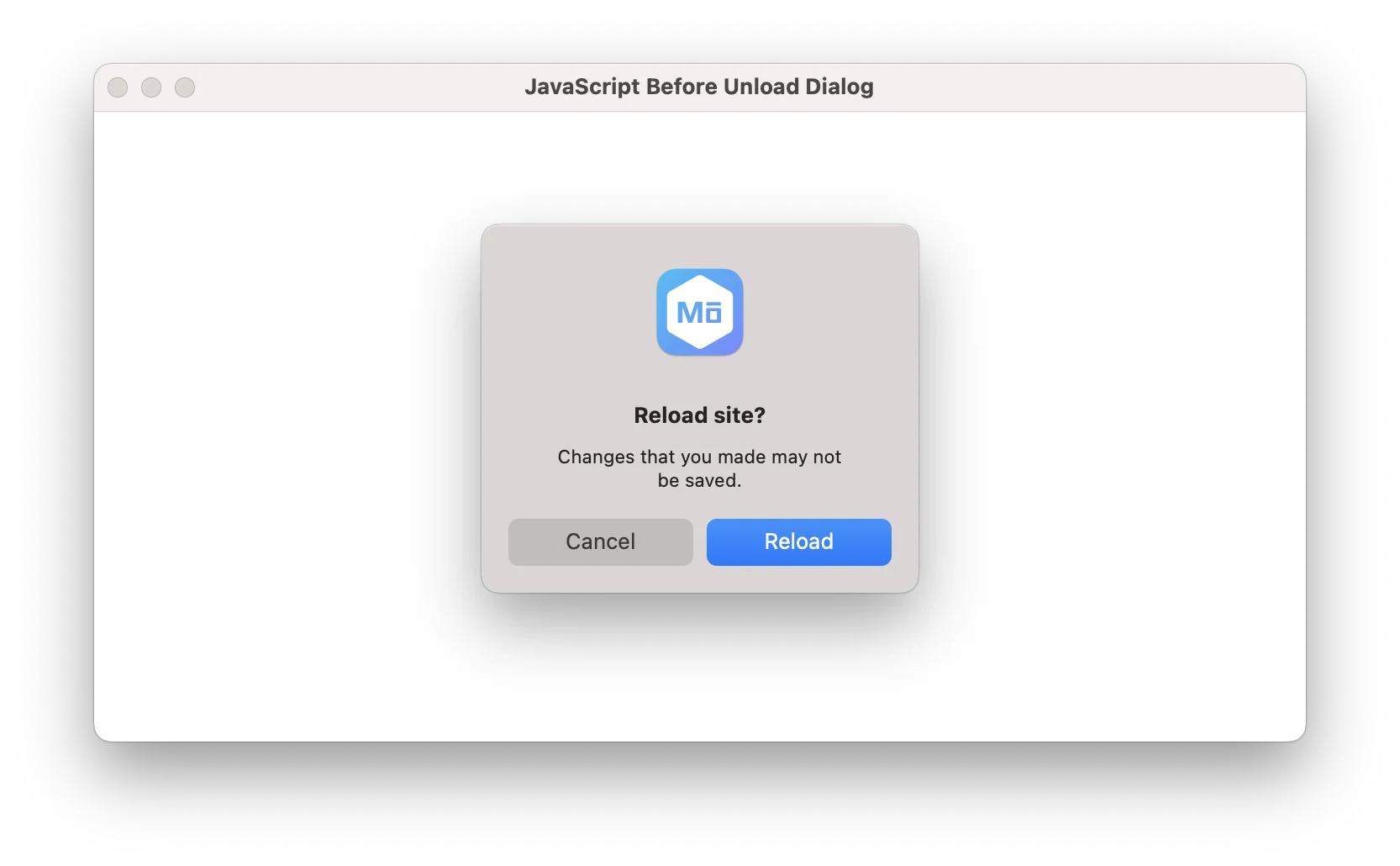
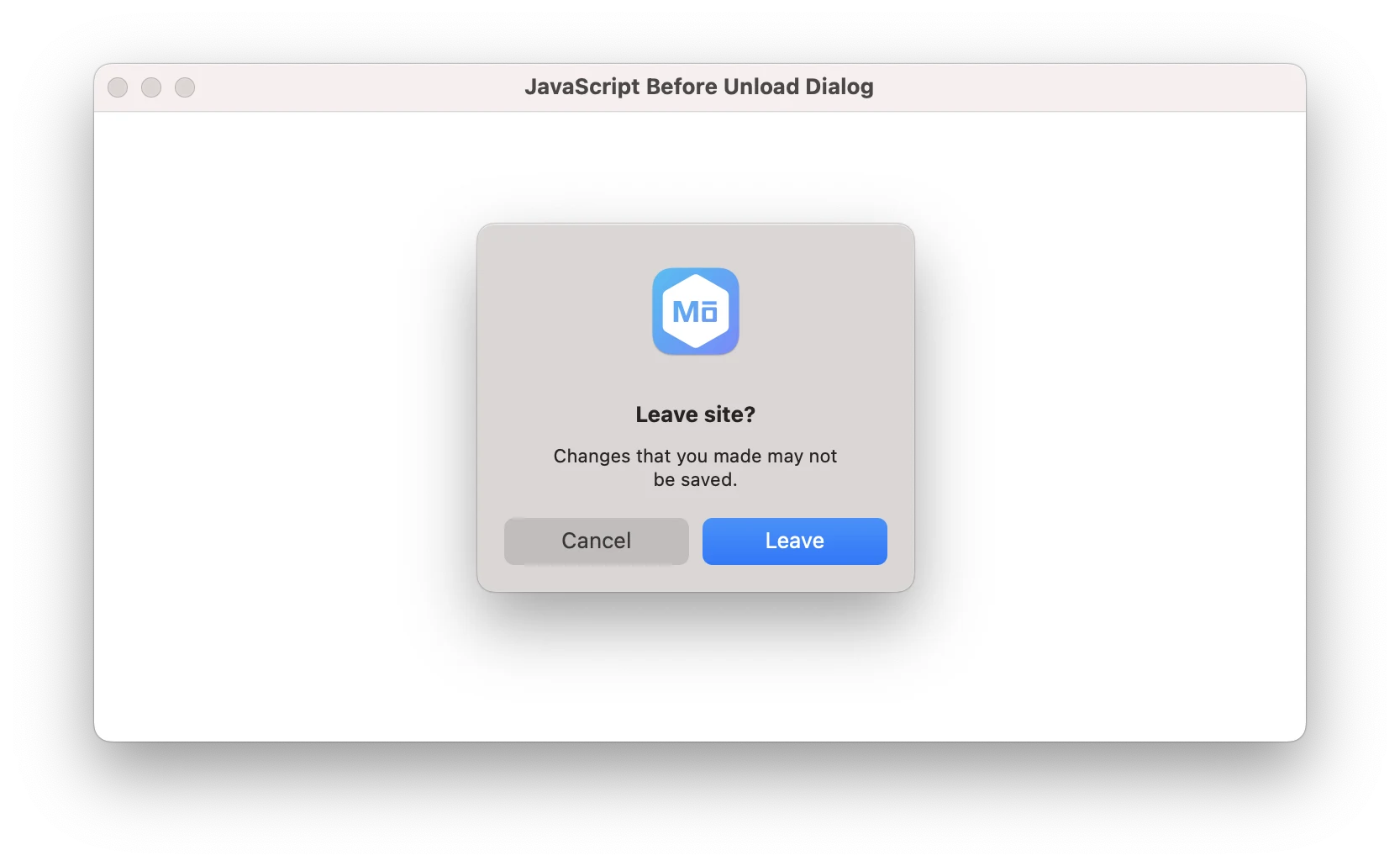
The before unload dialog is a simple confirmation dialog asking the user if they really want to leave the page. It has two buttons that the user can click to dismiss the dialog.
To show the before unload dialog, use the window.onbeforeunload event in JavaScript:
const beforeUnloadListener = (event) => {
  return (event.returnValue = "");
};
addEventListener("beforeunload", beforeUnloadListener, { capture: true });
The beforeunload event is fired when the currently loaded page is about to be unloaded. This event enables a web page
to trigger a confirmation dialog asking the user if they really want to leave the page. If the user confirms,
the browser navigates to the new page, otherwise it cancels the navigation.
If you just reload the page, the following dialog will be displayed:
If you close the browser window, the following dialog will be displayed:
Note: the confirmation will be skipped if the user has not performed a gesture in the frame or page since it was loaded. Pressing F5 in the page seems to count as user interaction, whereas pressing F5 with Chrome DevTools focused does not count as user interaction.
Before Form Repost
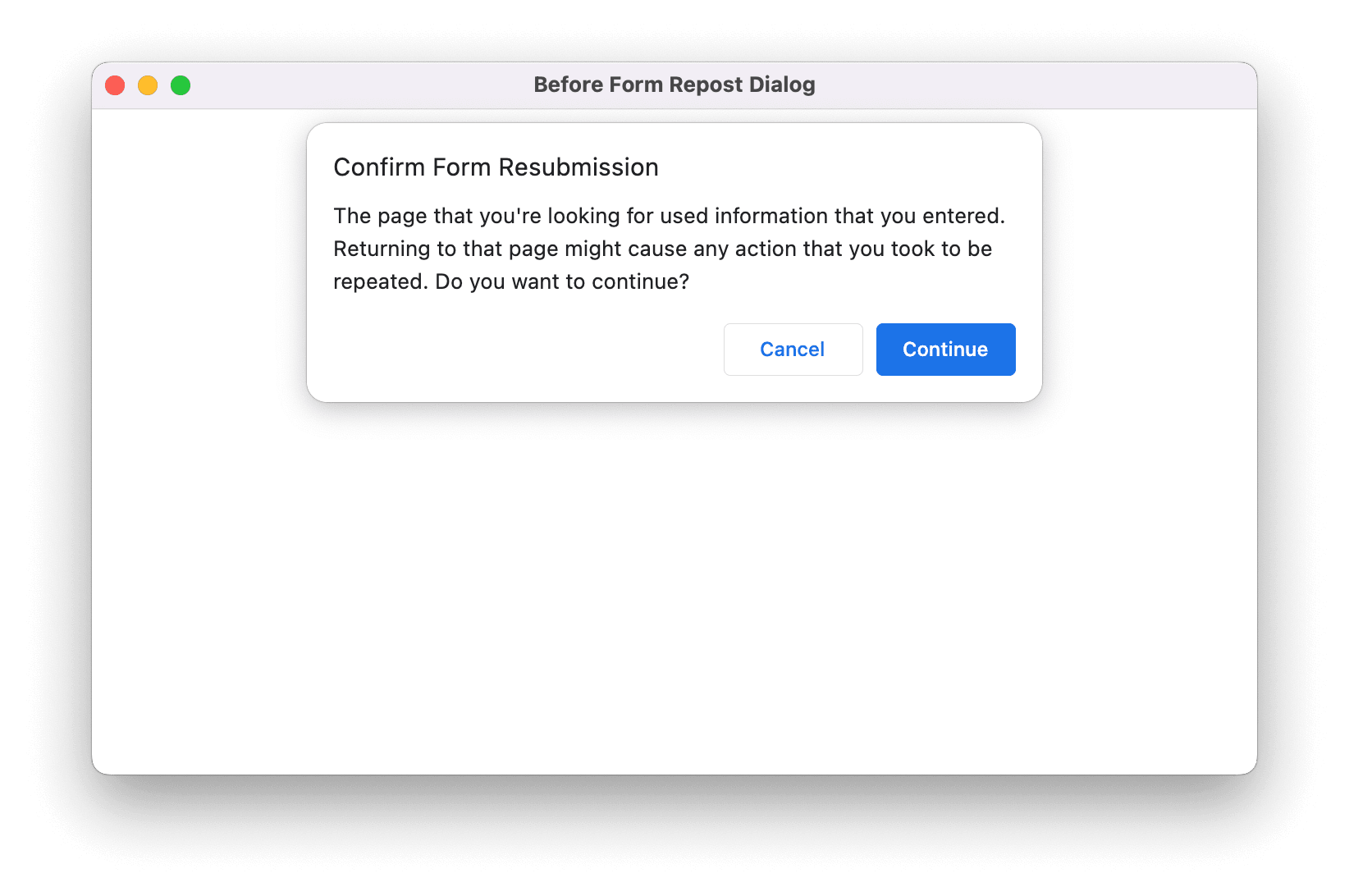
The before form repost dialog is a simple confirmation dialog asking the user if they really want to repost the form. It is shown when the user tries to reload the page after submitting a form.
The dialog will look like this:
Select Color
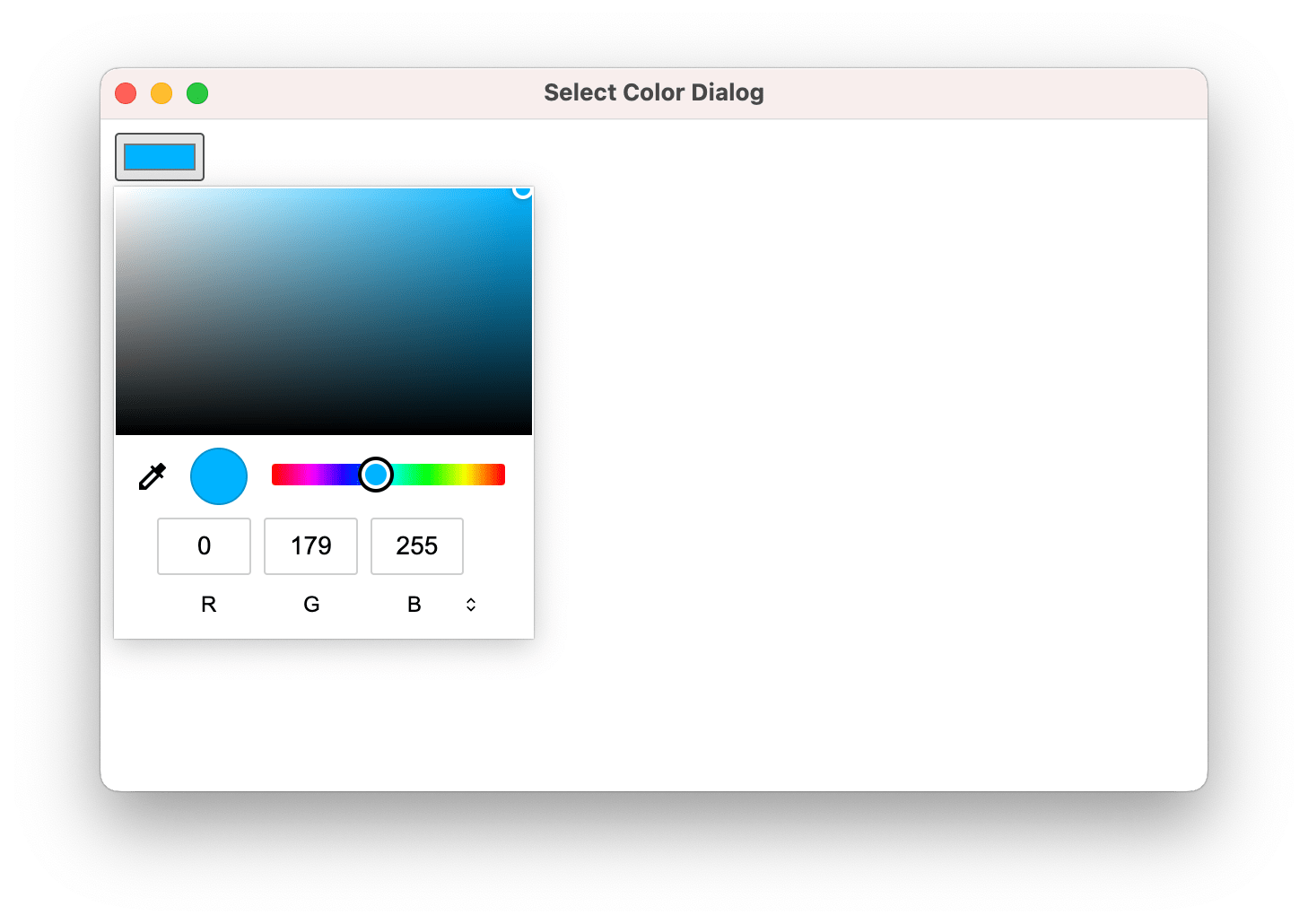
The select color dialog is a simple dialog that shows a color picker to the user. The dialog is shown when user clicks
the input element with the color type on the web page.
<input type="color" value="#ff0000">
The dialog will look like this:
Authenticate
The authenticate dialog is a simple dialog that shows a message to the user and asks them to enter their credentials. The dialog is shown when a web page wants to authenticate the user using the proxy, basic, digest or NTLM authentication.
The dialog looks like this:
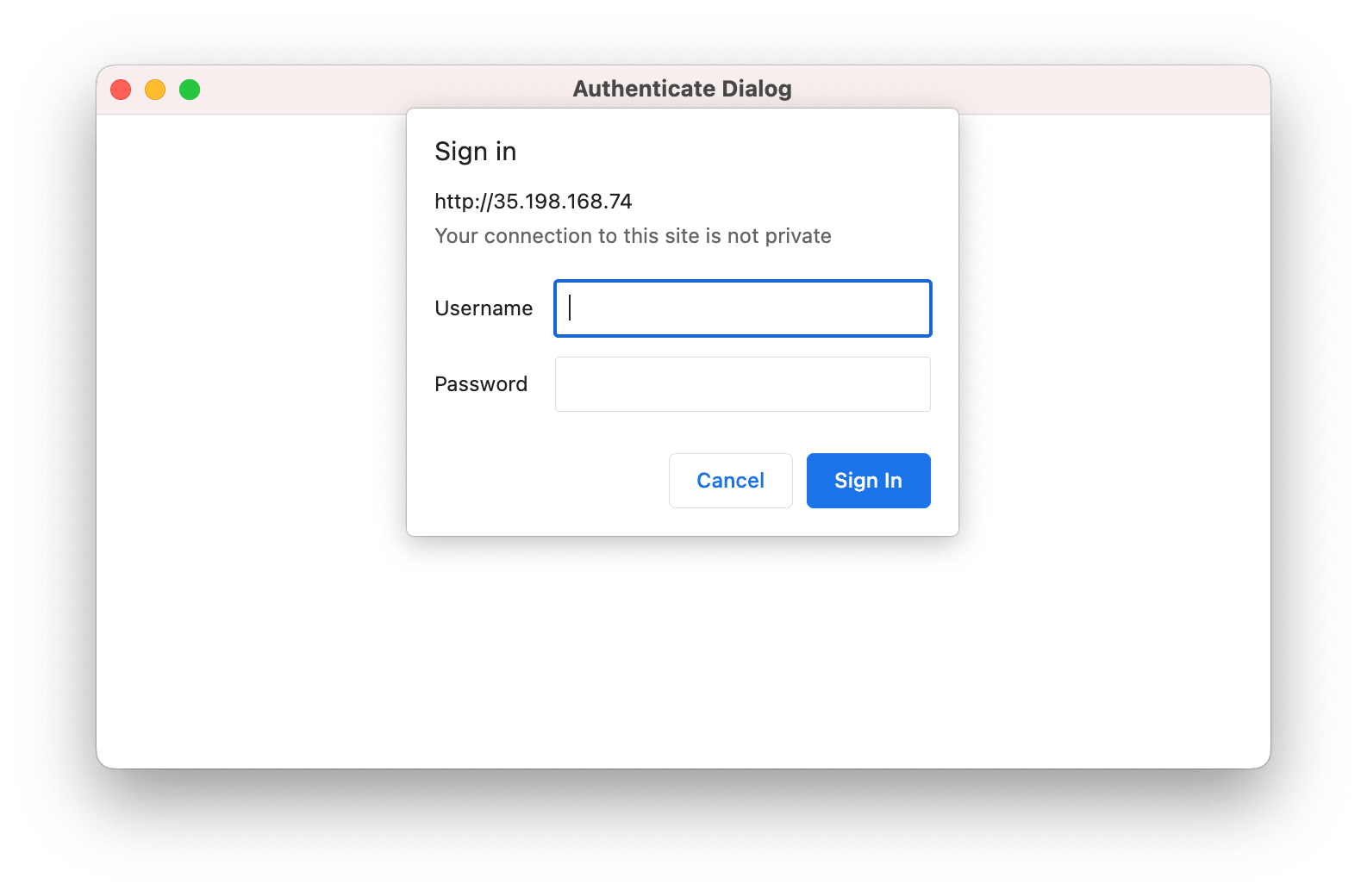
To suppress the authenticate dialog or to enter the credentials programmatically, use the approach described in the Authentication article.
Select Client Certificate
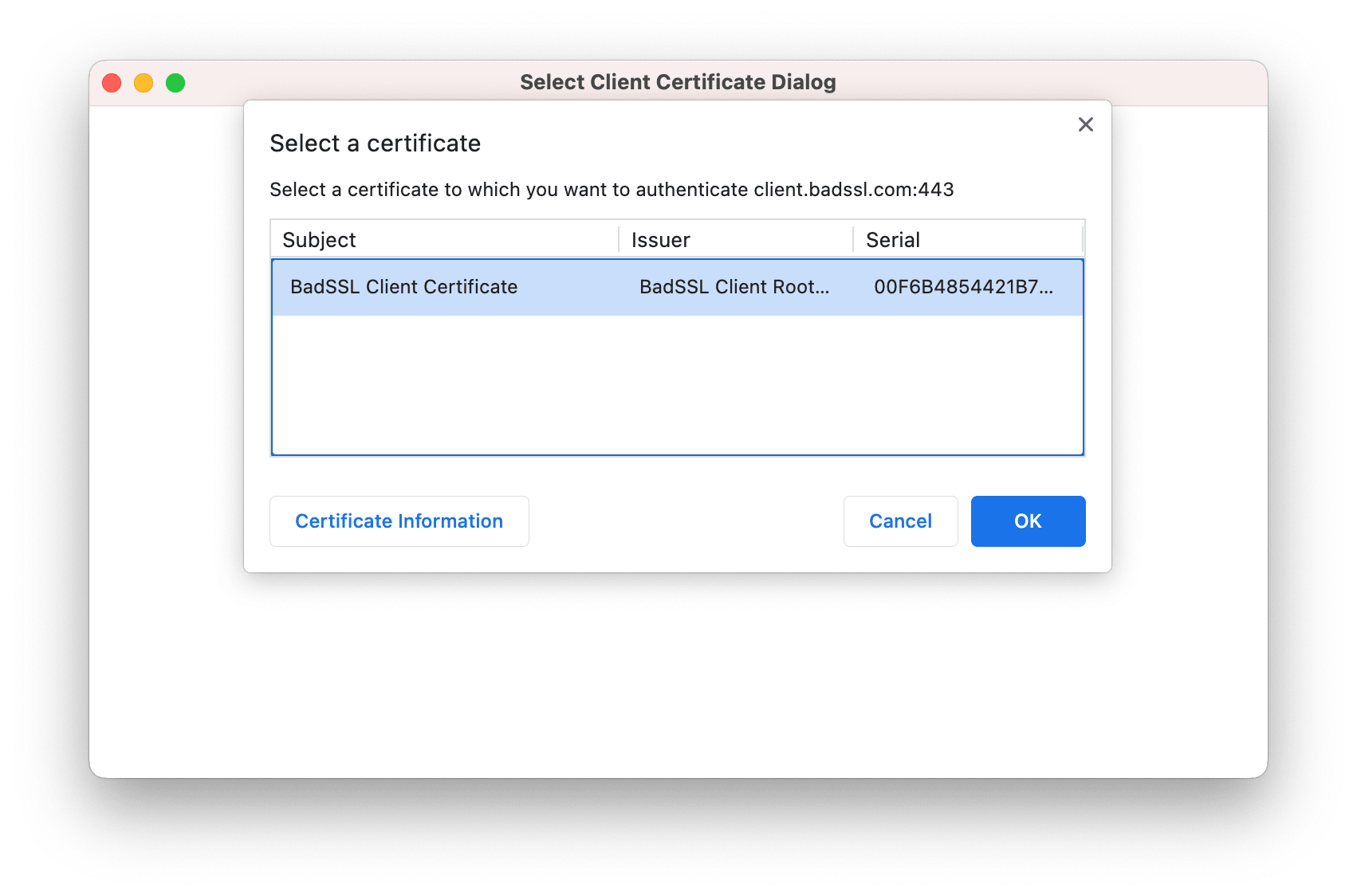
The select client certificate dialog is a simple dialog that shows a list of client certificates to the user. The dialog is shown when a web page wants to authenticate the user using the client certificate.
The dialog looks like this:
Open External Application
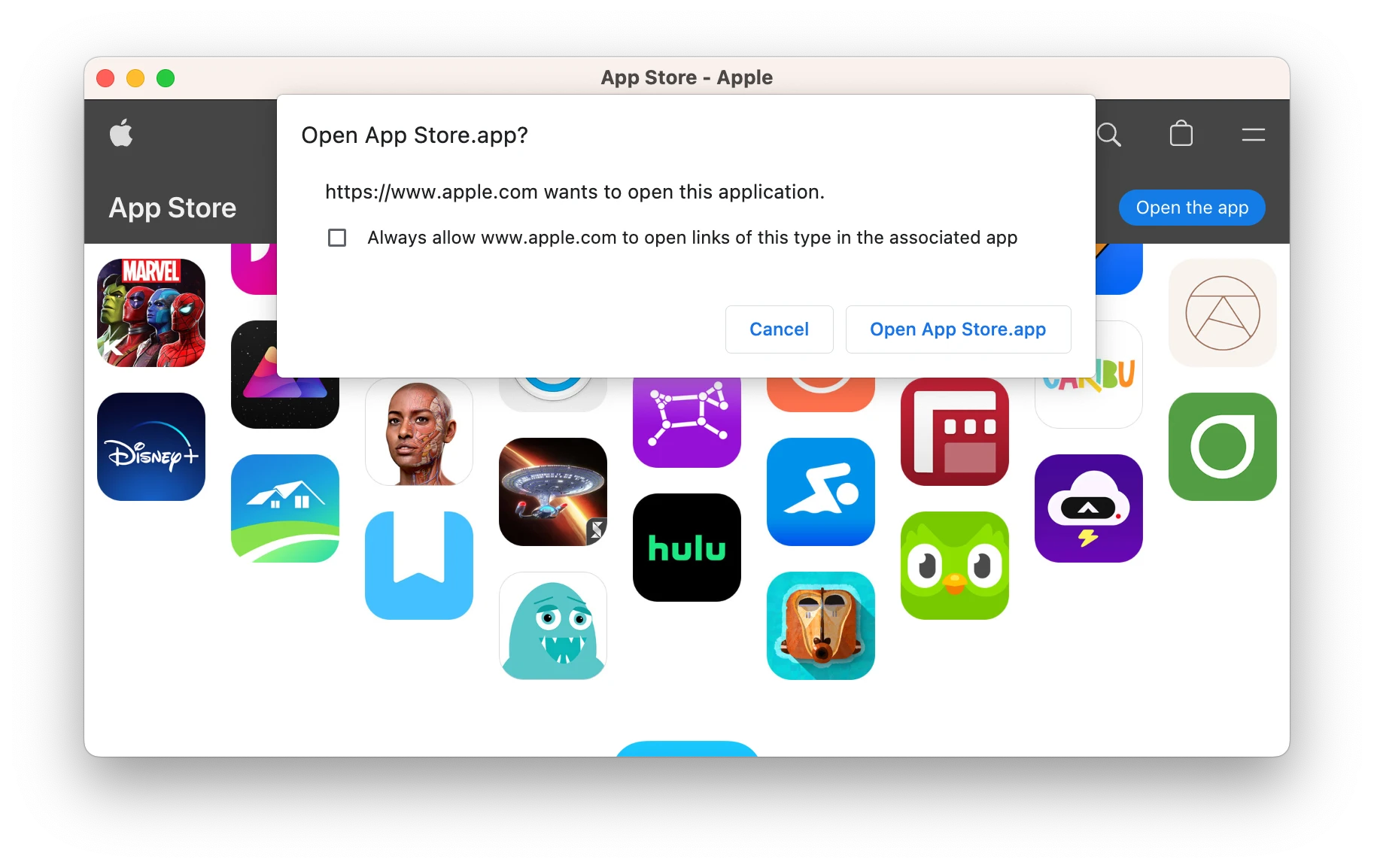
This dialog is shown when a web page wants to open a link in the associated external application. The dialog will look like this:
Print Preview
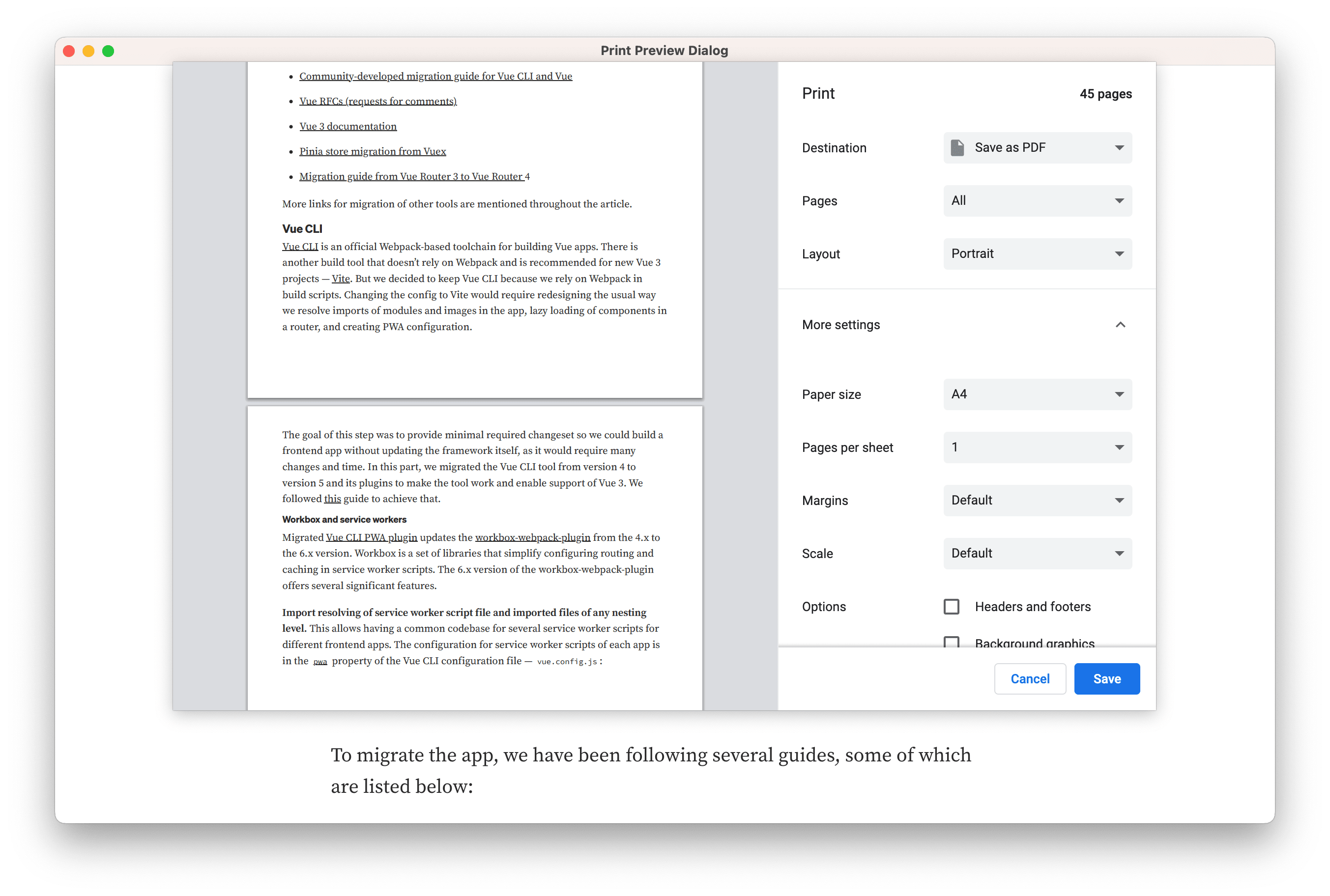
This dialog is shown when a web page wants to print its content.
To show the print preview dialog, use the window.print() function in JavaScript:
window.print();
The dialog will look like this on macOS:
Select Screen
This dialog is shown when a web page wants to select a screen or window to capture.
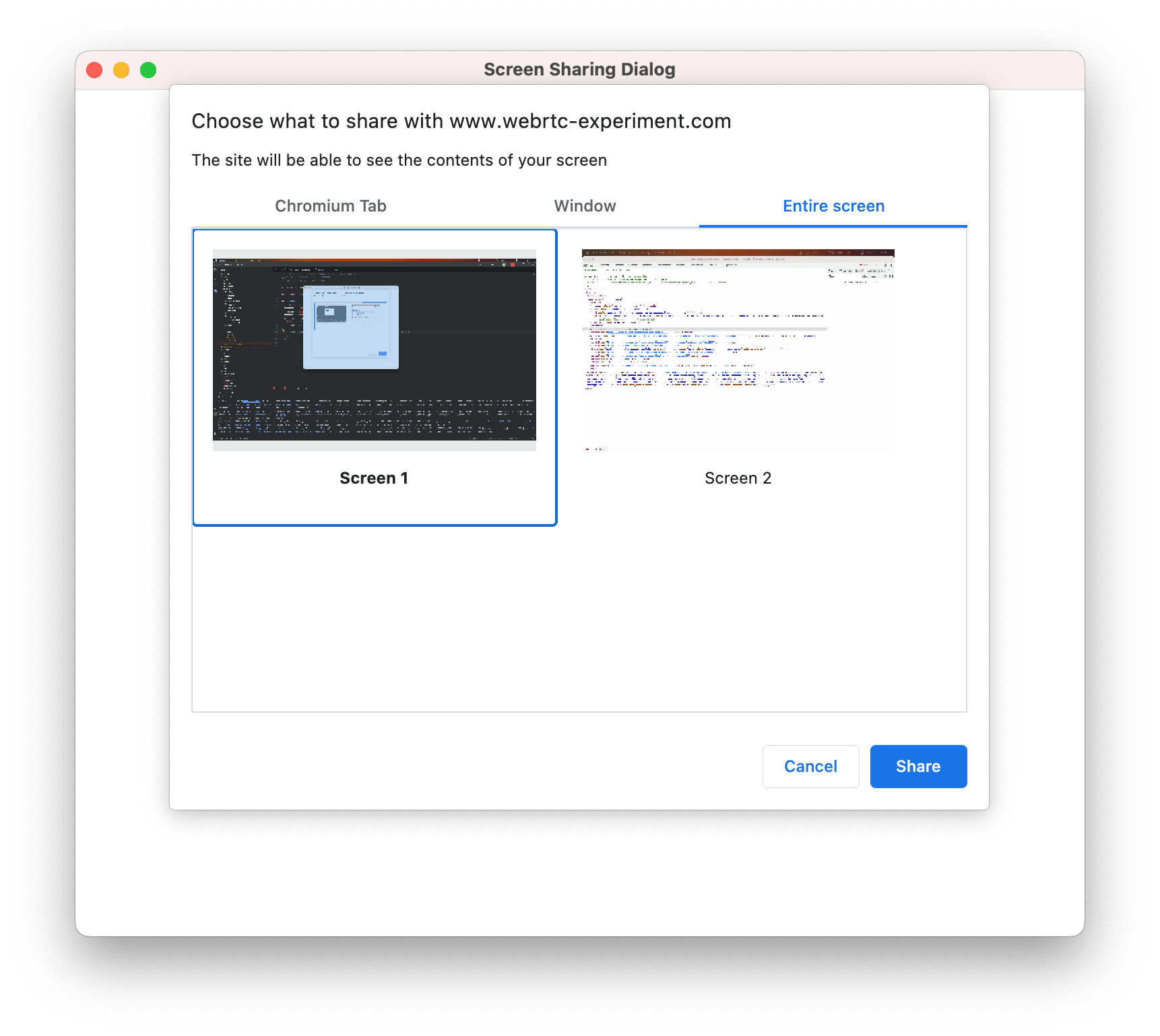
The dialog will look like this: