Packaging
Build native executables and create platform-specific installers for macOS and Windows.
Native executable
To build and package the application into a native executable for the current platform, open the project directory and run the following command in your command line:
npm run build
The native executable will be placed in the build/dist/<platform>-<arch>/bin directory. The build targets the architecture of the machine it runs on; on macOS you can also build for Intel.
Native installermacOSWindows
The framework allows you to create a native installer for macOS and Windows. To create a native installer for the current platform, run the following command:
npm run pack
The native installer will be placed in the build/dist/<platform>-<arch>/pack directory.
Packing successive versions
The pack directory keeps the packages produced for earlier application versions. When you increment app.version and run npm run pack again, MōBrowser uses those packages to generate delta updates automatically and rewrites releases.<arch>.json with every available version in the directory.
This means that a local release requires only the usual commands:
npm run build && npm run pack
Packaging stops before overwriting artifacts if:
- The same application version has already been packed.
- A release newer than the current application version is present.
- The configured installer name is already in use.
To pack the current version again and replace the artifacts that the command produces, use --force:
npm run pack -- --force
MōBrowser preserves packages for other versions when --force is used.
The command builds all artifacts in a temporary directory and moves them to the pack directory only after every step succeeds. If a step fails, for example code signing or notarization, the pack directory stays as it was, and you can run the command again after fixing the problem. With --force, the previous artifacts of the current version are replaced only when the new ones are ready.
Only one npm run pack can write to the same directory at a time. A second run that uses the same pack or --releases directory, for example an Apple Silicon and an Intel build packed into a shared releases directory, fails instead of waiting. Run such commands one after another.
Windows
On Windows your application is packaged into a set of binary files with a native executable and a native installer.
These files are placed in the following directories:
build/
|-- dist/
|   `-- win-x64/
|   |   `-- bin/
|   |   |   `-- locales/
|   |   |   `-- resources/
|   |   |   `-- <APP_EXECUTABLE_NAME>.exe
|   |   `-- pack/
|   |   |   `-- <APP_SETUP_NAME>-<APP_VERSION>.exe
|   |   |   `-- <PACKAGE_ID>-<APP_VERSION>-full.nupkg
|   |   |   |-- releases.win.json
The native installer in build/dist/<platform>-<arch>/pack represents a self-contained executable file that can be distributed to your users. The installer is built with Velopack.
You can customize the installer properties in mobrowser.conf.json. In the config file, there’s the app → bundle → Windows → installer → exe section where you can customize the installer name, icon, and other properties:
{
  "exe": {
    "name": "",
    "icon": "",
    "installationGif": "",
    "packageId": "",
    "installationFolderName": "",
    "displayName": "",
    "shortcuts": "",
    "deltaStrategy": ""
  }
}
Here’s the description of the installer properties:
| Property | Description |
|---|---|
name | The name of the installer file. If not specified, the name will be generated from the application name and version (e.g. App-1.0.0.exe). |
icon | The path to the installer icon. If not specified, the installer will have the system’s default icon. |
deltaStrategy | A strategy for generating delta packages:
|
installationGif | The path to the installation GIF. The installation GIF is displayed when the installer is running. If not specified, the user will see the default system dialog with a progress bar during installation. |
packageId | An identifier of the NuGet package by which the application is saved in the system. Used as the default folder name the application is installed under when installationFolderName is not set. If not specified, the application’s name without spaces is taken instead. |
installationFolderName | The name of the folder under %LOCALAPPDATA% where the application is installed. Unlike packageId, this value may contain whitespace and any other characters allowed by the file system, making it suitable as a human-readable installation folder name. If not specified, packageId is used as the installation folder name. |
displayName | The application name displayed in the system. Also, the same name is used for shortcuts. If not specified, the application’s name is used instead. |
shortcuts | A comma-separated list of shortcut locations.
Desktop,StartMenuRoot value is used. |
Important: Don’t forget to sign your application before distributing it. While not mandatory, code signing significantly enhances user trust and confidence in your application.
macOS
On macOS your application is packaged into an .app (application bundle) and a .dmg (Apple Disk Image) file.
These files are placed in the following directories:
build/
|-- dist/
|   `-- mac-arm64/
|   |   `-- bin/
|   |   |   `-- <APP_EXECUTABLE_NAME>.app
|   |   `-- pack/
|   |   |   `-- <APP_NAME>-<APP_VERSION>-<ARCH>.dmg
The application bundle is a directory with the executable file and all the resources needed to run the application. The application bundle is a self-contained directory that can be moved around the file system without breaking the application.
The DMG file is a disk image that contains the application bundle. The DMG file is a self-contained file that can be distributed to your users. This is the recommended way to distribute your application on macOS.
In mobrowser.conf.json, there’s the app → bundle → macOS → installer → dmg section where you can customize DMG properties:
{
  "dmg": {
    "name": "",
    "volumeName": "",
    "volumeIcon": "assets/app.icns",
    "eula": "",
    "deltaStrategy": "BestSize",
    "window": {
      "textSize": 14,
      "skipPrettifying": false,
      "backgroundImage": "",
      "position": {
        "x": 500,
        "y": 400
      },
      "size": {
        "width": 600,
        "height": 400
      },
      "icon": {
        "size": 150,
        "position": {
          "x": 160,
          "y": 160
        }
      },
      "appDropLink": {
        "x": 430,
        "y": 160
      }
    }
  }
}
Here’s the description of the DMG properties:
| Property | Description |
|---|---|
name | The name of the DMG file. If not specified, the name will be generated from the application name, version, and the current architecture (e.g. App-1.0.0-arm64.dmg). |
volumeName | The name of the volume that will be displayed in the Finder sidebar. If not specified, the name will be generated from the application name. |
volumeIcon | The path to the volume icon. If not specified, the standard volume icon will be used. |
eula | The path to the End User License Agreement (EULA) file. The text from this file will be displayed in the modal dialog that will be shown when opening DMG. In this modal dialog the user must accept or decline the license agreement. If not specified, the license agreement dialog will not be shown. |
window.textSize | The size of the text in the DMG window. |
deltaStrategy | A strategy for generating delta packages:
|
window.skipPrettifying | If true, the DMG window will not be prettified (the DMG window customization will be skipped). You might want to skip prettifying in macOS environments where there’s no logged-in user (e.g. CI build agent). |
window.backgroundImage | The path to the background image. If not specified, the DMG window will not display a background image. |
window.position | The position of the DMG window on the main screen. |
window.size | The size of the DMG window in points. |
window.icon.size | The size of the application icon in the DMG window. |
window.icon.position | The position of the application icon in the DMG window. |
window.appDropLink | The position of the application drop link in the DMG window. |
Here’s how the DMG window looks like by default:
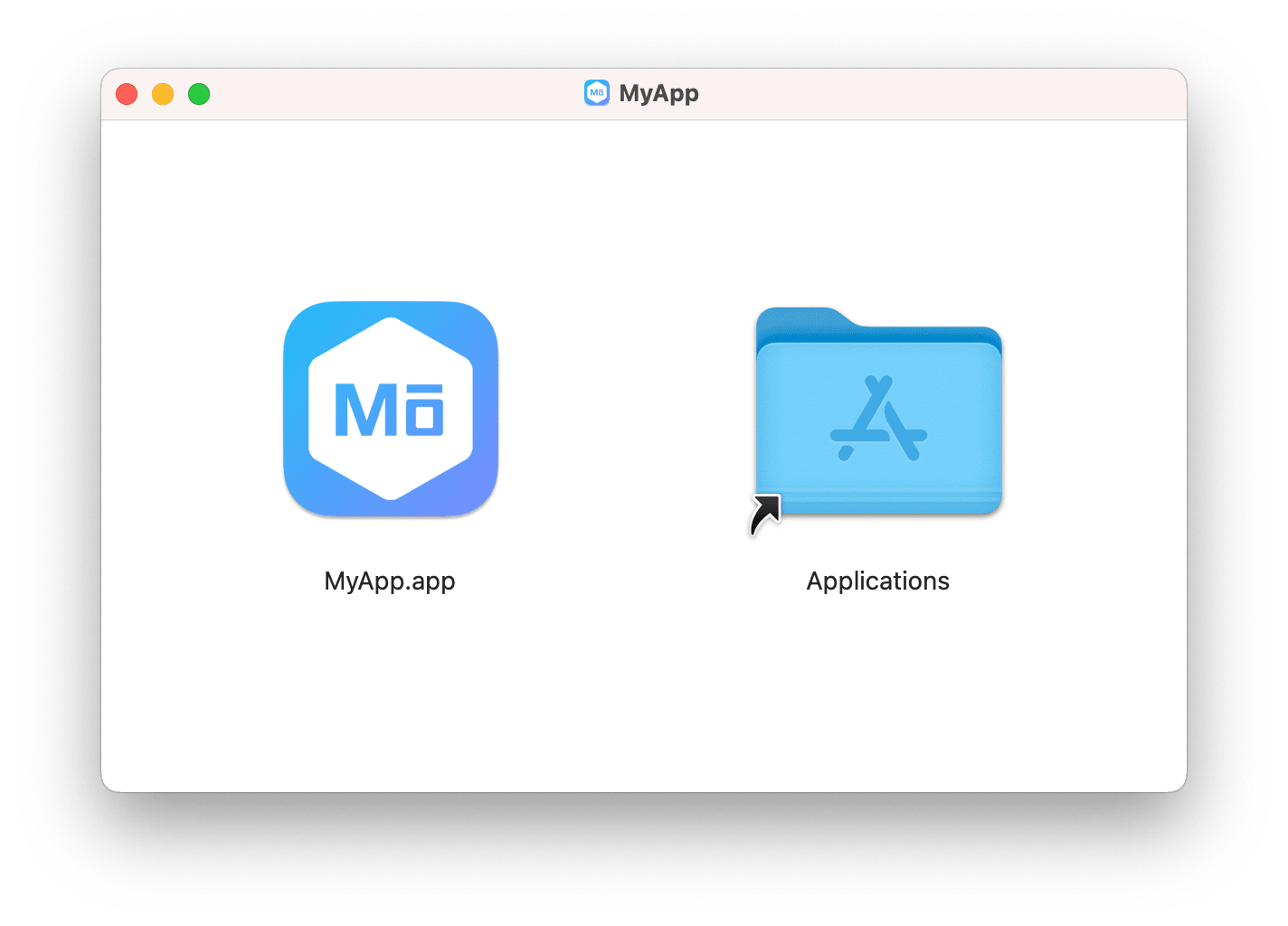
Important: Don’t forget to sign and notarize your macOS application before distributing it. On macOS Catalina and later Gatekeeper enforces applications to be signed and notarized. Otherwise, users won’t be able to run it.
Intel and Apple Silicon
Both commands target the architecture of the machine they run on. Add the --x64 flag to build for Intel instead:
npm run build -- --x64
npm run pack -- --x64
An Apple Silicon Mac cross-builds for Intel this way, pulling in the Intel SDK package on the first --x64 build. The reverse isn’t possible — an Intel Mac can’t build for Apple Silicon — which is why there is no --arm64 flag.
Important: An Intel build does not run on Apple Silicon under Rosetta. Running Chromium under translation is neither tested nor maintained upstream and is known to crash in unpredictable ways, so Chromium’s bundles declare LSRequiresNativeExecution — a key MōBrowser inherits — telling macOS the application must execute natively. Launch Services therefore refuses to translate it and shows a dialog instead: You can’t open the application because this application is not supported on this Mac. Apple Silicon users need the Apple Silicon build.
Each architecture is written to its own directory, so the two builds never overwrite each other:
build/
|-- dist/
|   `-- mac-arm64/
|   |   `-- bin/
|   |   |   `-- <APP_EXECUTABLE_NAME>.app
|   |   `-- pack/
|   |   |   `-- <APP_NAME>-<APP_VERSION>-arm64.dmg
|   `-- mac-x64/
|   |   `-- bin/
|   |   |   `-- <APP_EXECUTABLE_NAME>.app
|   |   `-- pack/
|   |   |   `-- <APP_NAME>-<APP_VERSION>-x64.dmg
If your application has a native module, it is compiled for the target architecture too, in a separate build directory per architecture.
SBOM generation
You can generate a target-specific Software Bill of Materials (SBOM) for your application in CycloneDX 1.7 JSON format:
npm run sbom
The application is the subject of the SBOM. The document inventories the runtime components for the current target, including:
- Chromium.
- MōBrowser native and third-party dependencies.
- Velopack runtime components.
- Installed production npm dependencies, including compatible optional, peer, bundled, and transitive dependencies.
Dependencies used only for development, building, packaging, or testing are excluded. MōBrowser verifies the supplied component inventories and validates the combined document before publishing it. If an inventory is missing, stale, incompatible, corrupt, or conflicting, generation fails without leaving a partial output.
Chromium and Velopack components are identified with authoritative versions and Package URLs (PURLs) when that metadata is available. Placeholder values such as git, master, and None are not reported as versions. Components without authoritative upstream metadata remain versionless or without a PURL.
The command writes one JSON document and its SHA-256 checksum to:
build/dist/<target>/sbom/
SBOM generation is explicit. npm run build and npm run pack do not generate, update, or remove the SBOM.
Note: Projects created with an earlier MōBrowser version might not have the sbom script in package.json. In those projects, run npm run mobrowser sbom instead.
Custom Info.plist keysmacOS
On macOS, every application bundle has an Info.plist file that declares its metadata to the system. You can inject your own keys into it by providing an absolute or relative path to your Info.plist file in the app.bundle.macOS.extraInfo property in mobrowser.conf.json.
The keys declared in your Info.plist file will be merged into the final bundle’s Info.plist. If a key already exists, your value overrides the default.
{
  "app": {
    "bundle": {
      "macOS": {
        "extraInfo": "assets/extra-info.plist"
      }
    }
  }
}
The referenced file must be a valid property list with a dictionary at its root:
<?xml version="1.0" encoding="UTF-8"?>
<!DOCTYPE plist PUBLIC "-//Apple//DTD PLIST 1.0//EN" "http://www.apple.com/DTDs/PropertyList-1.0.dtd">
<plist version="1.0">
  <dict>
    <key>NSSpeechRecognitionUsageDescription</key>
    <string>The app needs speech recognition for dictation.</string>
    <key>CFBundleDocumentTypes</key>
    <array>
      <dict>
        <key>CFBundleTypeName</key>
        <string>Text Document</string>
        <key>CFBundleTypeRole</key>
        <string>Editor</string>
        <key>LSItemContentTypes</key>
        <array>
          <string>public.plain-text</string>
        </array>
      </dict>
    </array>
  </dict>
</plist>
Third-party resources
In mobrowser.conf.json, you can set the extras property to an array of paths and wildcards that match the files and folders you want ship with your application. You can define this property for each platform individually.
The files and folders that match the paths and wildcards will be copied into the application resources directory:
- On macOS the directory is located in
<AppName>.app/Contents/Resources/. - On Windows and Linux the resources directory is located in the root directory of the packaged application.
| Entry type | Example | Behavior |
|---|---|---|
| File | path/defaults.json | Copies a single file. |
| Directory | path/assets | Copies a directory. |
| Directory content | path/assets/ | Copies content of the directory. |
| Wildcard | path/schemas/*.json | Matches files in a directory. Wildcards are allowed only in the file name segment, not in directory components (e.g. docs/*.md is valid; wildcards across path segments are not). |
{
  "app": {
    "bundle": {
      "macOS": {
        "extras": [
          "config/defaults.json",
          "static/assets",
          "../shared/schemas/*.json"
        ]
      }
    }
  }
}
Paths in each string can be a relative to the project root or an absolute path.
Custom destination & signing
If you want to put a file or a directory at a specific location inside the packaged application, you can use an object with the from, to, and an optional sign flag. For example:
{
  "app": {
    "bundle": {
      "Windows": {
        "extras": [
          {
            "from": "native/x64/lib.dll",
            "to": "lib/x64/lib.dll",
            "sign": true
          },
          {
            "from": "images/win/",
            "to": "resources/images"
          }
        ]
      }
    }
  }
}
Here’s the description of the properties:
| Property | Description |
|---|---|
from | Source path: a file or directory, relative to the project root or absolute. |
to | Destination path inside the packaged application. On macOS, this is relative to the Contents directory of the .app bundle. |
sign | Optional, default false. If true, the copied file or directory is code-signed. For directories, signing walks the tree: on macOS, all Mach-O binaries and code bundles under the destination are signed; on Windows, .exe, .dll and .node files. |
Native Node modules
Some npm packages cannot be bundled by Vite or rolldown — for example, packages that load native .node add-ons at runtime. To bundle these packages inside your application, add their package names to the nodeModules array under app in mobrowser.conf.json:
{
  "app": {
    "nodeModules": ["sqlite3"]
  }
}
During build, each listed package is copied verbatim from your project’s node_modules into <app-resources>/app/node_modules next to the built JavaScript. If you code-sign the application on macOS or Windows, any unsigned .node add-ons from those packages are signed as part of that step; add-ons that are already signed are left unchanged.