Quickstart
Create and run your first desktop application in a few minutes.
It’s perfect for the developers who are trying out MōBrowser for the first time. It walks you through the process of creating a project, installing dependencies, building and running the app, and packaging it into a native executable for distribution.
Prerequisites
- Windows 10 (64-bit) or later.
- Node.js 24.14.1 (LTS) or later.
- macOS 14 (Apple Silicon) or later.
- Node.js 24.14.1 (LTS) or later.
- Ubuntu 22.04 (64-bit) or later.
- Node.js 24.14.1 (LTS) or later.
If you add a native module to the project, you also need a C++ compiler or Rust. See Native C++ Module and Native Rust Module.
Creating a MōBrowser app
Make sure your current working directory is the one where you intend to create a project. Run the following command in your command line:
npm create mobrowser-app@latest
This command will install and execute our official project scaffolding tool. It asks for the project name, whether to add a native module, and whether to initialize a Git repository:
✔ Project name: App
✔ Add a native module? No
✔ Initialize a Git repository? Yes
The tool creates a React and TypeScript project with shadcn/ui components, installs its dependencies, and runs code generation. The project comes with instructions and skills for AI coding agents, so you can build your app with Claude Code, Codex, Cursor, or another agent.
If you created a repository on GitHub and cloned it, run the tool inside the clone to create the project at the repository root. See Git repository.
When the project is ready, the tool offers to open it in a coding agent or IDE installed on your machine:
? Open it in a coding agent/IDE: (Use arrow keys)
❯ ChatGPT Desktop (Codex)
  Claude Code
  Claude Desktop
  Codex
  Cursor
  VS Code
  No
Choose one, or choose No to see how to run the app. To run your first MōBrowser app, go to the project directory and start it in development mode:
cd App
npm run dev
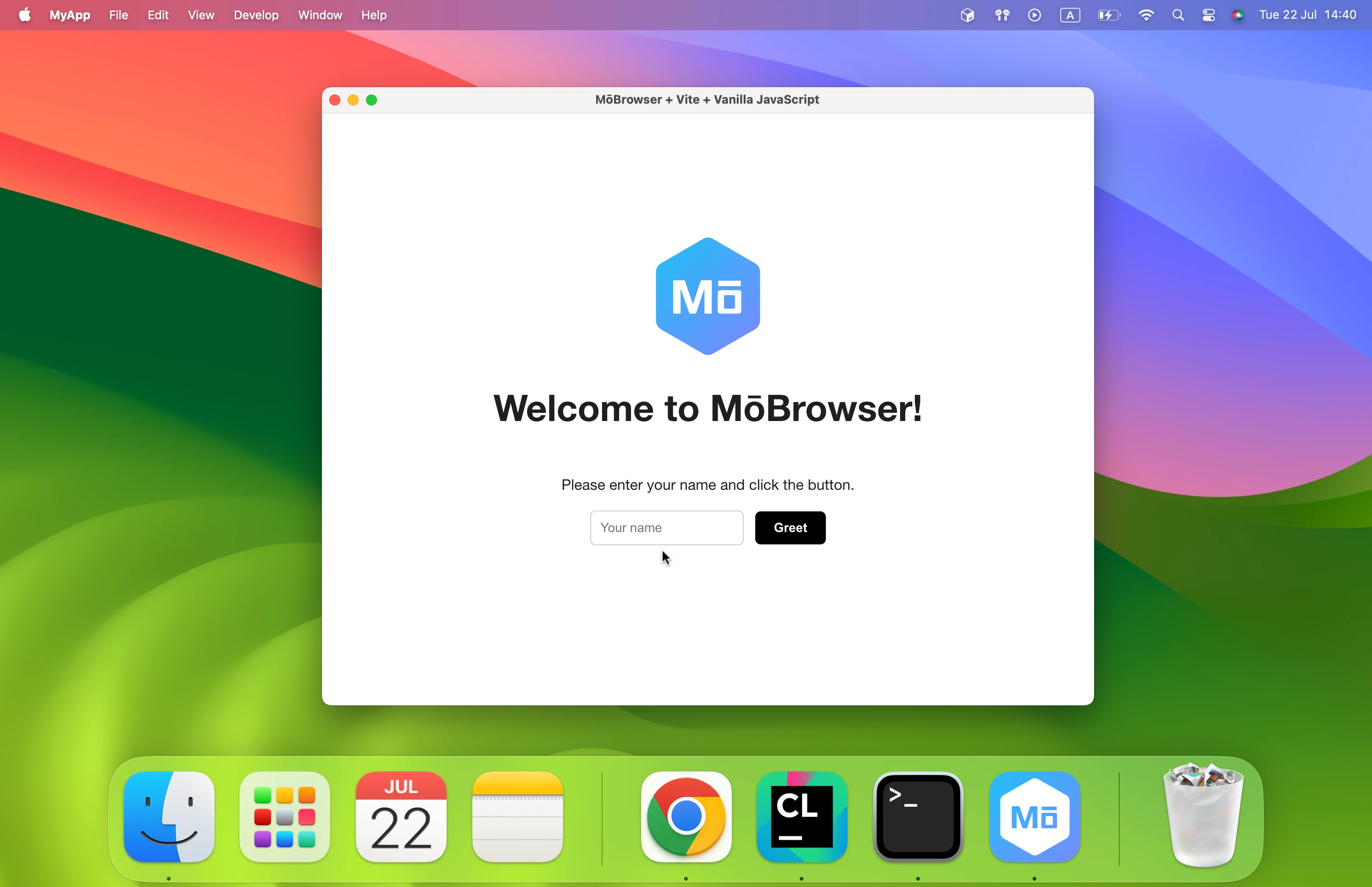
You should now have your first MōBrowser app running!
When you are ready to ship your app to production, run the following:
npm run build
This command will build your application into a native executable and place it in the
project’s build/dist/<platform>-<arch>/bin directory.
To create a native installer for the current platform, run the following command:
npm run pack
The native installer will be placed in the
build/dist/<platform>-<arch>/pack directory.
Next steps
You have now created a simple desktop application from scratch. We recommend reading about the core ideas and architecture of the framework or extend your app with advanced desktop features.